

License teams
As a tenant owner or administrator, open Administration → License Teams to view your tenant’s teams. Search by name across all teams, then use Load more license teams to see additional matching results. Changing the search starts a new result list.
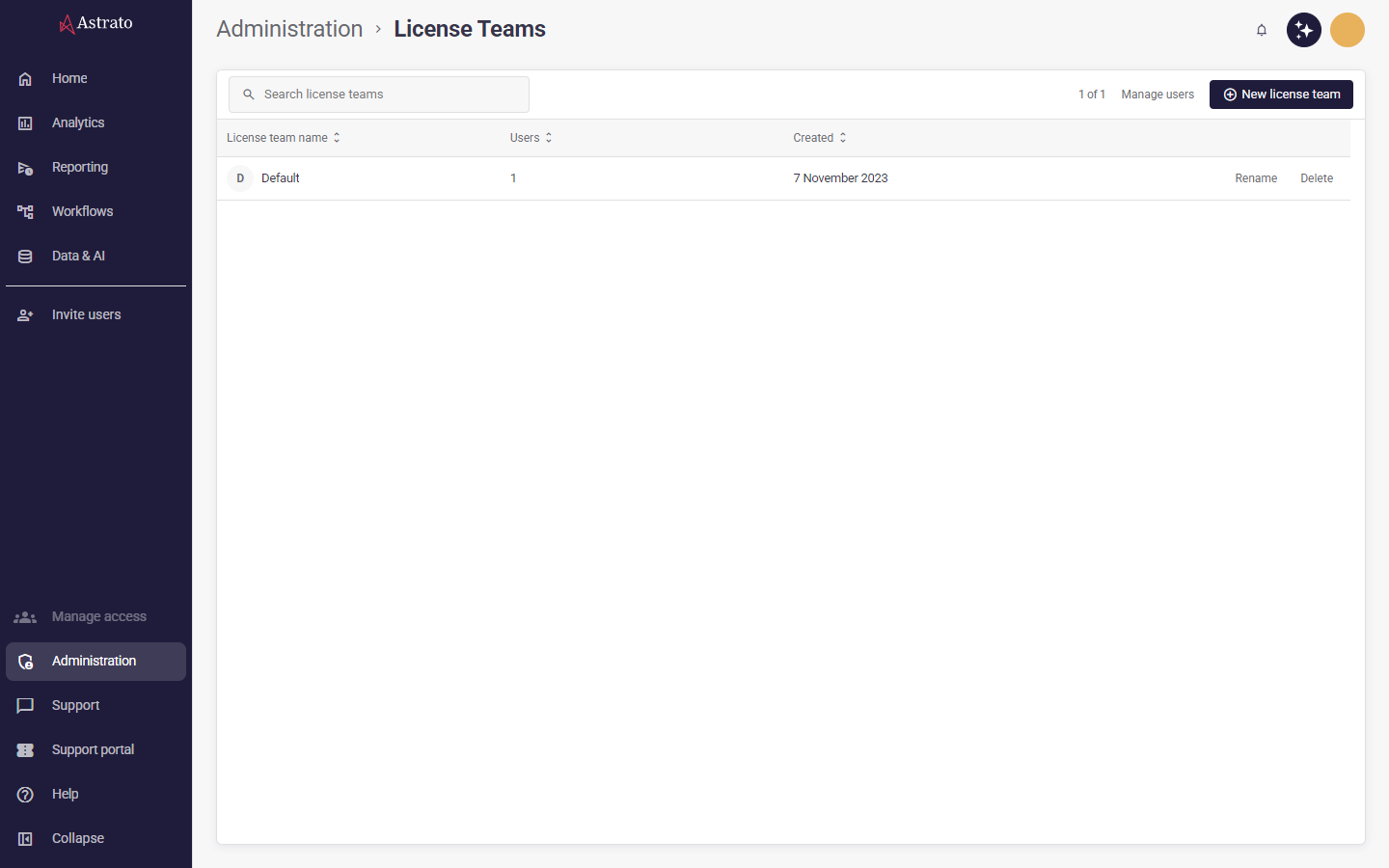
Select a team to see its seat and credit figures and assigned users. If the user list cannot be loaded completely, the panel reports that it is unavailable instead of showing a partial list.
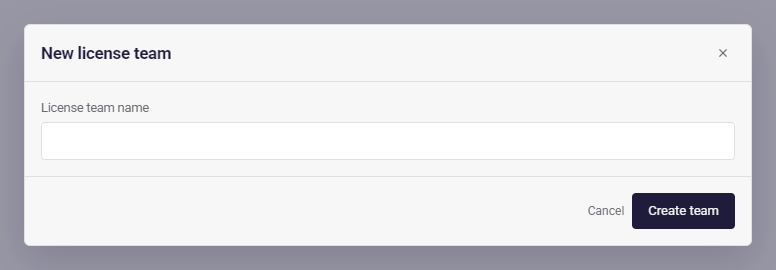
Use New license team to create a team or Rename to change its name. Names must be between 2 and 200 characters after surrounding spaces are removed. A team must have no users before you can delete it; Manage users opens the Users section. If the team’s user count or the complete team list cannot be verified, or the team is no longer in that list, deletion stops.
Recover a user’s license team
Section titled “Recover a user’s license team”In Administration → Users, assign a valid license team when an account shows No license team or Team unavailable. You can assign the team from the user’s row or properties panel. When a previous team membership exists, assignment restores its enabled or disabled state and license type. Otherwise, the account is assigned as Disabled with consumption licensing. Enable it separately when access is intended.
After assignment, reload Administration to verify the saved team. If existing memberships have conflicting access or license settings, assignment stops until those records have been reconciled. Changing a user’s license type does not change their assigned team.