

Administrator or above
Set up single sign-on with Keycloak
This guide covers the Keycloak side of single sign-on: creating a client for Astrato in your realm and collecting its credentials. It then hands back to the Astrato steps, which are the same for every provider.
Before you start
Section titled “Before you start”- You meet the requirements in Set up single sign-on, and have read Do not lock yourself out.
- You can manage clients in the Keycloak realm your people sign in to.
- Your Keycloak server is reachable from the internet, because Astrato connects to it to complete each sign-in.
- The people who will sign in have an email address on their Keycloak user. Astrato identifies people by email.
Values you will bring back to Astrato
Section titled “Values you will bring back to Astrato”| Astrato Setup field | Where it comes from in Keycloak |
|---|---|
| Issuer URL | https://<keycloak-host>/realms/<realm>. Keycloak versions before 17 add /auth: https://<keycloak-host>/auth/realms/<realm> |
| Client ID | The Client ID you give the client |
| Client secret | Client Secret on the client’s Credentials tab |
| Identity provider domains | The email domains your people sign in with, for example example.com |
Copy the callback URLs from Astrato
Section titled “Copy the callback URLs from Astrato”-
In Astrato, open Administration → Enterprise Connection and stay on Login connections.
-
Select Add connection and choose Keycloak in Select a Login provider.
-
Leave the Configuration tab open. It lists two callback URLs, the sign-out redirect URL and the scopes
openid profile email.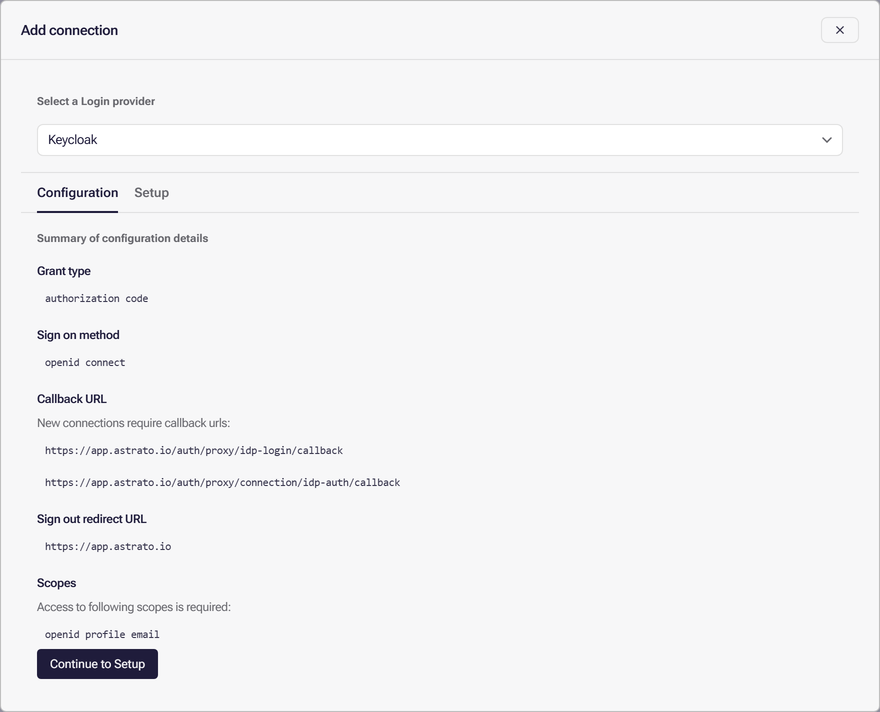
Create the client in Keycloak
Section titled “Create the client in Keycloak”- In the Keycloak admin console, switch to your realm and open Clients, then select Create client.
- Keep OpenID Connect as the Client type, enter a Client ID such as
astrato, and select Next. - Turn Client authentication on and keep Standard flow ticked. Select Next.
- In Valid redirect URIs, add both callback URLs from Astrato’s Configuration tab. In Valid post logout redirect URIs, add the sign-out redirect URL.
- Select Save.
- Open the client’s Credentials tab and copy the Client Secret.
Keycloak’s own guide to these screens is the Server Administration Guide.
Every user in the realm can sign in through the client unless you restrict it in Keycloak.
Finish in Astrato
Section titled “Finish in Astrato”Go back to the Add connection dialog and select Continue to Setup. Fill in the values from the table above, then follow the rest of Set up the connection, Verify the connection and Test a normal sign-in.
If sign-in fails
Section titled “If sign-in fails”| What you see | Likely cause | What to do |
|---|---|---|
| Keycloak reports an invalid redirect URI | A callback URL is missing from Valid redirect URIs, or differs from Astrato’s | Add both callback URLs from Astrato’s Configuration tab, exactly as shown |
| Verification cannot reach the provider | The issuer has the wrong realm name, or is missing or has an extra /auth |
Open the issuer with /.well-known/openid-configuration added to check it |
| Keycloak signs the user in, but Astrato does not | The Keycloak user has no email address | Add an email address to the user |
For errors on the Astrato side, see Common errors.
What next
Section titled “What next”- Test a normal sign-in before you clear Allow users outside the identity provider domain to sign in without SSO.
- Sync groups and roles from your provider