

When a data connection will not validate
This page is for when Validate Connection or Save connection does not work in Data & AI → Data Connections, or a connection that used to work stops loading data. Find the message you see, then follow the fix.
Before you start: note the exact words in the panel, and which source you chose. If you cannot see New connection at all, start with New connection is missing.
Validate Connection fails
Section titled “Validate Connection fails”When validation fails, an error notice appears at the bottom of the panel. Its first line depends on how the source answered:
| First line of the notice | What it usually means |
|---|---|
| “Connection validation failed: the source refused the credentials or sign-in.” | The source was reached but turned down the username, password, key, token or sign-in |
| “Connection validation failed: the source did not respond in time.” | The source was too slow to answer, or something on the network path dropped the request |
| “Connection validation failed: the data engine could not complete the check.” | Astrato’s data engine hit an error while running the test; the source message, if any, says why |
| “Connection validation failed. Check the settings and sign-in.” | A setting was rejected |
| “The connection request could not be completed. Check your network and sign-in.” | The test got no answer at all within its time limit, or your browser could not reach Astrato to run it |
Below that line the notice lists details: the HTTP status, usually a line starting
“Source message:” with the database’s own error, and the step that failed, such as “Testing the
connection”. Anything you typed as a password, key or token is replaced with
[credential removed]. Read the source message first: it usually names the problem. Copy
details copies the lot, for a support request.
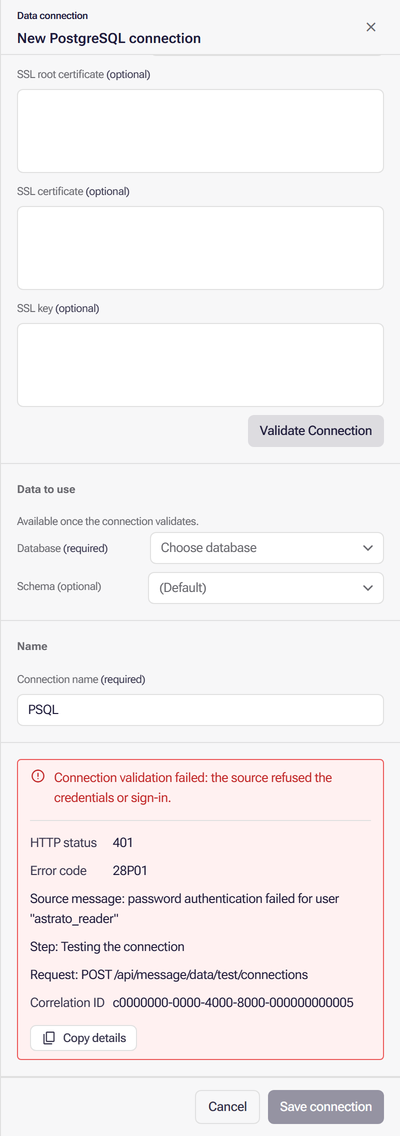
If the source message does not make the cause clear, work through these checks in order; the first ones cause most failures.
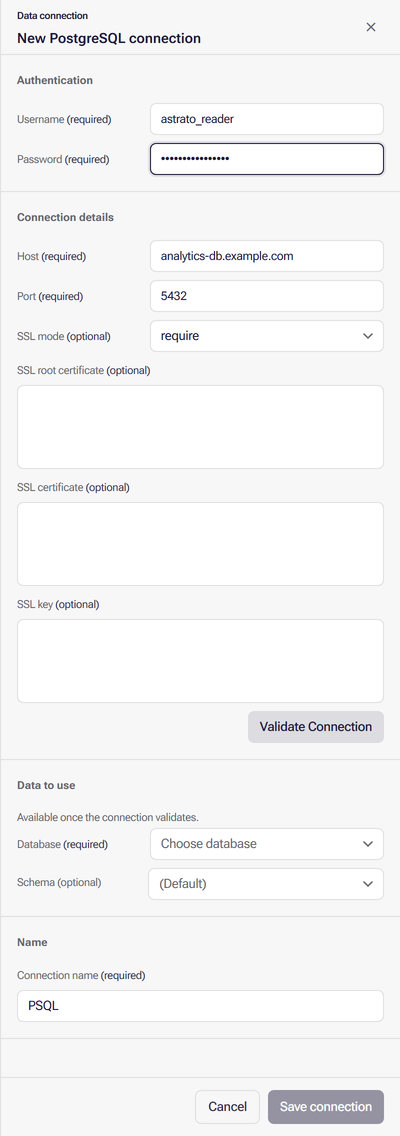
| Check | What goes wrong | How to fix it |
|---|---|---|
| Host or account URL | A typo, an extra https:// or postgres:// prefix, a port or path typed into Host, or a private name only your office network resolves |
Copy the value again from the database’s own console. For Snowflake, use Copy account URL in Snowsight |
| Port | The server listens on a non-default port | Enter the port the server uses. Defaults are 5432 for PostgreSQL and Supabase and 5439 for Amazon Redshift |
| Network blocked | A firewall, security group or Snowflake network policy refuses Astrato’s addresses; validation fails or takes a long time | Allow the addresses in Allow Astrato’s addresses |
| Username and credential | A typo, an expired password, or a key the database has not been told about | Sign in with the same values from another tool. For a generated Snowflake key, run the ALTER USER statement shown under the key |
| Multi-factor authentication | Snowflake Password (legacy) with a user that has MFA | Use Private key (Recommended); see Connecting to Snowflake |
| SSL mismatch | The server does not offer SSL, or verify-ca / verify-full has no matching SSL root certificate |
Try require; for verification, paste the certificate authority’s certificate. See Connecting to PostgreSQL |
| Permission denied | The user can sign in but has no right to connect to any database, or (Snowflake) its role cannot use a warehouse | Grant the privileges in the source’s guide, then validate again |
If every check passes and validation still fails, select Validate Connection once more: a slow or briefly unavailable database can fail one attempt. Then contact support (see Getting help).
Other messages in the panel
Section titled “Other messages in the panel”| Message or symptom | What it means | What to do |
|---|---|---|
| Validate Connection is unavailable, with “Still needed:” and a list of fields | A required field is empty | Fill in the listed fields |
| “Remove leading or trailing spaces before validating.” | The password starts or ends with a space | Select Trim it, then validate |
| “This credential reported no databases. Check its grants, or validate again.” | The credential works but can see no database | Grant the user access to at least one database; for Snowflake, check the Role |
| Save connection stays unavailable after a successful validation | A required choice is missing: the Database, or for Snowflake the Warehouse | Choose them. If a list is empty, the credential cannot see any; fix its grants |
| “Data Apps cannot use this connection without an explicit, non-legacy Deployment Region. …” | Deployment Region is Legacy / not selected | Choose a region before saving, or later; see Choose a Deployment Region |
| “No configured OAuth connections. Ask your workspace administrator to configure one in Astrato settings.” | Sign-in methods need an OAuth connection set up by an administrator | Ask your administrator, or choose another authentication method |
| “Authorization has expired. Sign in again before validating.” | Your earlier sign-in to the provider has lapsed | Select Sign in again and complete it in the new window |
| “Could not generate a key pair in this browser. Paste an existing private key instead.” | The browser blocked key generation | Paste a private key you made yourself |
| “Saving may have completed. Return to the connection list and check for this connection before creating another one.” | The save was interrupted, so Astrato cannot tell whether it worked | Select Back to connections and look for the connection before trying again |
| A source tile is dimmed | That source cannot be created here | Hover over or focus the tile, or select it, to read the reason |
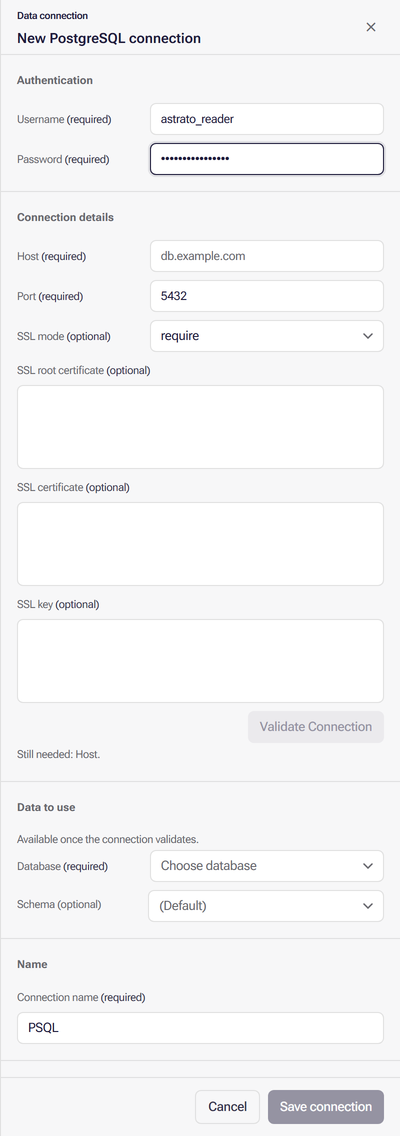
If schema lookup fails after Save connection, the connection already exists. Retry, or select Finish and choose a schema later. Do not create the connection again.
If Sign in with Snowflake shows “No configured OAuth connections.”, a workspace administrator needs to set up an access integration.
A saved connection stops working
Section titled “A saved connection stops working”The semantic layer editor checks its connection when it opens. When the check fails, it shows a notice and then a banner. The heading tells you which kind of fault it is:
| The notice says | What to do |
|---|---|
| “Sign in to …” or “Reconnect to …” | Sign in with your own account for that source; see Sign in from the semantic layer editor |
| “You don’t have access to this … connection” | Your session may have expired, or the connection is not shared with you. Sign in to Astrato again, or ask the connection’s owner for access |
| “Your … connection did not respond in time” | The source was slow or briefly unreachable. Reopen the layer later |
| “We could not reach your … connection” | The service answering the check is unavailable. Try again later |
| “This data connection no longer exists” | The connection was deleted. You can still edit the layer, but source data will not load. Ask the layer’s owner which connection it should use |
| “There’s an issue in your … connection” | The saved connection could not be verified, or the check was rate-limited. Reopen the layer later; if it persists, replace the connection’s credential |
| “Authorization is not configured for this … connection” | No compatible OAuth connection is set up for the source. Ask your workspace administrator |
| “Grant access to …” | Your sign-in needs more permissions. Sign in again and approve the requested access |
| “This semantic layer references an invalid connection” | The layer’s connection reference is not valid. You can still edit the layer; ask its owner which connection it should use |
To replace a credential, select Edit connection (the pencil) on the connection’s row in Data & AI → Data Connections, select Replace password or Replace private key, enter the new one and select Validate Connection, then Save changes.
Allow Astrato’s addresses
Section titled “Allow Astrato’s addresses”A database behind a firewall, a cloud security group or a Snowflake network policy must accept connections from Astrato.
- With a Deployment Region selected, the connection form names that region’s addresses under the region, as “Allow traffic from … at your database.” Allow those.
- Without a Deployment Region (Legacy / not selected), allow
34.142.11.11and34.142.68.232.
Allow them on the database’s port. For a private path that avoids the public internet, see AWS PrivateLink. For a database on Google Cloud or Azure with a private address only, see Databases with a private address.
New connection is missing
Section titled “New connection is missing”New connection appears only for people with a workspace role that can create data connections: Owner, Admin or Creator. A Viewer has a Data item on the rail instead and never sees it, and a Designer has no Data & AI item on the rail. The account menu, your profile picture at the top right, shows your role under your name. Ask a workspace administrator to change your role; see How access works and Users.
Getting help
Section titled “Getting help”When you contact support, include the source, whether a Deployment Region is selected, and the notice’s details from Copy details. Never include the password, key or token. You can ask Nash for help and track what you report in the Support portal.
What next
Section titled “What next”- Data connections for the full form, step by step.
- Connecting to Snowflake and Connecting to PostgreSQL for source-specific setup.
- Create a semantic layer once the connection validates.