

AWS Private Connection
Introduction
Section titled “Introduction”This document describes the steps to connect Astrato and a secured data source in AWS using AWS Transit Gateway.
This integration will connect two AWS networks privately, allowing the Astrato application to access data sources in a private AWS network securely.
-
Allow connection from Astrato AWS addresses.
Prerequisites
Section titled “Prerequisites”-
An existing private connection to destination services like Snowflake or on-premise deployment in a private network.
-
An existing virtual private cloud (VPC) network.
-
Astrato’s AWS account ID, reach out to your Astarto account executive or Astrato support to obtain this information.
Create a transit gateway in AWS
Section titled “Create a transit gateway in AWS”-
Open Amazon VPC console https://console.aws.amazon.com/vpc/
-
In the top right corner, choose the region of your VPC.

-
From the left side menu, select Transit gateways.
-
Click on the Create Transit gateway button.
-
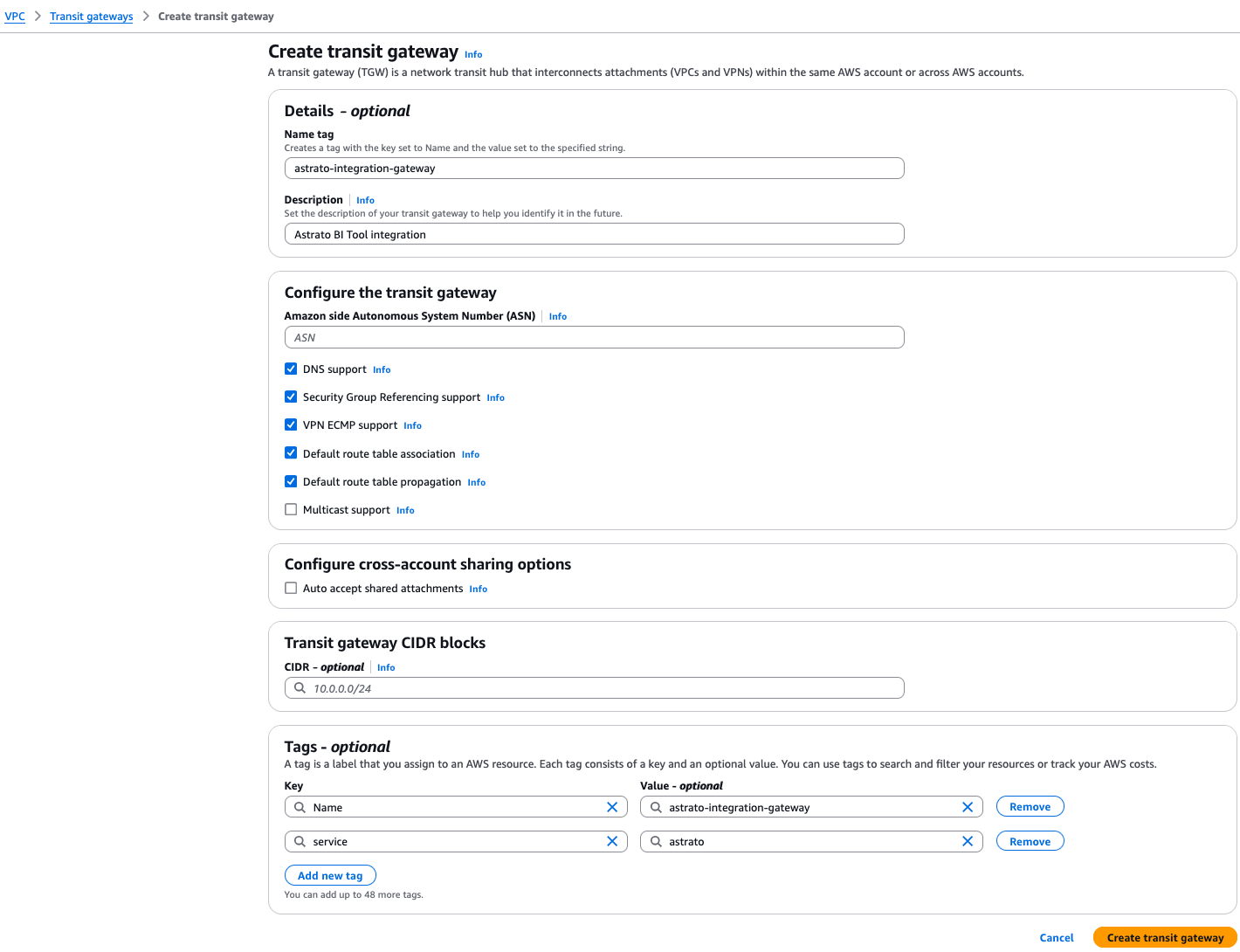
Fill out the form with these details:
-
Name tag- give the gateway a meaningful name.
-
Description- describe the gateway
-
Configure the Transit gateway- select these options.
-
DNS support
-
VPN ECMP
-
Default route table association
-
Default route table propagation
-
-
Transit gateway CIDR blocks- Add specific addresses If needed.
-
-
Click the Create transit gateway button.
Attach the VPC to the Transit Gateway
Section titled “Attach the VPC to the Transit Gateway”-
Select the Transit Gateway Attachments from the navigation panel on the left.
-
Click on the Create transit gateway attachment button and fill out the form.
-
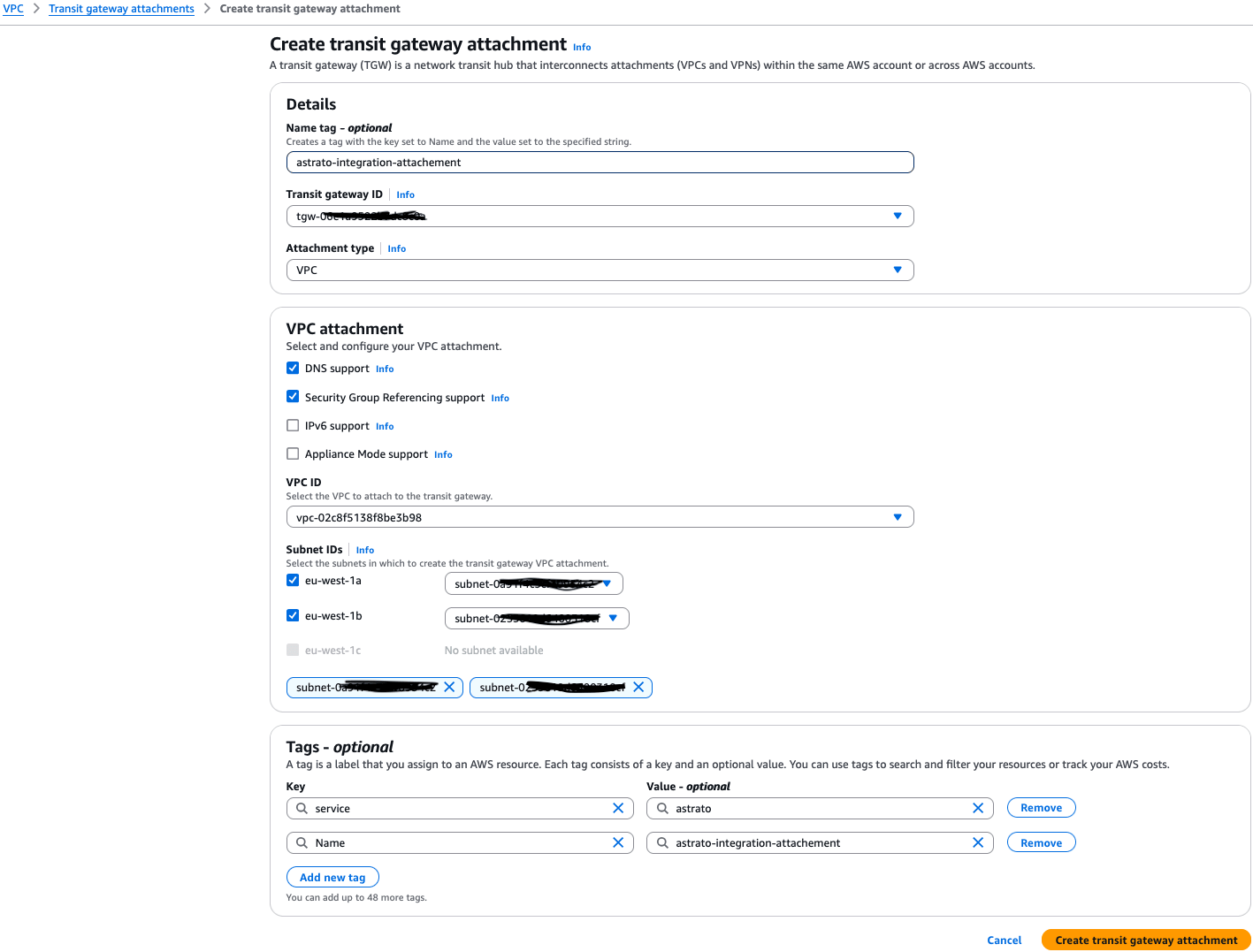
Fill out the form with these details
-
Name tag- give the attachment a meaningful name.
-
Transit gateway ID- select the gateway created in the previous step.
-
Attachment type- select VPC.
-
VPC Attachment- select these options
-
DNS Support
-
Security Group Referencing support
-
-
VPC ID- select the VPC to attach.
-
Subnets IDs- select the subnets that should be attached to the transit gateway.
-
-
Click on the Create gateway attachment button.
Share the Transit Gateway with Astrato AWS VPC
Section titled “Share the Transit Gateway with Astrato AWS VPC”-
Open the Transit Gateways list from the navigation panel on the left.
-
Select the Transit Gateway created in the first step.
-
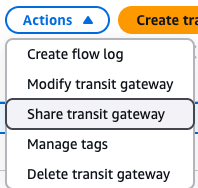
Select the Share transit gateway action for the actions menu on the top.
-
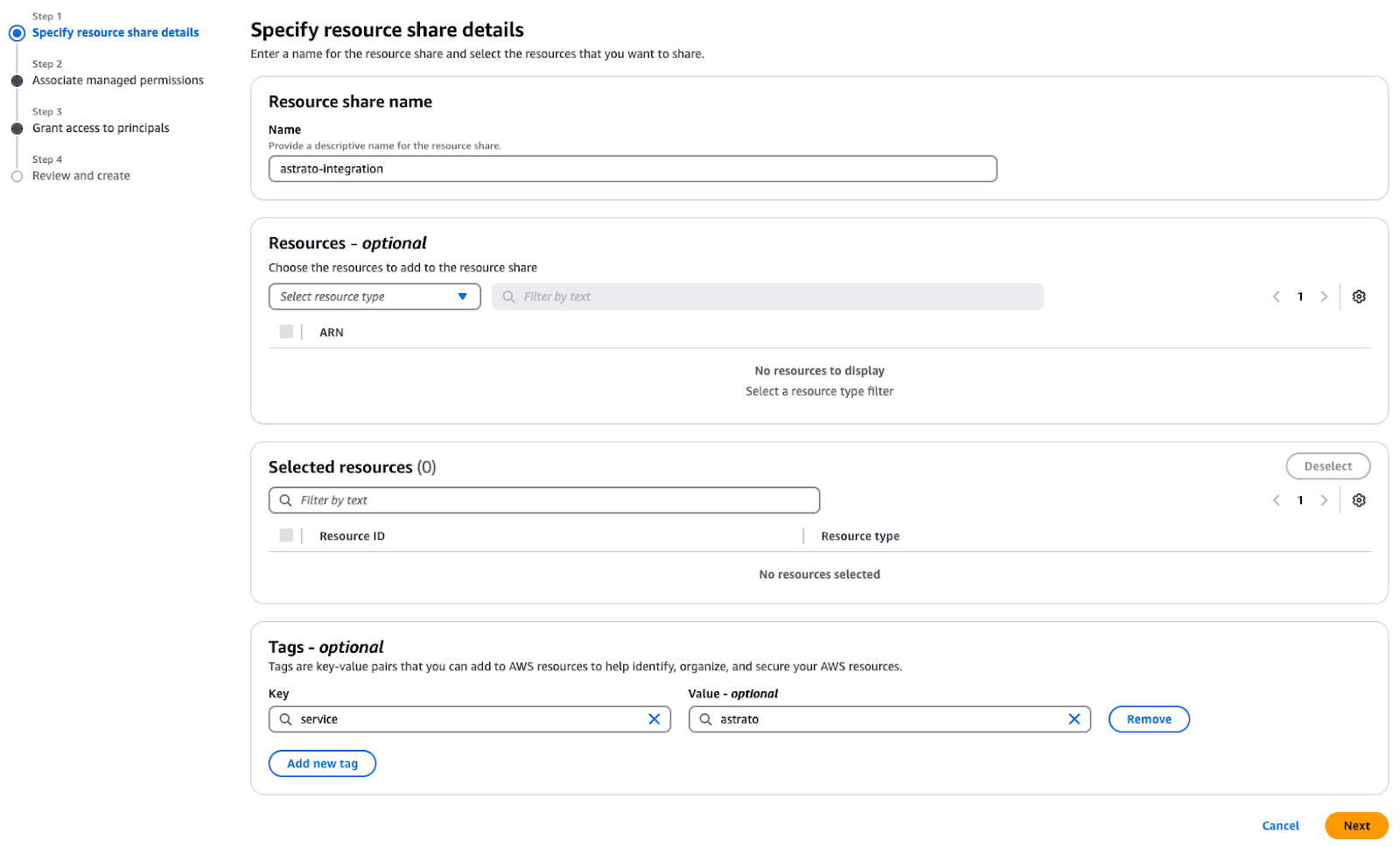
Click on the Create resource share button**.**
-
Fill out the form with these details
- Name- give the resource share a meaningful name.
-
Click Next.
-
Associate managed permissions- Set permissions that meet the security requirements of your organization.
-

-
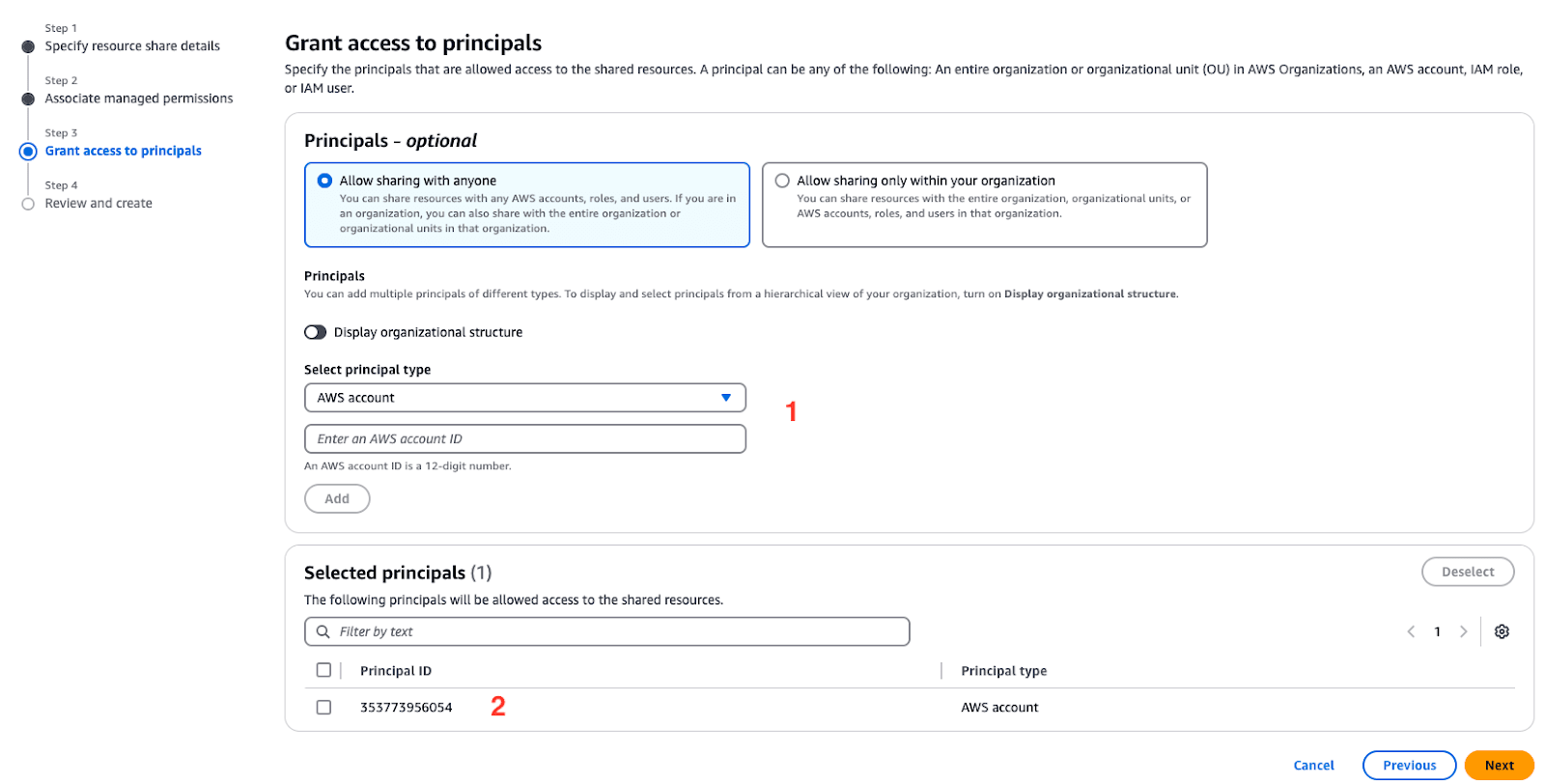
Grant access to principals-
-
Enter the Astrato AWS account ID you obtained from Astrato support.
-
Click Add.
-
Astrato’s account should be added to the principals list.
-
-
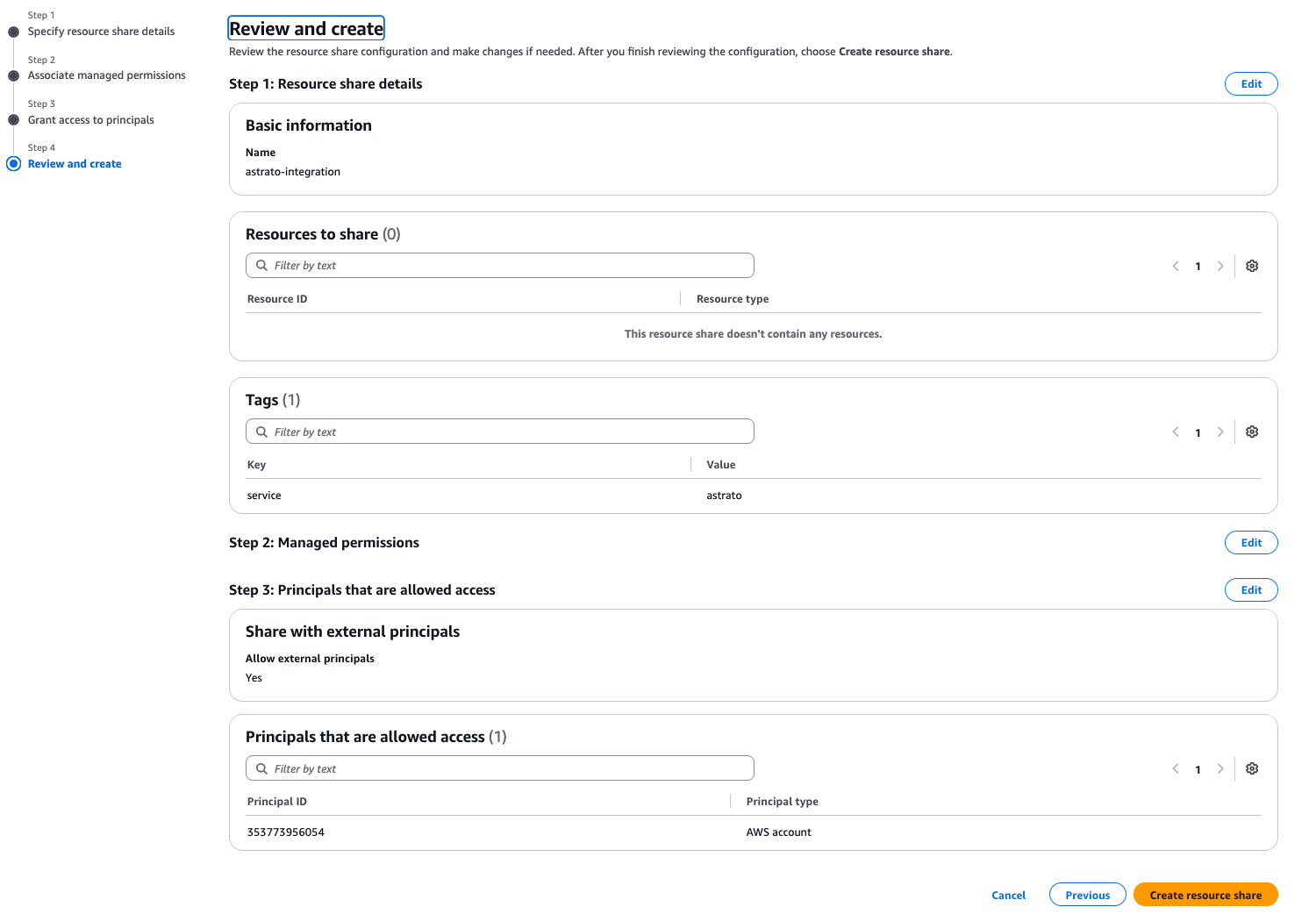
Review all the information from the previous steps and create the resource share.
Allow connection from Astrato AWS addresses
Section titled “Allow connection from Astrato AWS addresses”Enable connection for these Addresses of Astrato’s AWS VPC
10.6.32.0/19 - private eu-west1a10.6.64.0/19 - private eu-west1bShare Details with Astrato
Section titled “Share Details with Astrato”Share these details with your Astrato Account Executive
-
IP ranges- where Astrato needs to establish a connection.
-
Ports- the list of ports used to connect the service,
-
Service connection URL- required to test network configuration from Astrato.
Astrato Private Connection Configuration
Section titled “Astrato Private Connection Configuration”Setting up the connection in Astrato will take up to a few days.
You will be contacted once the installation is complete.
However, please don’t hesitate to contact your Account Executive with any questions.