

Check which preview features you have
Some Astrato features are in preview and are switched on per workspace or environment. When one is off, its entry point is missing or greyed out, and nothing else tells you why. Check before you start a task that needs one, so you do not find out halfway through.
Before you start
Section titled “Before you start”You need to be signed in to the Astrato workspace you want to check. Run the check as yourself: a preview can be on while your role still hides the screen, and the table says where that happens.
How to tell whether a preview is on
Section titled “How to tell whether a preview is on”| Preview | It is on when you see | It is off when you see |
|---|---|---|
| Data Apps, including publishing them | Under Analytics → Library, the subtitle reads Everything you can open: workbooks, Data Apps and pinned questions, newest first. | The subtitle leaves out Data Apps, the Create menu has no Data App entry, and the Library lists no Data Apps. |
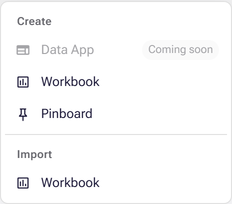
| Data App Builder (App Builder) | Create → Data App on Home or in the Library opens the Builder. | Data App is greyed out with Coming soon beside it. Opening the Builder’s address directly takes you to Home. |
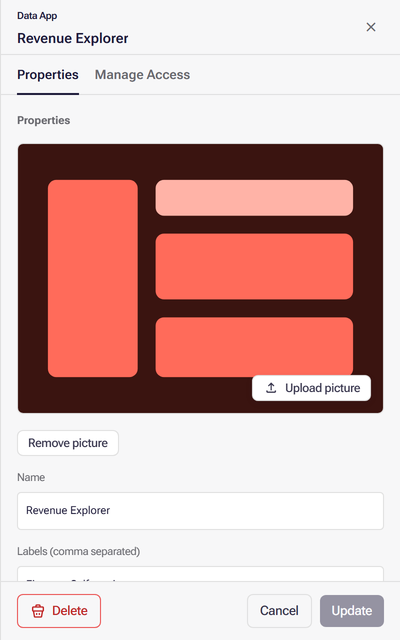
| Public access for Data Apps: public links and embedding | A Data App’s properties panel has a Public access tab. | The panel has Properties and Manage Access but no Public access tab. Through MCP, access changes are refused with “Publication access settings are disabled by feature flag.” |
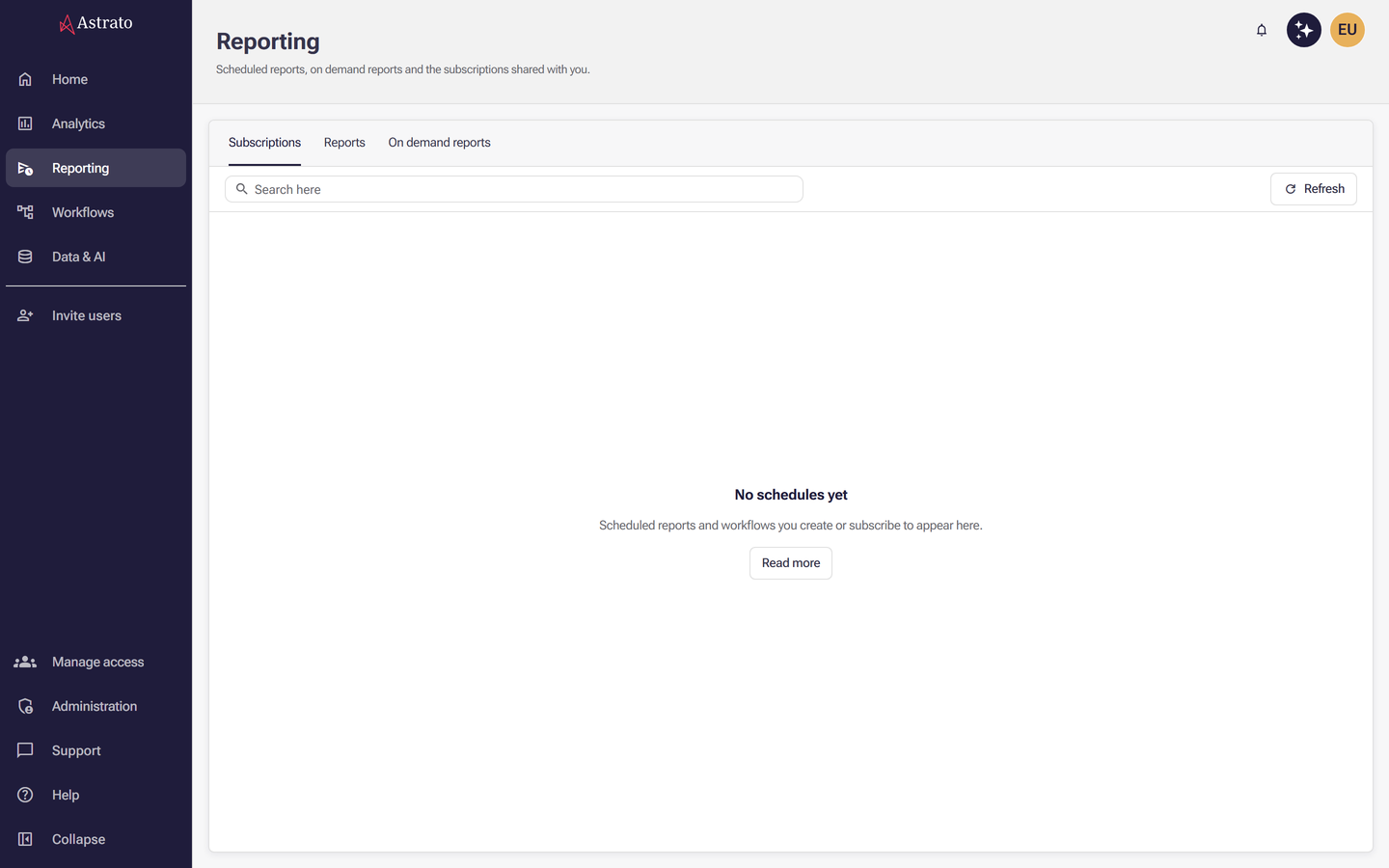
| Recurring Nash | Reporting has a Nash schedules tab. | Reporting has only Subscriptions, Reports and On demand reports, or fewer of those, depending on your role. |
| MCP, for your own AI assistant | Opening your Astrato address followed by /mcp in a browser returns anything other than the off message, such as {"error":"MCP authentication required"}. |
The same address returns {"error":"MCP is disabled"}. |
The public access check needs Manage access permission on the app. Without it the panel has only the Properties tab, whether or not public access is on, so ask the app’s owner to check.
When the Builder is off, the Create menu still lists Data App, greyed out:
When public access is off, a Data App’s properties go straight from Properties to Manage Access:
When Recurring Nash is off, Reporting has no Nash schedules tab:
Who can switch a preview on
Section titled “Who can switch a preview on”Astrato switches previews on. There is no setting for them in Administration, so neither a workspace owner nor an administrator can turn one on themselves. They can ask for it:
- If Support portal is in your left rail, open it. Workspace owners and administrators see Raise a feature request beside Ask Nash; select it and name the preview you need. See Support portal.
- If there is no Support portal, select Support in the left rail (its tooltip reads Open support) and ask there. Anyone can use it.
- If Support is greyed out and reads Support is unavailable, ask your Astrato contact.
Anyone who is not an owner or administrator can ask one of them to raise the request, or use Support directly.
What to use while you wait
Section titled “What to use while you wait”| Preview | Use instead |
|---|---|
| Data App Builder | Build the app with your own coding assistant and publish it with the CLI. See Data Apps - AI Assistant Quickstart. This needs Data Apps, and MCP for the assistant. |
| Public access | Share with named people instead: invite them and grant them access to the app. To show a workbook on your own site, use a workbook embed link. |
| Recurring Nash | If the numbers are in a workbook, schedule its notification workflow to post to Slack from Workflows. See Reporting and workflows and the Data Notification setup guide. |
| Data Apps | None for a Data App. A workbook is the product that does not need the preview. |
What next
Section titled “What next”- Your first Data App: the full path once Data Apps and the Builder are on.
- Share an app with people outside your team: public links, once public access is on.
- Recurring Nash tasks: a morning Slack message, once Recurring Nash is on.
- Connect an AI assistant: connect Claude or ChatGPT, once MCP is on.