Workbook Life-Cycle: Versioning
A workbook can have several versions: your draft, the published version that everyone sees,
versions that were published before, and drafts that were saved but never published. In the
Library you can list them, put a previously published version back live, throw away your own
draft and export any version to an .astx archive.
See a workbook’s versions
Section titled “See a workbook’s versions”In the Library, open the workbook’s menu (⋮), select Properties and open the Versions tab. On a published workbook you can also select the published version tag on its card or row, which shows the version’s name or the date it was published; it opens the same tab.
The Version history list shows every version, with a count beside the heading. Your own draft comes first, then the published version, then the rest, newest first. Each version shows:
- its name, or the date it was saved if it was never named
- its status
- Published and the date, for a version that was ever live, or Last updated and the date for one that was not
- who saved it
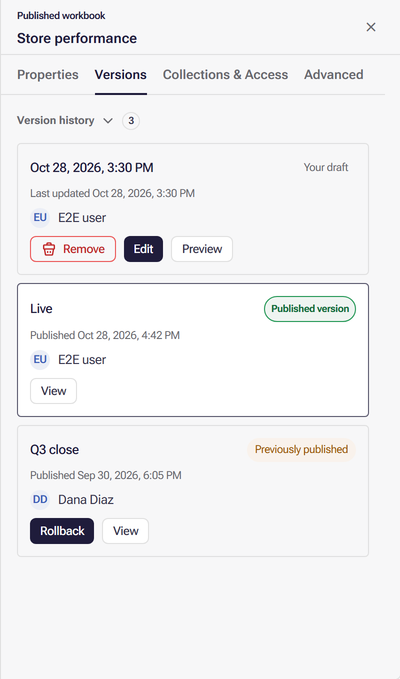
With six or more versions the list has a search box that matches names, statuses, dates and authors.
| Status | What it is |
|---|---|
| Your draft | Your own work in progress. |
| Published version | The version everyone sees. |
| Previously published | A version that was live before. Only these offer Rollback. |
| Historical draft | A version that was saved but never published. |
| Private draft | Another person’s draft. |
| Shared draft | A draft that has been shared. |
Open a version
Section titled “Open a version”Each version offers the buttons that apply to it, and each opens in a new browser tab:
- Edit opens your own draft for editing, and Preview shows it without editing. Without permission to edit the workbook, your draft offers Preview only.
- View opens any other version read-only. Opening another person’s draft depends on your access to it.
A removed workbook lists its versions but opens none of them, and offers no Rollback, Remove or export. Someone who can remove the workbook can bring it back with Restore in its menu.
Roll back to a previously published version
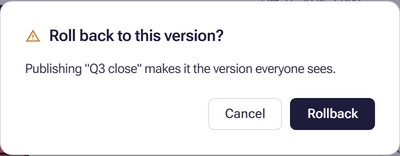
Section titled “Roll back to a previously published version”Rollback publishes a version that was live before, so it becomes the version everyone sees. You need permission to edit the workbook.
-
On the Versions tab, find the version marked Previously published and select Rollback.
-
In Roll back to this version?, select Rollback to publish it, or Cancel to leave the published version as it is.
The Versions tab does not copy an older version into your draft; that is done in the classic Workbook Editor.
Remove your draft
Section titled “Remove your draft”Remove appears only on your own draft, and only when you can edit the workbook. In Remove your current draft?, select Remove to throw away your unpublished changes. The published version is not touched.
Export a version to .astx
Section titled “Export a version to .astx”An .astx archive holds one version of a workbook, so you can move it between tenants or keep a
copy of that version. Export it from Export to .astx on the Advanced tab of the same
Properties; for the permission you need, the steps and the size limit, see
Export a Workbook. To keep exported versions in a Git
repository, see Keeping Workbook Versions in Git.
Version history in the classic Workbook Editor
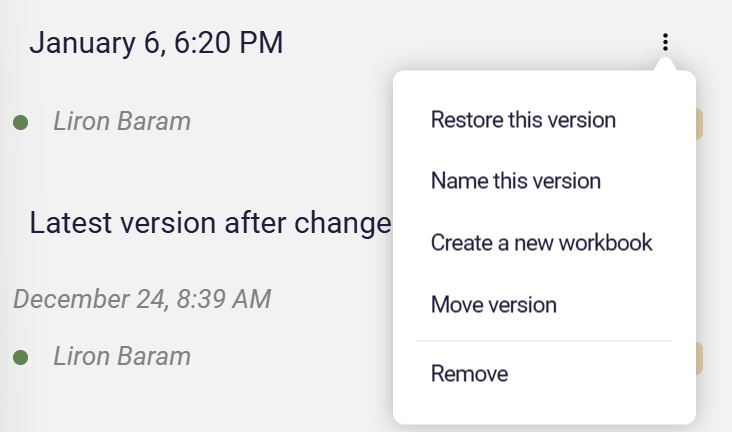
Section titled “Version history in the classic Workbook Editor”In the Workbook Editor, the clock icon in the top toolbar opens the version history, with the current draft at the top. Select a version to look at its contents. A version that was saved but never published is tagged History, and the published one Published. Each entry has its own menu, and the actions it offers depend on the entry:
- On the draft: Save as version saves the current draft as a version, Name this version renames it, and Create a new workbook copies it into a new, separate workbook with its own URL.
- On a History version: Restore this version copies it into the draft, Name this version renames it, Create a new workbook copies it into a new workbook, Move version moves it into another workbook’s version history (for example to link a copy back to the workbook it came from), and Remove deletes it.
- On the Published version: the same actions as a History version, except that Unpublish takes the published version down in place of Remove.
To copy or move a version into another workbook, for example from a DEV workbook to a UAT workbook, and choose which semantic layer it uses there, see How to promote a workbook.
To keep development, test and production workbooks apart, see Recommended setup. To create and manage the collections those environments are built from, see Organise workbooks and Data Apps in collections.