

Platform metadata exports
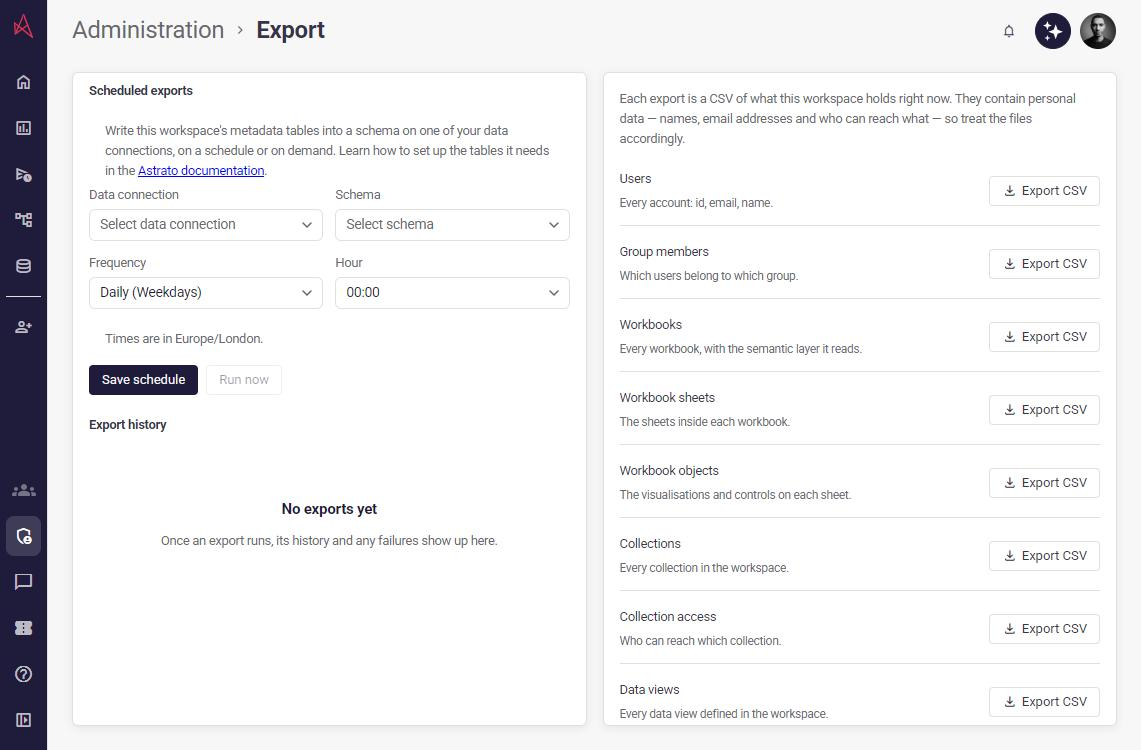
Workspace owners and administrators can open Administration → Export to download CSV files for users, group membership, workbooks, sheets, objects, collections, data views and access. These files can contain names, email addresses and access information. Store and share them accordingly. If a download fails, the page displays an error instead of saving a file.
Schedule metadata exports
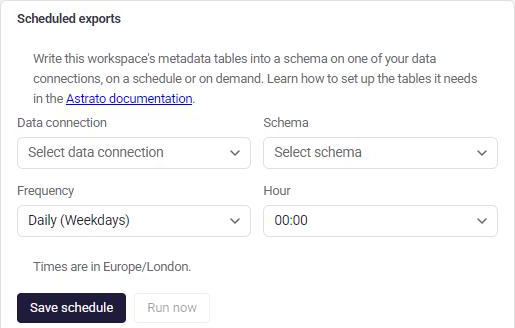
Section titled “Schedule metadata exports”When export scheduling is enabled for your workspace, the Export page also shows Scheduled exports. A schedule writes the workspace’s metadata tables into a schema on one of your data connections. The metadata tables must exist in that schema first; the panel links to the Astrato documentation that explains how to set them up.
To create or change the schedule:
-
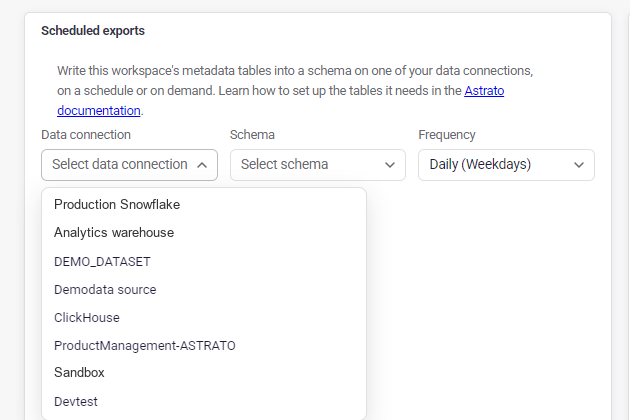
Choose a Data connection. The Schema list then loads the schemas on that connection.
-
Choose the Schema to write into.
-
Choose a Frequency: Daily (Weekdays), Daily or Weekly.
-
Choose the Hour the export runs. For a weekly schedule, also choose the Day of week.
-
Select Save schedule.
The schedule uses your browser’s time zone at the time you save it. The panel shows which time zone applies.
After the schedule is saved:
- Run now starts an export immediately. Save any unsaved changes first.
- Disable stops scheduled runs without deleting the schedule. While it is disabled, the schedule cannot be edited or run. Select Enable to turn it back on.
Export history
Section titled “Export history”Export history lists recent runs with when each started, whether it was manual or scheduled, how long it took, its status, and how many datasets and rows it exported or the error it stopped with. The list refreshes while a run is pending. Select Cancel on a pending run to stop it.