Connect to Supabase
Supabase is a managed PostgreSQL service, so its connection form is the PostgreSQL one. This guide covers what is specific to Supabase: where to find the values, the user to connect as, and Row Level Security. The steps themselves, from New connection to Finish, are the same for every source and are shown in Create a connection.
Before you start
Section titled “Before you start”- A role that can create data connections. See Create a connection.
- Access to your Supabase project, to copy its connection string and, ideally, to create a database user for Astrato. See Create a read-only user.
Find the connection string
Section titled “Find the connection string”The form has no field for a connection URL, so copy the parts of Supabase’s connection string into it. In Supabase, select Connect at the top of the project and open the connection string. Use the Session pooler method, or the direct connection if your project has an IPv4 address; Supabase explains the difference in Connect to your database.
A session pooler string looks like this:
postgresql://postgres.abcdefghijklmnop:[YOUR-PASSWORD]@aws-0-eu-west-2.pooler.supabase.com:5432/postgres| Part of the string | Field in Astrato | Value in the example |
|---|---|---|
Between postgresql:// and the colon |
Username | postgres.abcdefghijklmnop |
[YOUR-PASSWORD] |
Password | Your database password |
Between @ and the next colon |
Host | aws-0-eu-west-2.pooler.supabase.com |
Between that colon and / |
Port | 5432 |
After the last / |
Database | postgres, chosen after validating |
Through the pooler, the username is the database user followed by a dot and your project
reference. For the user created below, that is astrato.abcdefghijklmnop.
Create the connection
Section titled “Create the connection”In Data & AI → Data Connections, select New connection, then Supabase. The panel title
changes to New Supabase connection. Enter the Username, Password, Host and Port
from the string, and keep SSL mode at its default, require. The certificate boxes are
optional, and work as described in
Choose an SSL mode.
Then follow Create a connection from Validate
Connection on. Under Data to use, choose the Database, usually postgres. Until you
change it, the suggested Connection name is Supabase.
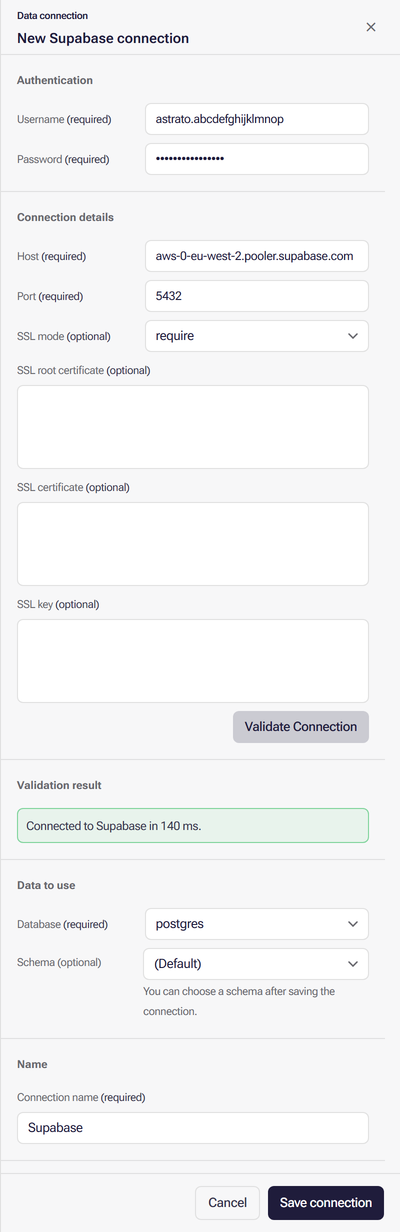
Supabase connections sign in with a database username and password; there is no other method. If your workspace shows Deployment Region, see Choose a Deployment Region.
Create a read-only user
Section titled “Create a read-only user”Connecting as the default postgres user gives Astrato far more access than it needs. Create a
user for Astrato instead, in Supabase’s SQL editor:
-- Create the userCREATE USER astrato WITH PASSWORD 'choose-a-strong-password';
-- Let it connect and read the public schemaGRANT CONNECT ON DATABASE postgres TO astrato;GRANT USAGE ON SCHEMA public TO astrato;GRANT SELECT ON ALL TABLES IN SCHEMA public TO astrato;
-- Optional: read tables created later in public by the role running thisALTER DEFAULT PRIVILEGES IN SCHEMA public GRANT SELECT ON TABLES TO astrato;
Astrato lists only the schemas the user has USAGE on, and only the tables and views it can
SELECT from. Repeat the grants for any other schema you want to model.
If you also use writeback, grant INSERT,
UPDATE or DELETE only on the tables writeback changes, and USAGE on the sequences they use:
GRANT INSERT, UPDATE ON public.your_writeback_table TO astrato;GRANT USAGE ON SEQUENCE public.your_writeback_table_id_seq TO astrato;Row Level Security
Section titled “Row Level Security”Add a policy that lets the user read the table, narrowed with your own condition where needed:
CREATE POLICY astrato_read ON public.your_table FOR SELECT TO astrato USING (true);Writeback tables need matching INSERT, UPDATE or DELETE policies. Avoid giving the user
BYPASSRLS.
Allow Astrato through your network
Section titled “Allow Astrato through your network”If your Supabase project restricts network access, allow the addresses Astrato connects from. With a Deployment Region selected, the form names that region’s addresses as “Allow traffic from … at your database.”; without one, allow the addresses listed in Allow Astrato’s addresses. A connection with no Deployment Region cannot be used by a Data App; see Choose a Deployment Region.
Common errors
Section titled “Common errors”Supabase answers like any PostgreSQL server, so the PostgreSQL common errors apply. These are specific to Supabase:
| Symptom | Cause | Fix |
|---|---|---|
| Validation times out, or cannot reach the host, with the direct connection host | Your project’s direct connection is not reachable from Astrato | Use the Session pooler string instead; see Find the connection string |
| Sign-in fails through the pooler although the password is right | The Username lacks the . and project reference the pooler needs |
Enter it as in the string, for example astrato.abcdefghijklmnop |
| Tables are listed but queries return no rows | Row Level Security with no policy for the Astrato user | See Row Level Security |
What next
Section titled “What next”- Create a semantic layer on the new connection.
- Check that it works: open Add → Tables & Views to confirm the connection can read your tables.
- Build your first Data App, from the connection to a published Data App.
- Store Astrato’s query activity in Supabase.
- Working with Supabase edge functions.