Connect to Databricks
This guide connects Astrato to a Databricks SQL warehouse. When you finish, the connection appears in Data & AI → Data Connections and you can build a semantic layer on it. The form is the one described in Data connections; this page covers what is specific to Databricks.
Before you start
Section titled “Before you start”- Astrato permission. You need a workspace role that can create data connections: Owner, Admin or Creator. See Create a connection for how to check your role.
- The SQL warehouse’s connection details. In Databricks, open the SQL warehouse and its
Connection details tab; see Databricks’
compute connection details.
Note the Server hostname, such as
adb-1234567890123456.7.azuredatabricks.net, and the HTTP path, such as/sql/1.0/warehouses/1a2b3c4d5e6f7a8b. Copy the path as shown. - A credential, for one of the two sign-in methods.
- Access in Databricks for that identity to use the SQL warehouse and read the catalogs and schemas you want.
Choose a sign-in method
Section titled “Choose a sign-in method”Under Authentication, the panel offers two methods.
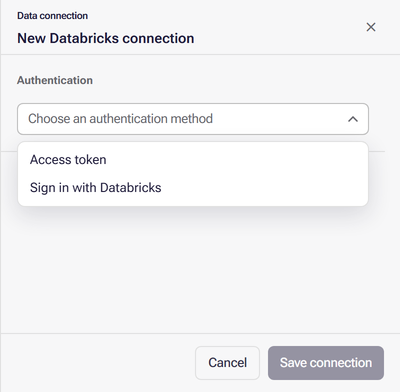
- Access token: a Databricks personal access token, which the connection uses for everyone. It is the quickest to set up. See Databricks’ personal access tokens.
- Sign in with Databricks: an OAuth connection that a workspace administrator has set up in Astrato. Each person keeps their own Databricks identity; see Setting up a Databricks OAuth integration. How people sign in through it is in OAuth connections.
Create the connection
Section titled “Create the connection”-
Open Data & AI → Data Connections, select New connection and choose Databricks. The panel becomes New Databricks connection.
-
Under Authentication, choose the method and enter the credential:
- Access token: paste the token into Access token.
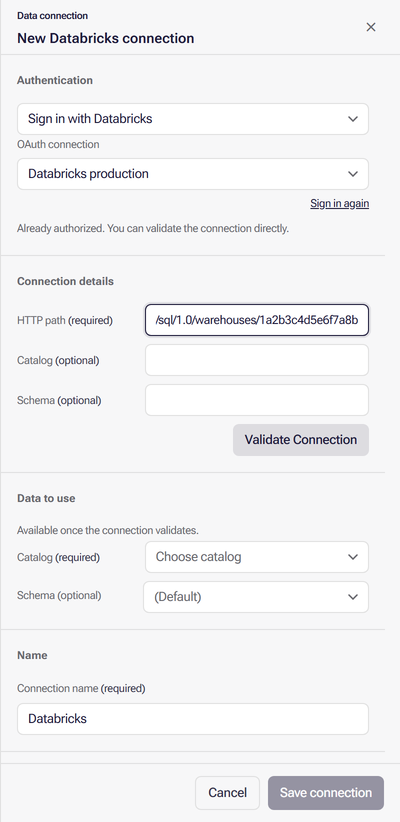
- Sign in with Databricks: choose the OAuth connection. If the panel says “Sign in to authorize this connection.”, select Sign in (or Sign in again if authorization has expired) and complete it in the new window. If the panel says “Already authorized. You can validate the connection directly.”, go on. An OAuth connection that Astrato issues tokens for has no sign-in link: validate directly, or, if the panel says the identity federation has not confirmed the required authorization, ask a workspace administrator.
-
Under Connection details, enter the HTTP path. With Access token, enter the Server hostname as well; Port is optional and defaults to 443. Catalog and Schema here are optional: leave them empty and choose the catalog after validating.
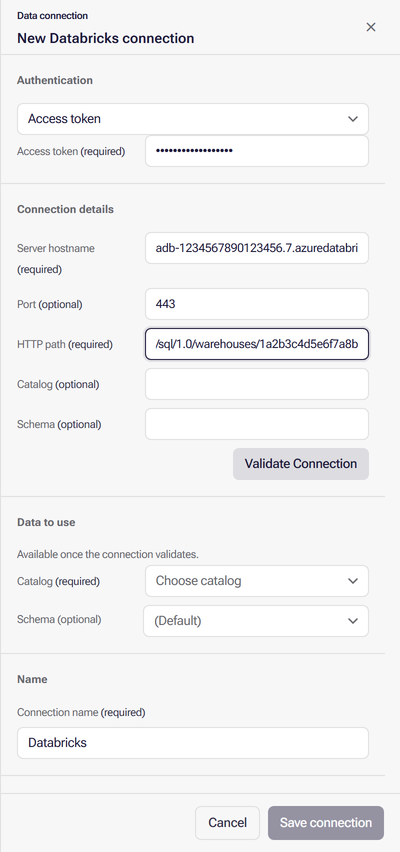
With Sign in with Databricks, the workspace comes from the OAuth connection, so the form asks for no Server hostname or Port.
-
If your workspace shows Deployment Region, choose one or leave it for now; see Choose a Deployment Region.
-
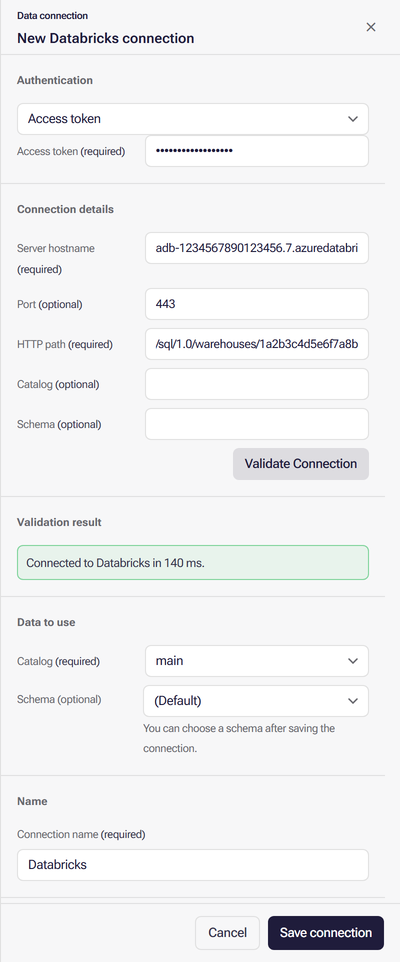
Select Validate Connection. The Validation result reads “Connected to Databricks in n ms.”
-
Under Data to use, choose the Catalog. Schema is optional.
-
Review the Connection name, select Save connection, then choose a schema or leave it on Choose later and select Finish.
After Finish, open the connection’s Manage Access tab to choose who can use it. To come back to it later, open the connection’s actions menu, choose Properties (or Manage access if you cannot edit the connection), then the Manage Access tab; see Manage resource access.
Replace the access token
Section titled “Replace the access token”Select the pencil on the connection’s row in Data & AI → Data Connections; the panel opens as Edit connection. Select Replace access token, paste the new token, select Validate Connection and then Save changes.
Common errors
Section titled “Common errors”| Symptom | Fix |
|---|---|
| “Connection validation failed: the source refused the credentials or sign-in.” | The token is wrong, expired or revoked. Create a new one and replace it |
| Validation fails or times out | Copy the Server hostname as Databricks shows it, with no path, and check that the HTTP path is the warehouse’s, copied whole |
| “No configured OAuth connections. …” | No Databricks OAuth connection is set up. Ask a workspace administrator, or use Access token |
| “Authorization has expired. Sign in again before validating.” | Select Sign in again and complete it in the new window |
| The Catalog list is empty, or a catalog is missing | The identity cannot use that catalog. Grant it access in Databricks, then validate again |
When a data connection will not validate explains every notice the panel shows.
What next
Section titled “What next”- Create a semantic layer on the new connection.
- Manage resource access to let other people build on this connection.
- What each source supports on Databricks.
- Store Astrato activity in Databricks to turn your query log into a usage dataset.