Connect to PostgreSQL
This guide covers what is specific to PostgreSQL. The steps themselves, from New connection to Finish, are the same for every source and are shown, with PostgreSQL as the example, in Create a connection.
Before you start
Section titled “Before you start”-
A role that can create data connections. See Create a connection.
-
A database user that can sign in and read the tables you want to model. A typical read-only grant, for a database called
analytics:GRANT CONNECT ON DATABASE analytics TO astrato_reader;GRANT USAGE ON SCHEMA public TO astrato_reader;GRANT SELECT ON ALL TABLES IN SCHEMA public TO astrato_reader;Astrato lists only the schemas the user has
USAGEon, and only the tables and views it canSELECTfrom. Adjust the grants to your own policy. -
Network access. The database must accept connections from Astrato. See Allow Astrato through your firewall.
Create the connection
Section titled “Create the connection”In Data & AI → Data Connections, select New connection, then PostgreSQL. The panel title changes to New PostgreSQL connection. Fill in these fields, then follow Create a connection from Validate Connection on.
| Field | Section | Example | Notes |
|---|---|---|---|
| Username | Authentication | astrato_reader |
Required |
| Password | Authentication | Required. Leading or trailing spaces are rejected | |
| Host | Connection details | db.example.com or 203.0.113.10 |
Required. The host name or IP address only, with no postgres:// and no port. A private address needs a private route |
| Port | Connection details | 5432 |
Required. Filled in with 5432; change it if your server listens elsewhere, or to the port of the pooler you connect through, such as PgBouncer’s 6432 |
| SSL mode | Connection details | require |
Optional. Defaults to require; see Choose an SSL mode |
| SSL root certificate | Connection details | Optional. PEM text, used with verify-ca and verify-full |
|
| SSL certificate | Connection details | Optional. A client certificate, used with verify-ca and verify-full |
|
| SSL key | Connection details | Optional. The key for the client certificate |
The form has no database field. After Validate Connection succeeds, you choose the Database
under Data to use. The list shows every database on the server, not only those the user can
open, so choose one you granted CONNECT on. Until you change it, the suggested Connection name
is PSQL; rename it to something people will recognise, such as the database’s name.
If your workspace shows Deployment Region, see Choose a Deployment Region.
Sign-in method
Section titled “Sign-in method”PostgreSQL connections sign in with a username and password. There is no other method.
Choose an SSL mode
Section titled “Choose an SSL mode”The options are require, the default, then disable, allow, prefer, verify-ca and
verify-full.
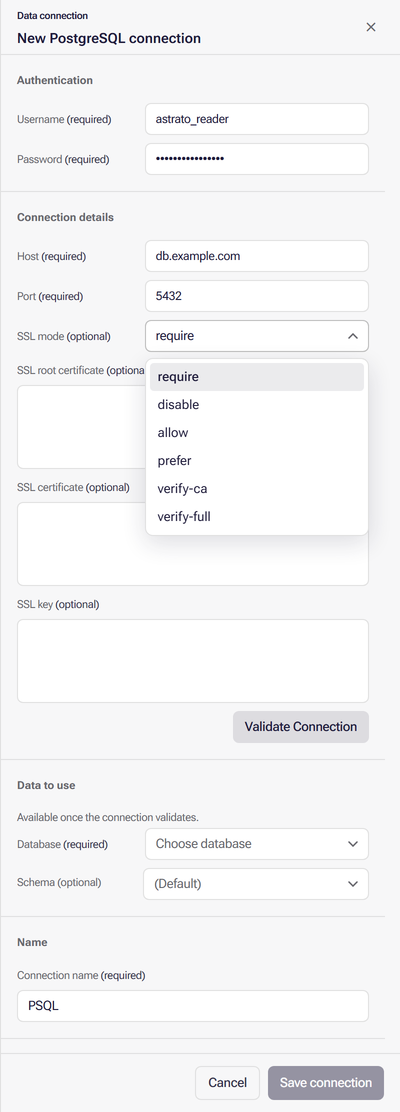
- Keep
requireunless you have a reason to change it. The connection is encrypted. - Use
verify-caorverify-fullwhen your security policy asks Astrato to check the server’s certificate. Paste your certificate authority’s certificate into SSL root certificate.verify-fullalso checks that Host matches the name on the certificate. If your server asks for a client certificate, paste it and its key into SSL certificate and SSL key. - Use
disable,alloworpreferonly for a server that cannot offer SSL.
The three certificate boxes are sent only with verify-ca and verify-full. With any other mode,
what you paste into them is not used.
Allow Astrato through your firewall
Section titled “Allow Astrato through your firewall”If your database sits behind a firewall, a cloud security group or pg_hba.conf rules, it must
accept connections from the addresses Astrato connects from, on the database’s port. Otherwise
validation fails or times out. With a Deployment Region selected, the form names that region’s
addresses as “Allow traffic from … at your database.”; without one, allow the addresses listed in
Allow Astrato’s addresses. A connection with no
Deployment Region cannot be used by a Data App; see
Choose a Deployment Region.
Where you add them depends on where the database runs:
| Where the database runs | Where to allow the addresses |
|---|---|
| Your own server | The server’s firewall and a pg_hba.conf entry for each address |
| A managed service on AWS, Google Cloud or Azure, with a public address | The service’s own network settings: its security group, authorized networks or firewall rules |
A private address only, such as 10.0.4.12, with no route from the internet |
Astrato cannot reach it from the addresses above. See Databases with a private address |
Databases with a private address
Section titled “Databases with a private address”A database with only a private address, such as Cloud SQL on Google Cloud or Azure Database for PostgreSQL with a private IP, cannot be reached from Astrato’s public addresses. Validate Connection then fails or times out, whatever you allow. There are three ways to connect it:
- Add a public address, allowed only to Astrato. Turn on the service’s public address alongside
the private one, and allow only Astrato’s addresses on it: Cloud SQL calls these authorized
networks, and Azure Database for PostgreSQL uses firewall rules. Keep SSL mode at
requireor stricter. Enter the public address as Host. - Use a private Deployment Region. A private Deployment Region set up for your workspace appears in the Deployment Region list under its own name. Choose it and allow the addresses the form names under it. If none is listed, ask Astrato support whether one can be set up for your network.
- On AWS, use AWS PrivateLink or AWS Transit Gateway.
Common errors
Section titled “Common errors”When validation fails, an error notice at the bottom of the panel usually starts “Connection
validation failed”. Its “Source message:” line carries PostgreSQL’s own error, with your password
replaced by [credential removed]; read it first.
When a data connection will not validate explains each notice. These are the
PostgreSQL causes:
| Symptom or source message | Cause | Fix |
|---|---|---|
| Validation times out or “did not respond in time” | A firewall drops Astrato’s traffic, or Host is only reachable inside your network | Allow Astrato through your firewall |
password authentication failed for user … (error code 28P01) |
A typo or an expired password | Sign in with the same values from another tool, such as psql, to confirm them |
no pg_hba.conf entry for host … |
The server has no rule for Astrato’s address, or requires SSL the mode does not offer | Add a pg_hba.conf entry for the address; keep SSL mode at require or stricter |
database "postgres" does not exist, or permission denied for database postgres |
Astrato tests the credential by signing in to the postgres database, and this user cannot |
Let the user connect to postgres, which PostgreSQL allows by default, then validate again |
| An SSL or certificate error | The server does not offer SSL, or verify-ca / verify-full has no matching root certificate |
Try require; for verification, paste the right certificate authority certificate |
| “This credential reported no databases. Check its grants, or validate again.” | The list of databases came back empty | Validate again; if it persists, check that the user can query pg_database |
| A schema or table you expected is missing after saving | The user lacks USAGE on the schema or SELECT on the table |
Grant them, as in Before you start, then check that it works |
A password with leading or trailing spaces shows “Remove leading or trailing spaces before validating.” Select Trim it, then validate again.
What next
Section titled “What next”- Create a semantic layer on the new connection.
- Check that it works: open Add → Tables & Views to confirm the connection can read your tables.
- Manage resource access to let other people build on it.
- Store Astrato’s query activity in PostgreSQL to see usage and performance.
- Using Supabase or Amazon Redshift? They have their own guides: Connect to Supabase and Connect to Amazon Redshift.