Connect to Dremio Cloud
This guide connects Astrato to Dremio Cloud. When you finish, the connection appears in Data & AI → Data Connections and you can build a semantic layer on it. The form is the one described in Data connections; this page covers what is specific to Dremio.
Before you start
Section titled “Before you start”- Astrato permission. You need a workspace role that can create data connections: Owner, Admin or Creator. See Create a connection for how to check your role.
- A Dremio personal access token. Create one in Dremio Cloud; see Dremio’s personal access tokens. This is the only sign-in method: Astrato does not accept a Dremio username and password.
- Your Dremio Cloud region’s domain:
eu.dremio.cloudfor the EU control plane, ordremio.cloudfor the US one. Astrato adds theapi.anddata.prefixes itself. - Access in Dremio for the token’s user to the project and the source or space you want to read.
You do not need the project’s name or ID: after validating, you choose the project from the ones the token can reach.
Create the connection
Section titled “Create the connection”-
Open Data & AI → Data Connections, select New connection and choose Dremio. The panel becomes New Dremio connection.
-
Under Authentication, paste the token into Personal access token.
-
Under Connection details, enter the Host, such as
eu.dremio.cloud. There is no port to enter.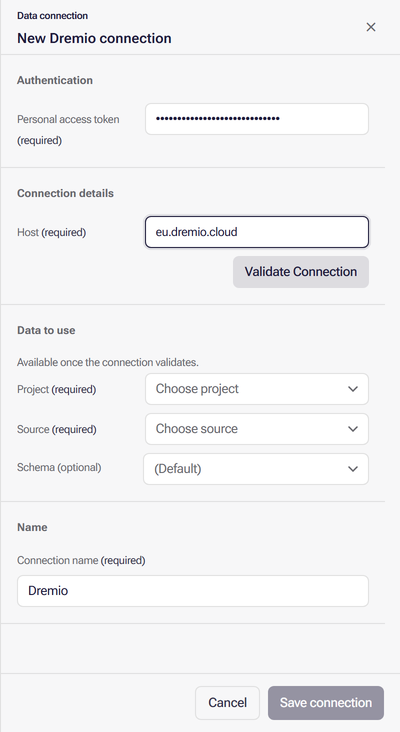
-
If your workspace shows Deployment Region, choose one or leave it for now; see Choose a Deployment Region.
-
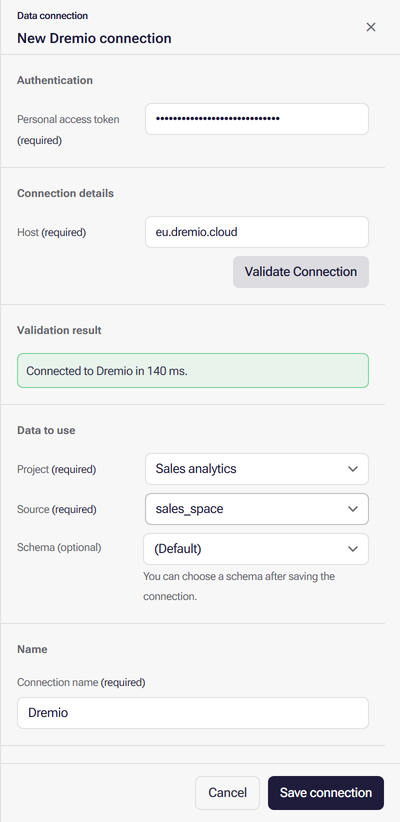
Select Validate Connection. The Validation result reads “Connected to Dremio in n ms.”
-
Under Data to use, choose a Project. If the token reaches only one project, it is chosen for you. The Source list then shows that project’s sources and spaces; choosing another project lists its sources instead.
-
Choose a Source. Schema is optional.
-
Review the Connection name, select Save connection, then choose a schema or leave it for later and select Finish.
If you save without choosing a schema, the source you selected is used as the schema.
Replace the token
Section titled “Replace the token”Personal access tokens expire. To give a saved connection a new one, select the pencil (Edit connection) on its row in Data & AI → Data Connections, select Replace personal access token, paste the new token, select Validate Connection and then Save changes.
Common errors
Section titled “Common errors”| Symptom | Fix |
|---|---|
Validation fails with a host such as api.eu.dremio.cloud |
Enter only the region’s domain, eu.dremio.cloud or dremio.cloud |
| “Connection validation failed: the source refused the credentials or sign-in.” | The token is wrong, expired or revoked. Create a new one in Dremio and paste it again |
| The Project list is empty after validating | The token’s user has no project it can use. Ask a Dremio administrator to add it to the project |
| A source is missing from the Source list | The token’s user has no access to it in that project. Grant access in Dremio, or choose the project that holds it |
| A saved connection stops working | The token may have expired. Replace the token |
When a data connection will not validate explains every notice the panel shows.
What next
Section titled “What next”- Create a semantic layer on the new connection.
- Manage resource access to let other people build on this connection.
- What each source supports on Dremio.