Connect to Google BigQuery
This guide connects Astrato to a Google BigQuery dataset. When you finish, the connection appears in Data & AI → Data Connections and you can build a semantic layer on it. The form is the one described in Data connections; this page covers what is specific to BigQuery.
Before you start
Section titled “Before you start”- Astrato permission. You need a workspace role that can create data connections: Owner, Admin or Creator. See Create a connection for how to check your role.
- A Google identity with BigQuery permissions: a service account with a JSON key, or a Google
account you sign in with. Either needs:
bigquery.jobs.createon the project, to run queries. The BigQuery Job User role includes it.bigquery.tables.getand read access on the tables and views the connection reads. The BigQuery Data Viewer role includes them.
- The dataset the connection reads. You choose it from a list while creating the connection.
Choose a sign-in method
Section titled “Choose a sign-in method”Under Authentication, the panel offers two methods.
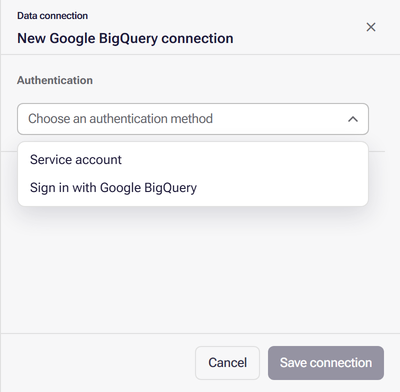
- Service account: a Google Cloud service account’s JSON key. It avoids personal sign-in, and it is the only method that offers dynamic connections. The key names its project, so you choose only the dataset. See Create a service account and key.
- Sign in with Google BigQuery: a Google OAuth connection set up for your workspace. You sign in with your Google account, then choose a project and a dataset. See OAuth connections for how sign-in works.
Create a service account and key
Section titled “Create a service account and key”Do this in the Google Cloud console, in the project that holds your BigQuery data:
- Create a service account; see Google’s Create service accounts.
- Grant it BigQuery Job User and BigQuery Data Viewer on the project, or Data Viewer on only the datasets it should read.
- Create a JSON key for it; see Create and delete service account keys. The key file downloads to your computer. Store it securely: anyone holding it can query as the service account.
Create the connection
Section titled “Create the connection”-
Open Data & AI → Data Connections, select New connection and choose Google BigQuery. The panel becomes New Google BigQuery connection.
-
Under Authentication, choose the method:
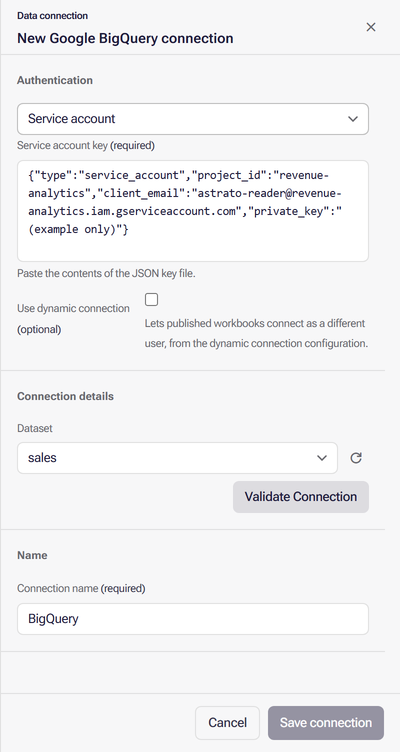
- Service account: paste the whole contents of the JSON key file into Service account key. Tick Use dynamic connection only if each viewer should connect with their own key; see Dynamic connections.
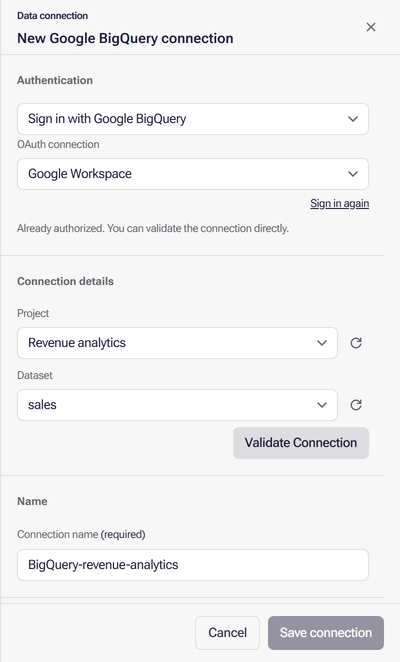
- Sign in with Google BigQuery: choose the OAuth connection. If the panel says “Sign in to authorize this connection.”, select Sign in (or Sign in again if authorization has expired), choose your Google account in the new window and allow the access it asks for. The panel updates when you finish. If it says “Already authorized. You can validate the connection directly.”, go on. An OAuth connection that Astrato issues tokens for has no sign-in link: validate directly, or, if the panel says the identity federation has not confirmed the required authorization, ask a workspace administrator.
-
Under Connection details, choose the Dataset. With Sign in with Google BigQuery, choose the Project first; the dataset list then shows that project’s datasets. Use the refresh button beside a list to load it again.
-
If your workspace shows Deployment Region, choose one or leave it for now; see Choose a Deployment Region.
-
Select Validate Connection. The Validation result reads “Connected to Google BigQuery in n ms.”
-
Review the Connection name, select Save connection, then select Finish.
After Finish, open the connection’s Manage Access tab to choose who can use it. To come back to it later, open the connection’s actions menu, choose Properties (or Manage access if you cannot edit the connection), then the Manage Access tab; see Manage resource access.
Dynamic connections
Section titled “Dynamic connections”A dynamic connection lets each person query BigQuery with their own service-account key, and so their own project, through one connection and one semantic layer. Use it when each customer or team has its own project with the same tables, typically for embedded analytics: you build the semantic layer against your own project, and each viewer’s query runs against theirs. It needs Service account: Sign in with Google BigQuery does not offer it. If Use dynamic connection is unavailable, the reason is shown beside it.
- The key you paste when creating the connection becomes your own settings. After Save connection, select Add dynamic connection settings to add each other person’s key; the Project is filled in from the key.
- The dataset is shared: everyone reads the connection’s dataset, so every project must contain a dataset of that name.
- Someone with access to the connection but no settings of their own may not be able to read through it. Adding settings does not grant access; see Manage resource access.
Dynamic connections walks through adding and changing the settings.
Replace the service-account key
Section titled “Replace the service-account key”Select the pencil on the connection’s row in Data & AI → Data Connections; the panel opens as Edit connection. Select Replace service account key, paste the new key, select Validate Connection and then Save changes.
Common errors
Section titled “Common errors”| Symptom | Fix |
|---|---|
| “Paste the service account key, then choose the dataset this connection reads.” | The Dataset list waits for a key. Paste the whole JSON file, including the braces |
| The Dataset list is empty | The identity cannot see any. Grant BigQuery Data Viewer on the dataset, then select the refresh button |
| The Project list is empty | The Google account has no role on any project. Grant it BigQuery Job User on the project, then select the refresh button |
| “Connection validation failed: the source refused the credentials or sign-in.” | The key was deleted or disabled, or the identity lacks BigQuery Job User. Create a new key or grant the role |
| “No configured OAuth connections. …” | No Google OAuth connection is set up. Ask a workspace administrator, or use Service account |
| “Authorization has expired. Sign in again before validating.” | Select Sign in again and complete it in the new window |
When a data connection will not validate explains every notice the panel shows.
What next
Section titled “What next”- Create a semantic layer on the new connection.
- Manage resource access to let other people build on this connection.
- What each source supports on BigQuery.
- Store Astrato activity in BigQuery to turn your query log into a usage dataset.