Sign in to Astrato
This page covers signing in to Astrato in a browser. To join a workspace from an invitation, open the invitation link you were sent; see Invitation links. For browser requirements, see Supported browsers.
Sign in
Section titled “Sign in”The Sign in page at https://app.astrato.io/auth-login/sign-in offers three routes: a button
for each identity provider your Astrato origin lists, SSO for your organization’s single
sign-on, and Email and Password with Sign in. If your account has two-factor
authentication, an Authentication code field appears after the first attempt; enter the code
and select Sign in again. To set it up, or if an administrator requires it, see
Two-factor authentication.
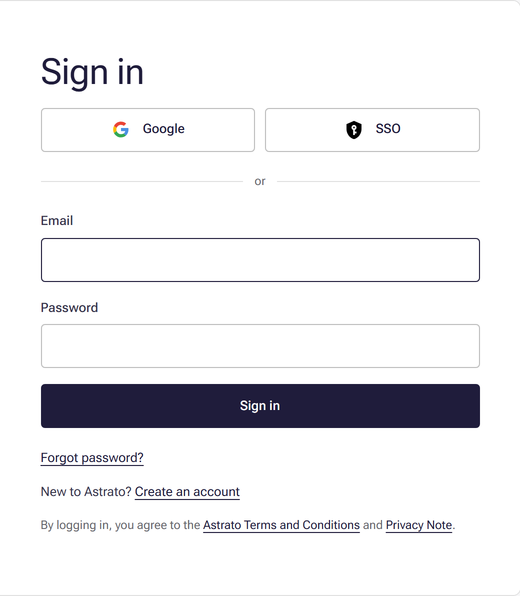
Password sign-in remains subject to your workspace’s sign-in policy.
Create an account
Section titled “Create an account”Before you start: if someone sent you an invitation link, open that link instead to join their workspace; see Invitation links. Otherwise you need an email address whose inbox you can open, in case Astrato asks you to verify it.
-
Select Create an account on the sign-in page. Unbranded sign-in pages do not show this link; go to
/auth-login/sign-upon the same host instead. Keep the sign-in page’s query string, so Astrato can return you to where you started after sign-up. -
On Create your account, enter your Email and select Continue.
-
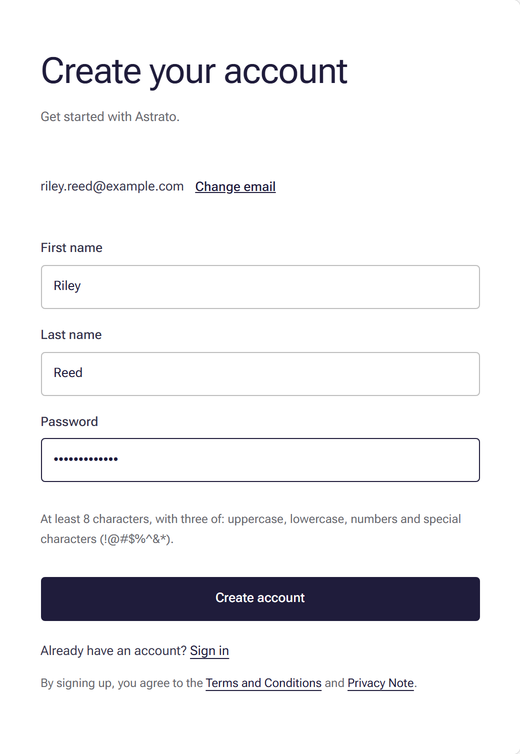
Enter First name, Last name and a Password. The password needs at least 8 characters and three of: uppercase letters, lowercase letters, numbers and the special characters
!@#$%^&*.
-
Select Create account. Astrato then signs you in, or returns you to Sign in if it cannot.
If sign-in shows Email verification required, open the verification link sent to your address, or select Resend for a new one. A link that has already been used or has expired shows Invalid link; request a new one.
Sign in with single sign-on
Section titled “Sign in with single sign-on”Select SSO, enter your Workspace or email and select Continue with SSO. If your workspace requires single sign-on, Astrato may send you to that page with the message “Your tenant requires SSO.”
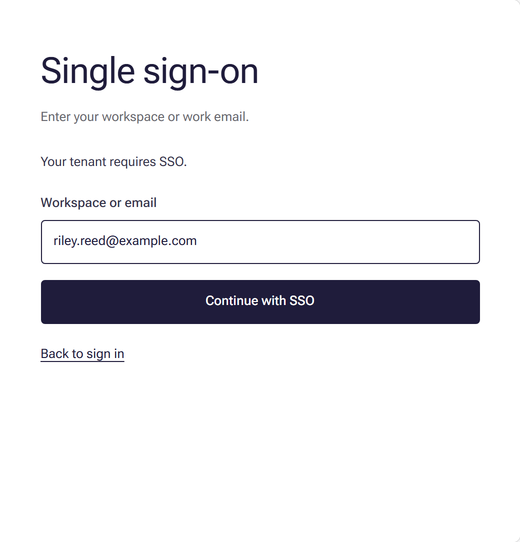
Single sign-on for a workspace is set up by its owner or an administrator; see Set up single sign-on.
Stay signed in
Section titled “Stay signed in”If you are signed out each time the browser closes, see Staying signed in. An expired session shows Session expired; select Back to sign in.
Reset a forgotten password
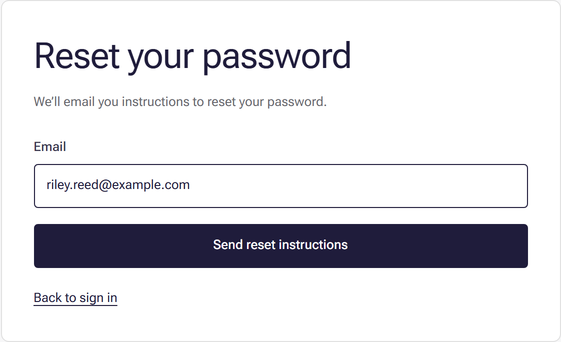
Section titled “Reset a forgotten password”Select Forgot password? on the sign-in page. If sign-up reports that your email is already registered, select Reset your password. The reset form opens with your email filled in. Send the request and follow the instructions in the reset email instead of creating another account.
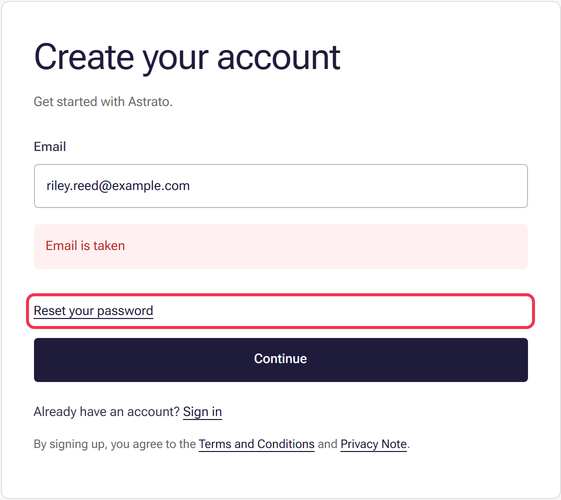
Low reCAPTCHA score
Section titled “Low reCAPTCHA score”Sign-in, sign-up and password reset each send a Google reCAPTCHA check with the form. When Google scores the attempt as likely automated, Astrato refuses it with Low recaptcha score.
-
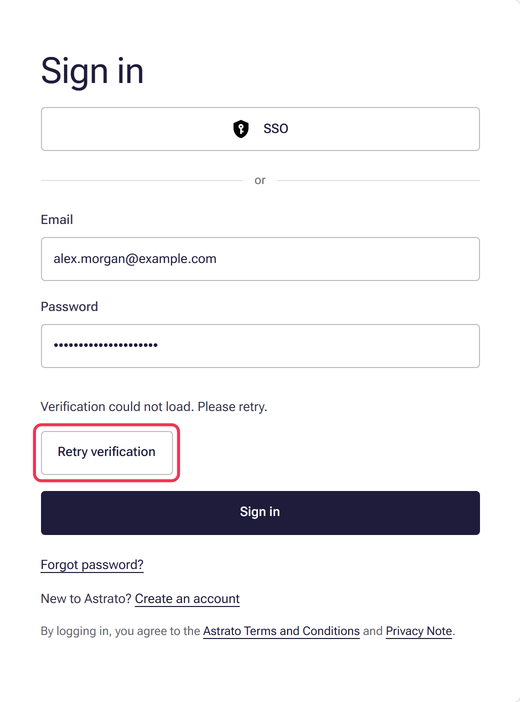
On the sign-in page, a reCAPTCHA checkbox appears above the Sign in button instead of that message. Complete the check, then select Sign in again. If the check reports Verification failed. Please retry. or Verification could not load. Please retry., select Retry verification below the message to load a fresh check. Selecting Sign in before the check is complete shows Complete verification before signing in.
-
On the sign-up or reset form, the message appears on the form. Try again after a short while, or from a browser profile you use regularly, since the score depends on how the browser has been used.
If it keeps failing, raise it through the Support portal with the time of the attempt and the full text of the message, including the Correlation ID shown below it, if there is one.
Accept a workspace membership transfer
Section titled “Accept a workspace membership transfer”If you already belong to another workspace, pending invitations appear in the new lobby’s Membership transfer invite dialog. Select the destination if you have several invitations, then select Accept, or Reject (Reject All for several invitations) to stay in your current workspace.
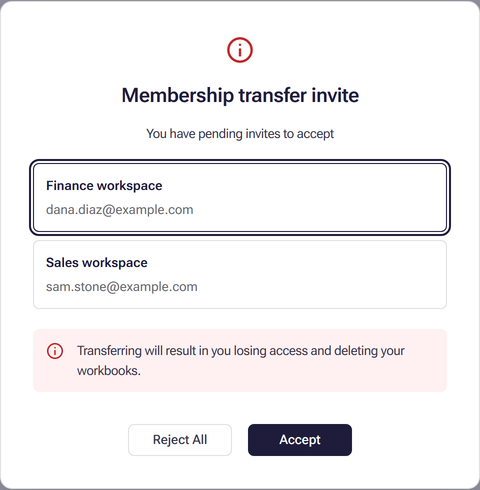
Transferring removes access to your current workspace. If you own that workspace, select another active user to receive ownership. If no eligible user is available, accepting deletes your current workspace and all its data; enter your account’s email address to confirm. The address must match exactly, including whitespace. If you paste, drag, or automatically fill it, edit it by hand before accepting; only typing and deleting count as editing by hand. After acceptance, the page reloads with your new membership.
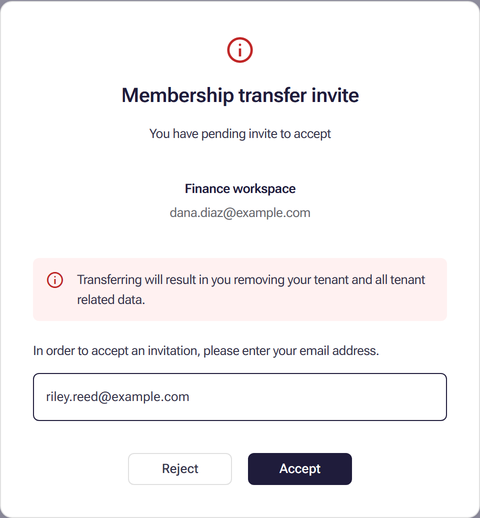
If workspace ownership is transferred but accepting the invitation fails, Reject and Reject All are unavailable. Select Accept again to finish joining the destination workspace; the completed ownership transfer is not repeated or undone.