Join direction and quality
A join says how two tables relate: from the table with many rows per key to the table where that key is unique. In an orders model, many orders belong to one customer, so the join runs from Orders to Customers. The field on the “many” side is the foreign key; the field it matches on the “one” side is the primary key.
Get the direction and the keys right and a join returns the numbers you expect. Get them wrong and a chart can show empty values or inflated totals. This page explains what the direction does, how to check a join against your data, and how to judge the joins Astrato suggests. Drawing joins on the canvas is covered in Draw a join.
Join direction
Section titled “Join direction”You see a join’s direction in three places:
- In the join panel, Cardinality reads Many → One for the usual case. From is the “many” side and To is the “one” side.
- In the Joins list, each row shows the tables as
From → To, then the cardinality in short form and the matching fields, for exampleN:1 · Listing Id = Id. - On the Map, the join is a line between the key fields of the two tables. Select the line to open the join panel.
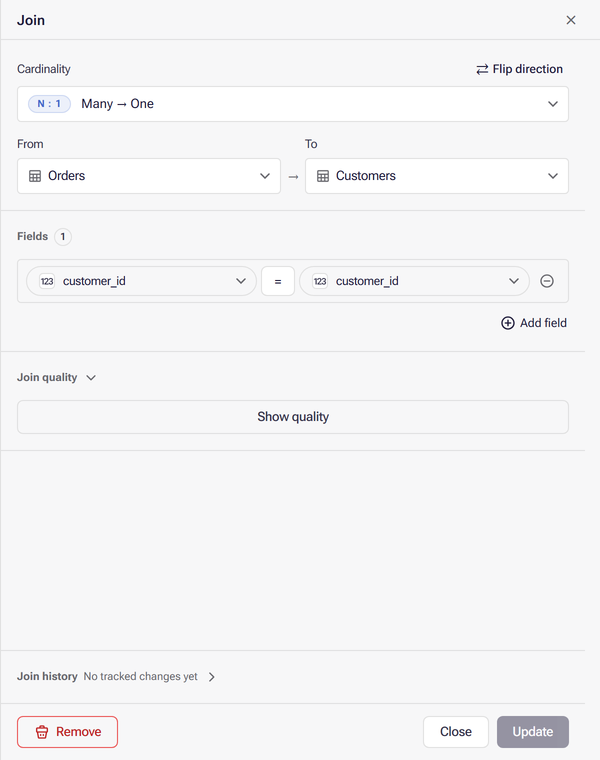
If a join was created the wrong way round, select Flip direction. It swaps From and To and the fields on each side; select Update to keep the change.
The Cardinality list offers Many → One and Many → Many. Choosing Many → Many asks you to confirm, because a many-to-many join can repeat rows in query results and inflate totals. Set it only when you have checked that the join gives the grain you want. A measure that reads across a many-to-many join needs its Fanout option set; see Define a measure.
Why direction matters
Section titled “Why direction matters”Astrato builds each query from the direction of your joins, not from the data. It treats the To side’s key as unique and, by default, aggregates each measure on the rows of its own table, reaching other tables only along many-to-one joins. A join pointing the wrong way, or one whose To key is not actually unique, can therefore give wrong results even when every key value matches. Join quality is how you check the data agrees with the direction.
Fan trap example
Section titled “Fan trap example”Take Sales, with one row per sale and a Sales Amount, and Shipments, with one row per shipment and a Shipment Amount. One sale can ship in several parts, so the join runs from Shipments to Sales on the sale’s ID: Many → One.
Joined row by row, as plain SQL would, each sale appears once for every shipment it has. Sum Sales Amount over that result and a sale shipped in three parts is counted three times: the total no longer matches the Sales table. This is a fan trap. Nothing is wrong with the data or with the join; the problem is aggregating a “one”-side number over “many”-side rows.
Astrato avoids it by following the direction:
- Sales Amount and Shipment Amount by customer are both correct. Each is summed over its own table’s rows, and both tables reach the customer along many-to-one joins.
- Sales Amount by shipment type is not repeated across types. A sale can have several shipment types, so the type is not available on a Sales row; the sales total appears against an empty shipment type instead, and the grand total still reconciles.
A measure’s Fanout option changes this. Allow fanout lets joined rows repeat before aggregation, which is what the default prevents; see Define a measure.
When a join is refused
Section titled “When a join is refused”A new or changed join cannot close a loop of joins or open a second route between two tables, because a query would then have more than one way to combine them. The join panel says The join would create a cycle: or The join would create multiple query paths:, followed by the tables on that route, and keeps Update or Create unavailable. When you edit an existing join, it also suggests reversing the direction of a join on that path or deleting one.
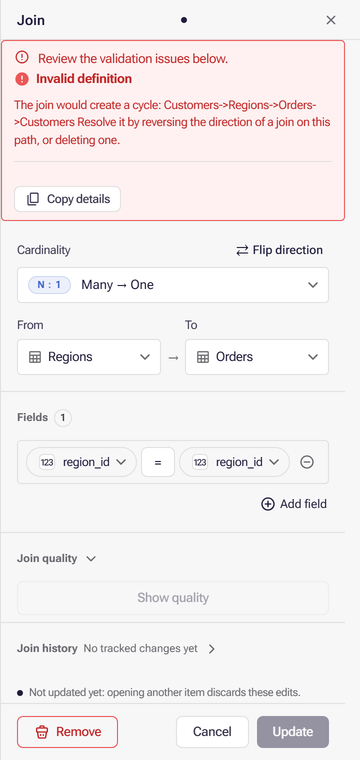
Join quality
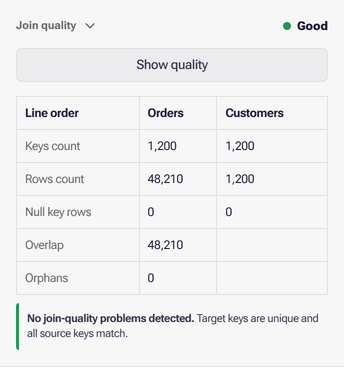
Section titled “Join quality”Show quality, in the Join quality section of a saved join’s panel, checks the join against your data. Astrato runs queries on the current saved draft and reports a verdict beside Join quality, then a table. The Line order column names each row; the next column is the From table and the last is the To table. Overlap and Orphans describe only the From table, so the To column is blank on those rows.
| Row | What it counts |
|---|---|
| Keys count | Distinct non-empty key values. A join with several field pairs counts each combination once. |
| Rows count | All rows in the table. |
| Null key rows | Rows whose key is empty. |
| Overlap | Rows on the From side whose complete key combination exists on the To side. |
| Orphans | Rows on the From side with a non-empty key that has no match on the To side. A high number usually means the wrong field. |
All field pairs are checked together, including compound keys and pairs compared with an operator other than =.
What the verdict means
Section titled “What the verdict means”| Verdict | When |
|---|---|
| Good | The To side has as many keys as rows, so each key is unique; some rows overlap; and the From side has no orphans and no empty keys. |
| Warning | The To key is unique and some rows overlap, but the From side has orphans or empty keys. |
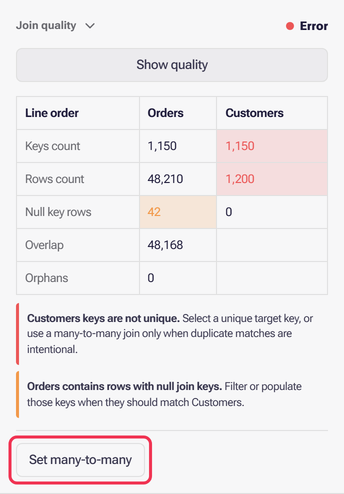
| Error | The To key is not unique, or no rows overlap. |
Below the table, the panel names each problem it found and what to do about it:
- … keys are not unique. Pick a unique key on the To side. If duplicate matches are intended, the panel offers Set many-to-many.
- No key values overlap. Check that you picked the right fields and that their data types match.
- … contains rows with null join keys. Filter those rows or fill in their keys if they should match.
- … contains rows without a … match. Check for missing keys on the To side, or filter rows that are meant to have no match.
- … keys are not referenced. Keys on the To side that nothing refers to, such as products never sold. This is often expected and does not lower the verdict.
On a healthy many-to-one join, Keys count and Rows count are equal on the To side, and Orphans is zero or close to it.
When the check is unavailable
Section titled “When the check is unavailable”Show quality stays unavailable when:
- the join has unsaved edits: select Update first;
- the join is incomplete or has a validation error;
- the layer is not a connected Astrato semantic layer; or
- exit-node routing is not turned on for your organization. The panel says Join quality needs exit-node routing for your organization. Ask an administrator to turn it on.
If the connection cannot measure quality, the panel says Connected-data quality is unavailable for this connection. If the draft changes while the check runs, it asks you to run it again.
Agents can rate a layer’s joins with astrato_semantic_layer_check_join_quality; see Semantic layer workflows.
Join suggestions
Section titled “Join suggestions”Suggestions, on the Joins tab, opens a panel of joins Astrato proposes between tables that are not yet joined. On the Map, Suggestions opens the same list under its Joins tab, beside measure and dimension suggestions. A suggestion is left out if it would close a loop or open a second route between tables.
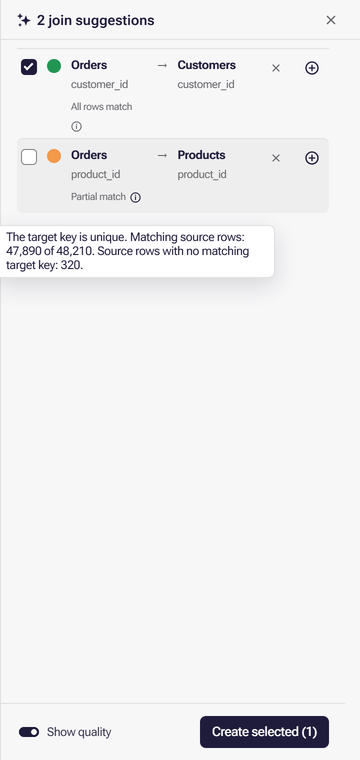
Each suggestion shows the table and field on each side, joined by an arrow in the join’s direction. What appears under the From side depends on how the suggestion was found:
- From your data. When your workspace can analyze connected data, suggestions come from the current saved draft and carry the quality measured during that analysis. All rows match means the target key is unique and every source row finds a match. Partial match means the target key is unique but some source rows have no match or an empty key. The information icon beside it gives the counts. A candidate whose measured quality fails is not suggested. A suggestion that arrives without a measured quality reads Connected data.
- From field names and types. Otherwise suggestions come from the model alone and show a percentage confidence. That is how strongly the names and data types point to a match, not a measure of the data.
Show quality at the foot of the panel turns the dot beside each suggestion on and off. It is available only for suggestions found from your data, and switching it on does not repeat the analysis when the result is already there; it measures only the Connected data suggestions. The dot is green when all rows match and amber for a partial match. A Connected data suggestion measured this way can also show red, when the check fails, or grey, when no result could be measured.
To act on suggestions:
- Select Create join (the + button) on a suggestion to add just that join.
- Tick the suggestions you want and select Create selected. With nothing ticked, the button reads Create all and creates every remaining suggestion.
- Select Dismiss (×) to drop a suggestion. Create all skips dismissed suggestions.
Applying join suggestions covers where suggestions come from and what creating one does to your draft.
Create joins yourself
Section titled “Create joins yourself”Before you start: an open draft with at least two tables.
- On the Joins tab, select Add.
- Choose the From table, the “many” side, and the To table, the “one” side.
- Pick the key field on each side. Select Add field when the join needs more than one pair.
- Select Create. It stays unavailable until both tables and a field on each side are chosen.
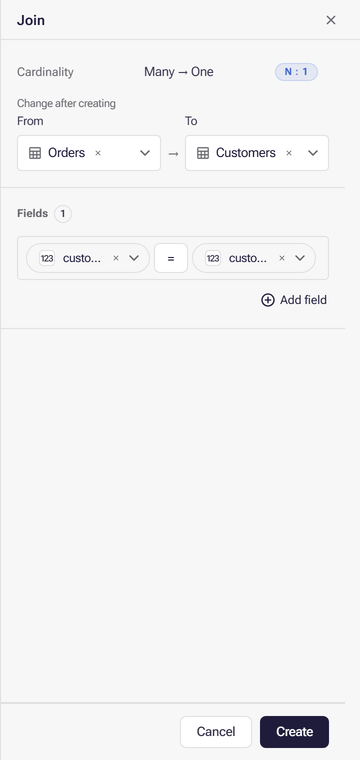
The Join two tables walkthrough, under Applying join suggestions, records each of these steps.
A new join always starts as Many → One; change the cardinality after creating it. You can also draw a join on the Map by dragging from one field to another. For keys made of several columns, or a join on a range such as a date between a start and an end, see Join on more than one field, or on a range.
To change a join later, select it in the list or on the Map, edit it in the panel and select Update. Remove deletes it. Run Show quality before you rely on a new or changed join, then publish when it is right.