Create a calculated measure
A calculated measure is a formula over measures you already have: margin from revenue and cost, average order value from revenue and orders. Pick it when the number is arithmetic on other agreed numbers, because then each part stays defined in one place.
Before you start: open a semantic layer and go to Business Context → Measures, then select Add → Calculated measure. To compare it with the other kinds, see Choose the kind of measure.
Build the formula
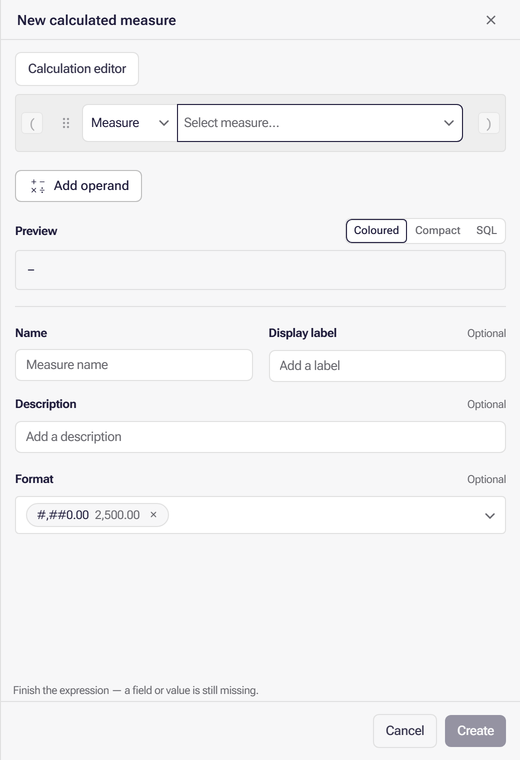
Section titled “Build the formula”Its operand picker offers Measure, Numeric value and Parameter — and no aggregation functions, because the operands are measures, which have already been aggregated.
Work a measure out per field first
Section titled “Work a measure out per field first”Each Measure operand can also be worked out at a finer grain before the formula combines it. Select the Nested calculation icon (a sigma, Σ) in the operand’s row. Under the row, choose a reduction in Then take (Sum, Average, Minimum, Maximum, Percentile or Function) and tick one or more fields in Per field. The picker lists the fields reachable through joins from the measure’s own tables, not only those that have a dimension, and stays open while you tick. With a customer ID field and Average, for example, Revenue becomes revenue per customer, averaged for each row of the answer, while the other operands are left as they are. Ticking customer ID and order date instead works revenue out per customer per day before averaging. Select Clear to remove it. The setting appears only where Business Questions are enabled. Percentile and Function are offered only here, on a measure in the formula, per a grain (Σ); a measure’s or calculation’s own reduction keeps Sum, Average, Minimum and Maximum.
Percentile and Function
Section titled “Percentile and Function”Percentile takes a value from 0 to 100, so 95 gives the 95th percentile, a method (Continuous interpolates between values, Discrete returns one of them) and an optional Approximate. A percentile takes numbers only, so for a measure that is not a number, such as a date, Percentile is disabled; use Minimum or Maximum instead. Function offers your scalar functions that take exactly one measure array parameter, which receives the values per field, and only scalar parameters besides it; with none, it is disabled and says so. Each scalar parameter gets a box, and one you leave empty uses its default, shown as the placeholder; a parameter without a default needs a value or Set to NULL. Set to NULL passes NULL instead, shown as a NULL chip; remove the chip to use the default again. Percentile and Function reduce an ordinary grain only: not a Time Axis, and not on a time intelligence measure. A business question can set a grain on one selection instead, by dimension, with Sum, Average, Minimum or Maximum.
A median (Percentile 50) or 90th percentile per customer, order or product is worth adding where a few large ones lift the average far above a typical one: show the median beside the average, and the 90th percentile beside the median. Where values are evenly spread, or a group has fewer than about 20 members, it adds little to the average.
Measures that open as a formula
Section titled “Measures that open as a formula”The measure and conditional measure builders have no switch to the formula editor. A measure with its own reduction, such as an average per City, or a conditional measure that embeds a calculation, opens in the formula form instead, so it stays editable: change it in the Formula field of the Calculation section. A time intelligence measure, or one whose reduction is over a Time Axis, keeps its own editor instead.
This is also where a measure lands when it cannot be read as anything else: a measure the editor cannot parse is shown as calculated. If one you expected to be standard is listed as calculated, its formula is what to look at.
Related
Section titled “Related”- Define a measure in Business Context covers creating, publishing and checking any measure.
- Parameters explains the Parameter operand.
- Business questions can set a grain on one selection instead.