Private Preview
Write a virtual procedure workflow
A virtual procedure lives in the layer rather than in the warehouse. Nothing is created there, so a connection that cannot create procedures can still have one. Prefer it over a stored procedure when either would do: it needs no procedure privileges or deployment in the warehouse. Saving records the definition; nothing runs until a published workflow is run.
Before you begin
Section titled “Before you begin”- Business Workflows are enabled for your tenant.
- You can edit the layer.
Create the draft
Section titled “Create the draft”Select Add → Virtual procedure, then write its SQL statements in the panel, or use Nash or an MCP-connected assistant, in the connection’s dialect.
Declare parameters
Section titled “Declare parameters”Declare its Parameters in the order a caller sends them, each with a name and compiler datatype. The explicit implementation binds values to typed SQL tokens such as {NAME:string}; the value is bound, never pasted into the SQL. Keep the implementation bindings and typed statement tokens consistent; Issues reports a token that names neither a declared parameter nor a binding, a table the layer does not map, SQL that stops half way (for example on a trailing =, AND or comma), a step that holds more than one statement (put each in its own step), a step that starts with DROP, CREATE, ALTER, TRUNCATE, GRANT or REVOKE (steps read and write rows, they do not change the schema or permissions), a list token wrapped in parentheses, two statements with one name, and a parameter no statement uses. The editor underlines the offending text in red and explains it on hover. A column the mapped table does not list is a warning, not an error, because the warehouse may still have it. The syntax check is structural, not a full parse: the warehouse remains the judge of anything subtler.
To match a list of values, declare the parameter with a list type such as int_list or string_list and write the token without parentheses, for example WHERE id IN {ids:int_list}. The engine expands the token to a parenthesised list itself, so IN ({ids:int_list}) is wrapped twice and fails at run time; Issues flags it as an error. An empty list matches no rows.
Use the plus in the Parameters header to declare a value, and the plus in Statements to add a step. Name a parameter or a statement in the Name field of its expanded row; renaming a parameter updates the SQL that names it, and the row shows how many statements use it. Use a parameter’s grip or Alt with an arrow key to reorder it: callers send values in that order. A parameter’s name must be unique and made of letters, digits and underscores. Removing a parameter also removes its bindings but leaves the SQL as written, so each statement that still names it turns red with a warning, and its expanded row says which parameter is undeclared, until you edit it.
Write statements
Section titled “Write statements”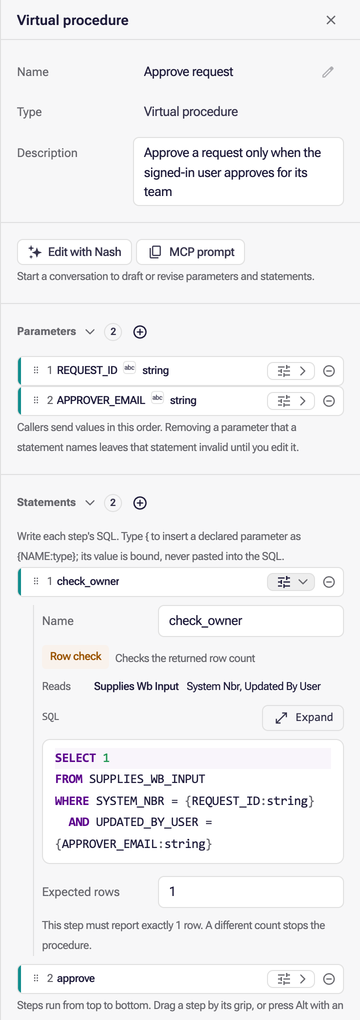
Statements appear as numbered steps with an operation badge and the mapped tables and fields they Read or Write. A Row check marks a SELECT with Expected rows. Rows start collapsed, except a parameter no statement uses and a statement with an issue, which start open, and a statement you add, which opens for editing. Open each row with the same settings-and-chevron control used by Business Question measures. Expanded statements include a SQL editor with syntax highlighting. Type { to insert one of the declared parameters; the editor does not offer to declare a new one. Select Add statement to append a step, drag a step by its grip or press Alt with an arrow key to reorder it, and use the remove control to delete it. A result of Rows of the last statement keeps following whichever step is last. Renaming a parameter rewrites the tokens that name it in every statement, in all dialects, and the bindings that read it.
Collapsed steps show a compact row; expanding reveals the read/write summary, SQL and expected row count. The SQL, step name and expected row count are all editable in the panel. Select Expand above the SQL for a larger editor; closing it keeps what you typed.
Set expected rows
Section titled “Set expected rows”The definition records statements in their intended execution order. Expected rows appears below the SQL editor in an expanded step. Set it to a nonnegative whole number to record an exact expected row count. Leave it empty for no row-count requirement. These settings are validated and saved; no statements run. An invalid value blocks Create or Update, including while the step is collapsed.
When the workflow has a list parameter or binding, Expected rows from list appears under it. Choosing one makes the step expect one row for each distinct item supplied for the run, so a batch of any size is guarded, and it replaces the fixed number. Nulls are not counted and a repeated item counts once. In the definition this is expectRowsFromList, set instead of expectRows. See Guard a batch.
Set the transaction and result
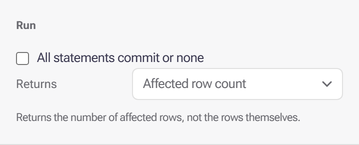
Section titled “Set the transaction and result”Under Run, All statements commit or none records the requested transaction policy. Returns offers Affected row count, Rows of the last statement, or Nothing. Existing explicit result definitions stay intact until edited. A rows result refers to a named statement; renaming that step preserves the result reference. Issues reports an error on the workflow when the result does not match what the runtime accepts: a rows result with no declared return fields, a result that names no statement of its own, a declared return with no result, and a result placed on the implementation instead of inside the dialect. The publish check can block a layer that contains one. Parameters use the same Value, Refers to and Note settings as stored procedures.
On Athena, leave All statements commit or none off. Each statement runs independently, so a later failure cannot undo an earlier write. Use an Athena engine v3 Iceberg table for updates, deletes, or MERGE INTO. Row checks and returned rows are available for reads only.
Review the effects
Section titled “Review the effects”Unmapped tables and incomplete analysis are stated explicitly; review the SQL for effects the summary cannot determine. This preview executes nothing and does not verify permissions.
A virtual procedure’s parameters, result metadata and implementation SQL are saved in the layer.
Edit with Nash or MCP
Section titled “Edit with Nash or MCP”Select Edit with Nash to start a fresh conversation about the selected workflow, or use the copy icon beside MCP prompt to copy the same workflow and layer context for an MCP-connected assistant. Copying keeps the panel open and changes no definition. Both actions wait until pending panel edits are saved or cancelled. Nash asks which changes you want before editing.