Share an Excel workbook with Astrato data
You share an Excel file that uses the Add-in the same way as any other Excel file. Recipients see the figures from your last refresh, including people without an Astrato login. Your Astrato credentials are not stored in the file.
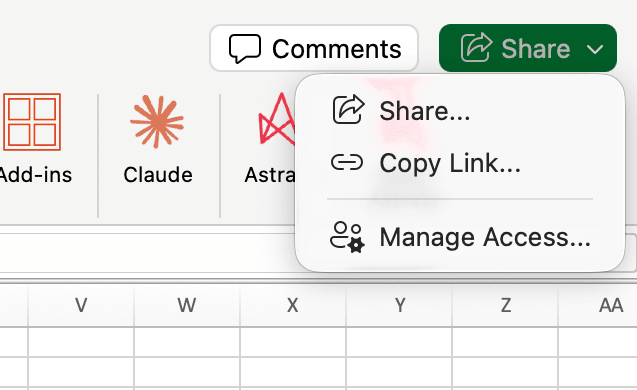
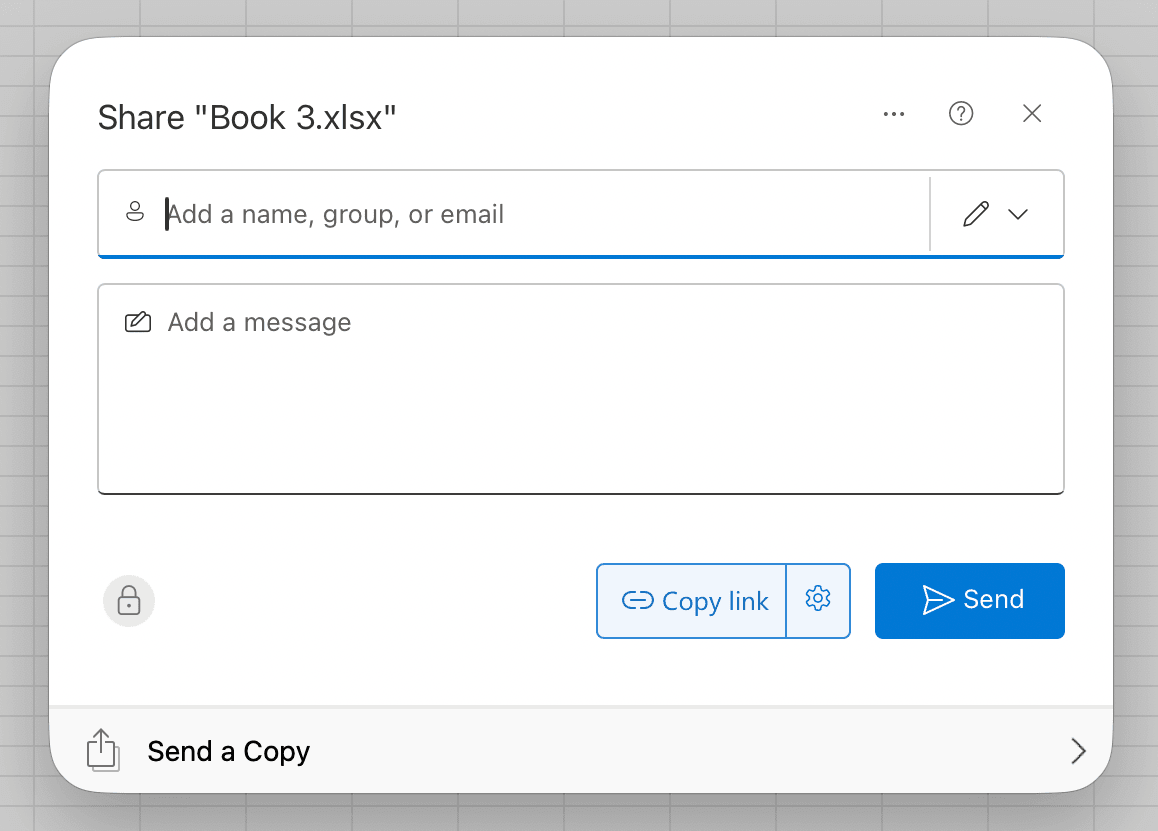
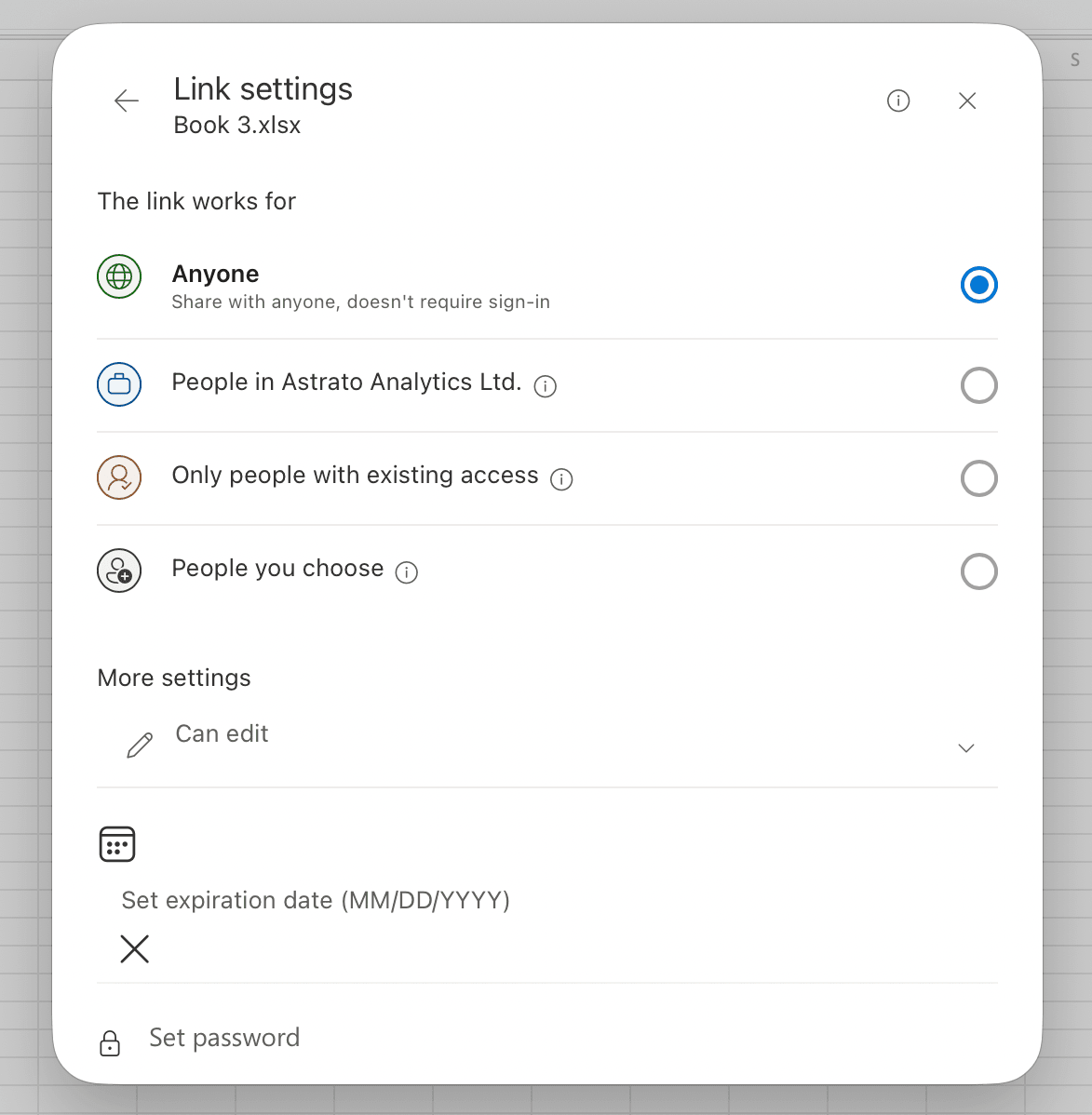
In Excel, select Share, add the people to share with and select Send, or select Copy link and use the settings next to it to choose who the link works for.
What the file contains
Section titled “What the file contains”Stored in the Excel file:
-
Your datasets: the queries you built.
-
The cached data: the values from your last refresh.
Not stored in the Excel file:
- Your credentials: your sign-in and token stay in your Office settings, so sharing the file does not share your access.
What the recipient sees
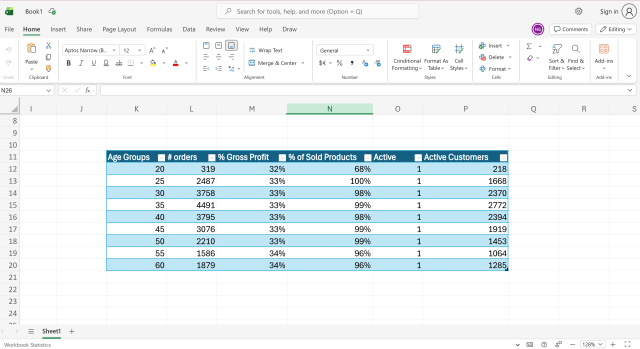
Section titled “What the recipient sees”When a recipient opens the file, the ASTRATO.* formulas show your last refreshed values without a sign-in. To show how current those values are, add =ASTRATO.LASTUPDATED(...) next to a table (see Excel functions).
Let recipients refresh the data
Section titled “Let recipients refresh the data”Reading the cached data needs no setup. To refresh, a recipient needs the Add-in and their own Astrato connection:
-
The recipient installs the Add-in (see Install the Add-in).
-
The recipient connects with their own account (see Connect to Astrato).
-
The recipient selects the refresh icon in the dataset (see Refresh a dataset). Refresh runs with the recipient’s access, so each person sees data according to their own permissions.
Limit automatic refresh in a shared file
Section titled “Limit automatic refresh in a shared file”To stop automatic refresh in a shared file, set each dataset’s refresh mode to Refresh manual before you share the file. Recipients then see your cached values, and the data refreshes only when someone selects the refresh icon.
Refresh modes are explained in Create and manage datasets.