Private Preview
Business Workflows
A Business Workflow is a named write that you register in the semantic layer: a change to a table, a call to a stored procedure, or a short sequence of SQL statements. Registered workflows are also called Data Actions. Apps and agents run a workflow by name instead of sending SQL or choosing a table.
Where Business Workflows are enabled, Business Context → Business Workflows lists the workflows authored in the layer. The tab row shortens its name to Workflows. Adding a workflow records it; nothing is executed. Data Actions use a draft contract, so incompatible changes may require repairing a definition.
Workflow types
Section titled “Workflow types”| Type | Use it to | Guide |
|---|---|---|
| Writable table | Insert, update or delete rows in one mapped table | Create a writable table workflow |
| Stored procedure | Call a procedure that exists in the warehouse | Register a stored procedure workflow |
| Virtual procedure | Run SQL statements that live in the layer, not in the warehouse | Write a virtual procedure workflow |
How a workflow runs
Section titled “How a workflow runs”- Author. Register the workflow in the editor, with Nash, or through MCP. Saving a draft executes nothing.
- Publish. The workflow that runs is the published version of the layer. A saved draft or an unpublished edit is never run. Publishing checks each registered stored procedure against the current catalog.
- Run. An App runs a published workflow by name with
runDataAction(), as described in Business Workflows and Apps. An MCP client runs one with theastrato_semantic_layer_run_data_actiontool, which previews first. Workflow names are matched the same way when you read, prepare, change or run one: an exact spelling wins, and a name that differs only in capitals or surrounding spaces resolves to the stored workflow when exactly one stored name matches it, which is the name the preview shows and runs. Preparing a change for a workflow or view the layer does not have is refused with the names it does have. In Nash, asking to run a workflow shows a form with the workflow’s parameters, filled with values you already gave. Values Astrato supplies from your sign-in are shown and cannot be edited. Submitting the form is the confirmation and runs the workflow, so Nash does not ask again. Astrato runs the workflow as the signed-in viewer. For the whole route end to end, follow Let users edit data and save it back.
Workflow discovery and status lookup are not available to Apps.
Work in the editor
Section titled “Work in the editor”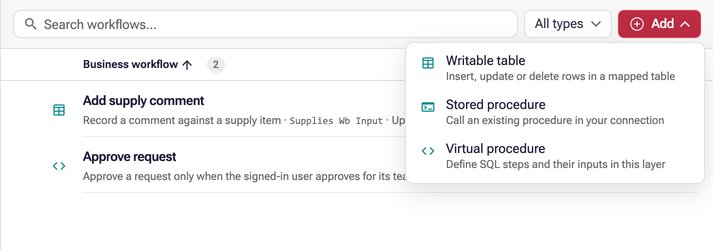
The Add menu explains each workflow type, and the panel title names the type you are editing. Select Create or Update to save. A dot beside the panel title and selected row marks pending edits, with a reminder above the buttons. The secondary button reads Close when nothing has changed and Cancel when it will discard edits. Opening another item also discards pending edits.
Set parameter and field values, and record what each one refers to, in Set parameter and field values. Inspect lineage, record the write policy and compare versions in Review and govern Business Workflows.
See how a workflow is used
Section titled “See how a workflow is used”Open a saved workflow. The closed Usage log shows when it last ran and how that run ended. Expand it to see every run: when it ran, who ran it, where the run came from (App, API or CLI, MCP or Nash), how it ended and, for a workflow that returns an affected-rows count, how many rows it changed. Sort by date, filter by outcome, source, user and a date range (in UTC), and page through the runs.
Outcomes are Succeeded, Failed, Refused (the caller lacked permission), and Outcome unknown (the response was lost or the engine could not confirm the write, so it may have committed; check the data before running it again). A preview that nobody confirmed, or a request rejected before it reached the engine, is not a run and is not logged.
The log keeps no parameter values, SQL, results or error text, and only people who can edit the layer can read it. It starts recording when the feature is enabled and is not a security audit log.
Author with Nash or MCP
Section titled “Author with Nash or MCP”Nash and MCP-connected assistants can register and edit all three workflow types using the explicit implementation contract. Preparation can skip catalog discovery with includeProcedureCatalog: false when editing metadata or when the complete native definition and argument types are already verified. Include discovery when inspecting an unknown signature; pass database with it to read another Snowflake database, BigQuery project or Databricks catalog, and name the same database on the dialect implementation. Apply validates the explicit definition and does not derive or refresh it from warehouse metadata. Inspecting a named workflow reads its complete definition directly, including virtual SQL, dialects and execution settings.
What next
Section titled “What next”- Let users edit data and save it back — a worked example: register a writable table, publish it and save a row from a published Data App.
- Semantic layer issues — where an invalid definition, or a reference to something the layer no longer has, is reported, and which findings hold a publish back.
- Semantic layer entity model — the draft
dataActionscontract these registrations are saved under, and what a breaking change to it means for a definition you have authored. - Writeback and SQL — the Writeback, stored-procedure and SQL routes that do execute, which these settings do not change.