Private Preview
Business Workflows examples
Each example is a workflow an App runs by name. The SQL is illustrative: write it in your connection’s dialect and with your own table names.
Choose a workflow type
Section titled “Choose a workflow type”| Use case | Workflow type | Why |
|---|---|---|
| Edit rows in a budget or forecast table | Writable table | One mapped table, with listed key and writable fields |
| Call logic your data team already owns | Stored procedure | The procedure exists in the warehouse and keeps its own permissions |
| Approve a request, log the change, update a flag | Virtual procedure | Several steps in one transaction, defined in the layer |
| Let users change only their own rows | Writable table | A key field can take the signed-in user’s email; see the first example below |
| Refuse a write unless the data allows it | Virtual procedure | Validation statements raise an authored error message and stop the procedure |
Prefer a virtual procedure when more than one choice fits. Its SQL lives in the layer, so nothing has to be created or deployed in the warehouse, and a connection that cannot create procedures can still have one. A stored procedure needs a procedure to exist and a signature to maintain in each warehouse.
Restrict a write to the signed-in user
Section titled “Restrict a write to the signed-in user”Workflows have no separate user or group access list. Authorization is part of the workflow: a value Astrato fills from the signed-in user, and a check on the data.
Let users update only their own rows
Section titled “Let users update only their own rows”On a writable table, a key field identifies the row to change. Set a key field’s Value to the signed-in user’s Email, User ID or Name, and Astrato fills it from the signed-in user; the App cannot change it.
- Select Add → Writable table and pick the table. Under Operations, select Update rows.
- Under Key fields, add the column that holds the owner, for example
Updated By User. - Open the field’s settings and set Value to User attribute: Email.
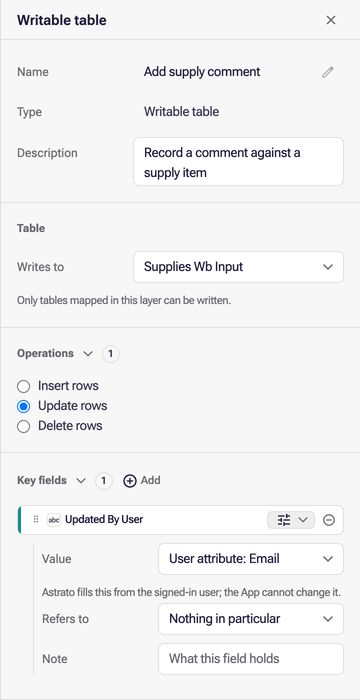
An update then matches only rows whose owner column holds the signed-in user’s email.
Refuse a write unless the data allows it
Section titled “Refuse a write unless the data allows it”In a virtual procedure, put each validation in its own statement before the write. A statement that fails with an authored error message stops the procedure and returns a message that names the cause. The run reports the first failing check.
-
Declare the parameters
REQUEST_IDandAPPROVER_EMAIL. Set the Value ofAPPROVER_EMAILto User attribute: Email, so Astrato supplies the signed-in user’s email. Left as an App value, a caller can send any approver email andcheck_approverchecks that instead. -
Add three statements, in this order. This example is for PostgreSQL; see Return an error message from a Business Workflow for the other warehouses. Name the first
check_request:SELECT CAST(CASE WHEN NOT EXISTS (SELECT 1 FROM approvals.requests WHERE request_id = {REQUEST_ID:string}) THEN'ASTRATO_WF_ERROR: Request ' || COALESCE({REQUEST_ID:string}, 'unknown') || ' does not exist. :END_ASTRATO_WF_ERROR'ELSE '1' END AS integer) AS okName the second
check_not_approved:SELECT CAST(CASE WHEN EXISTS (SELECT 1 FROM approvals.requestsWHERE request_id = {REQUEST_ID:string} AND status = 'approved') THEN'ASTRATO_WF_ERROR: Request ' || COALESCE({REQUEST_ID:string}, 'unknown') || ' is already approved. :END_ASTRATO_WF_ERROR'ELSE '1' END AS integer) AS okName the third
check_approver:SELECT CAST(CASE WHEN NOT EXISTS (SELECT 1FROM approvals.requests rJOIN approvals.approvers a ON a.team_id = r.team_idWHERE r.request_id = {REQUEST_ID:string}AND a.approver_email = {APPROVER_EMAIL:string}) THEN'ASTRATO_WF_ERROR: ' || COALESCE({APPROVER_EMAIL:string}, 'An unknown approver') || ' is not an approver for the team of request '|| COALESCE({REQUEST_ID:string}, 'unknown') || '. :END_ASTRATO_WF_ERROR'ELSE '1' END AS integer) AS ok -
Add a statement that writes:
UPDATE approvals.requestsSET status = 'approved', approved_by = {APPROVER_EMAIL:string}WHERE request_id = {REQUEST_ID:string}AND status IS DISTINCT FROM 'approved' -
Leave All statements commit or none on under Run.
The checks do not lock the row. Two runs for the same request at the same time can both pass check_not_approved, so the status IS DISTINCT FROM 'approved' condition on the update stops the second run from overwriting the first. That run changes no rows and does not return the already-approved message.
The caller receives the message of the first failing check, for example Request R-1042 is already approved., instead of a generic failure. Each message can include the values that explain the refusal.
Check the row count instead
Section titled “Check the row count instead”When a generic refusal is enough, a statement that is a SELECT can carry Expected rows. The editor labels it a Row check: the step must report exactly that many rows, and a different count stops the procedure without a message you wrote. Put the check before the write.
-
With the same parameters, add a statement named
check_owner, with Expected rows set to1:SELECT DISTINCT 1FROM approvals.requests rJOIN approvals.approvers a ON a.team_id = r.team_idWHERE r.request_id = {REQUEST_ID:string}AND a.approver_email = {APPROVER_EMAIL:string}AND r.status IS DISTINCT FROM 'approved' -
Add the statement that writes:
UPDATE approvals.requestsSET status = 'approved', approved_by = {APPROVER_EMAIL:string}WHERE request_id = {REQUEST_ID:string}AND status IS DISTINCT FROM 'approved' -
Leave All statements commit or none on under Run.
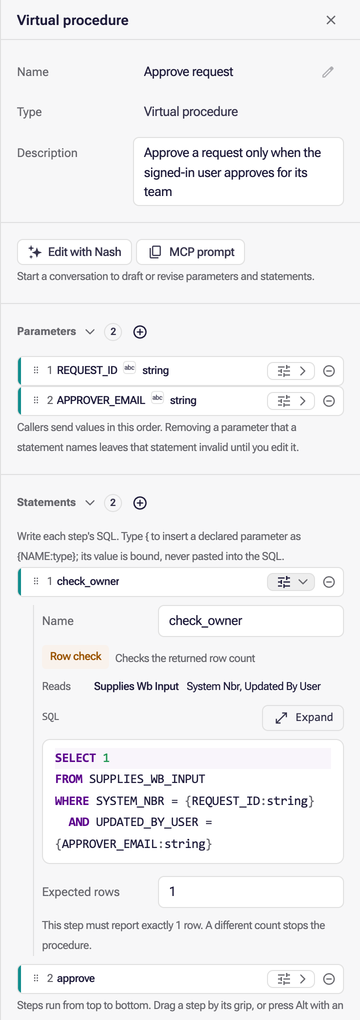
The check returns a row only when the approver is listed for the request’s team and the request is not yet approved. If it returns none, the procedure stops before the update.
Set Value to User attribute: Email on APPROVER_EMAIL, because the check compares it with a.approver_email. For a table keyed by user ID or name, use User ID or Name on the matching parameter instead. A parameter left as an App value takes whatever the caller sends, so without that binding the row check is a rule about the data, not about who is signed in.
Guard a batch
Section titled “Guard a batch”A fixed Expected rows cannot guard a workflow that changes a list of rows, because the list is a different size on every run. Use Expected rows from list instead: the step must report one row for each distinct item in the list.
-
Declare a parameter
IDSof typeint_list. -
Add one statement that writes, and under it set Expected rows from list to
IDS:UPDATE approvals.requestsSET status = 'approved'WHERE status = 'pending'AND request_id IN {IDS:int_list} -
Leave All statements commit or none on under Run.
If any selected request is missing or already approved, fewer rows change than the list holds, the run fails, and nothing is saved. The request id must be unique, or one id can match several rows and fail the guard. The guard needs a warehouse that reports an affected row count, like Expected rows.
Limits
Section titled “Limits”- A trusted value identifies the user to the workflow. It does not replace warehouse privileges: the workflow still runs as the signed-in viewer, with that viewer’s access to the connection.
- The editor does not run workflows. Test a check by running the published workflow from an App or an MCP client with a user who should be refused.
- A second workflow that writes the same table needs its own key binding or check.
- The layer’s Write access setting records whether writes should require a registered workflow; see Review and govern Business Workflows.