Create custom groups
A custom groups dimension puts the values of a field into groups you define yourself, by rule: sites into regions, status codes into “Open” and “Closed”, countries into sales territories. The result behaves like any other dimension, so every question can break down by the same groups. If you are looking for custom groupings, value mappings or a CASE WHEN dimension, this is it.
A bucket cuts a number into even bands. Custom groups do the job a bucket cannot: you choose which values go together and what each group is called.
Before you start: open a semantic layer and go to Business Context → Dimensions, then select Add → Custom groups.
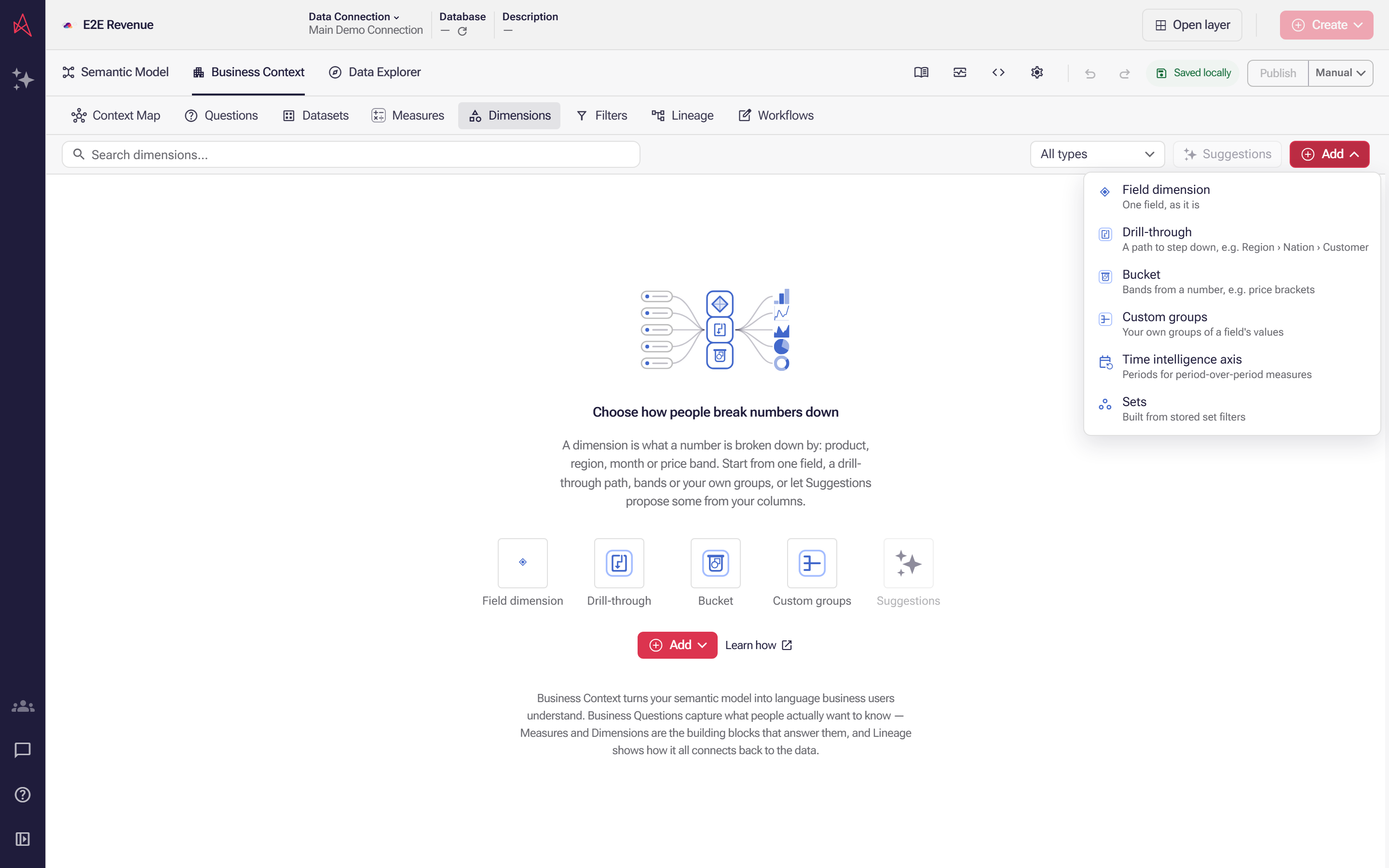
In the Dimensions tab, select Add, then Custom groups: it puts a field's values into groups you define yourself rather than the even bands a bucket cuts.
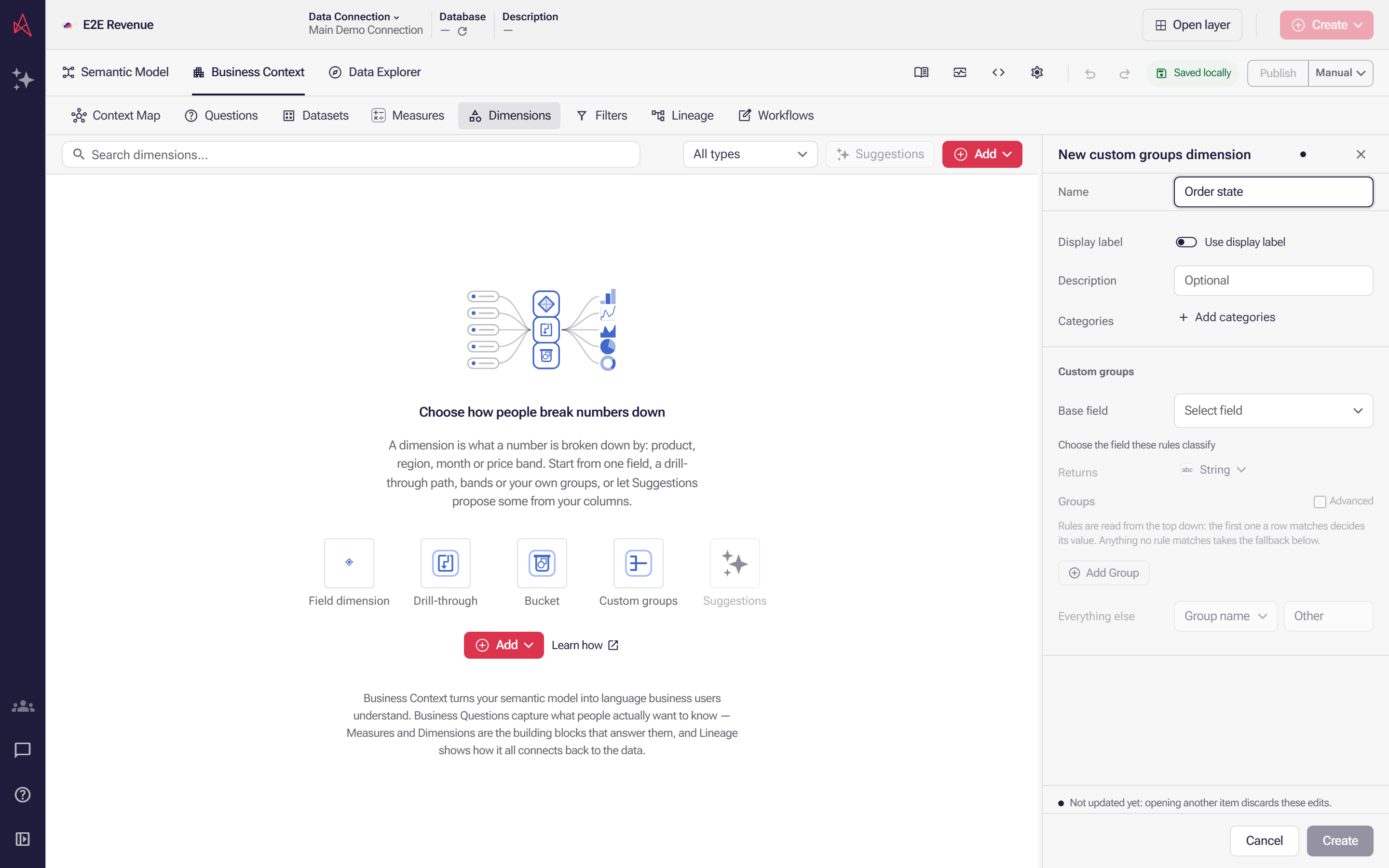
Name it and add a Description if it needs one, then choose the base field: every rule reads it, so the editor below stays greyed out until you do. Select field opens the columns these groups can classify.
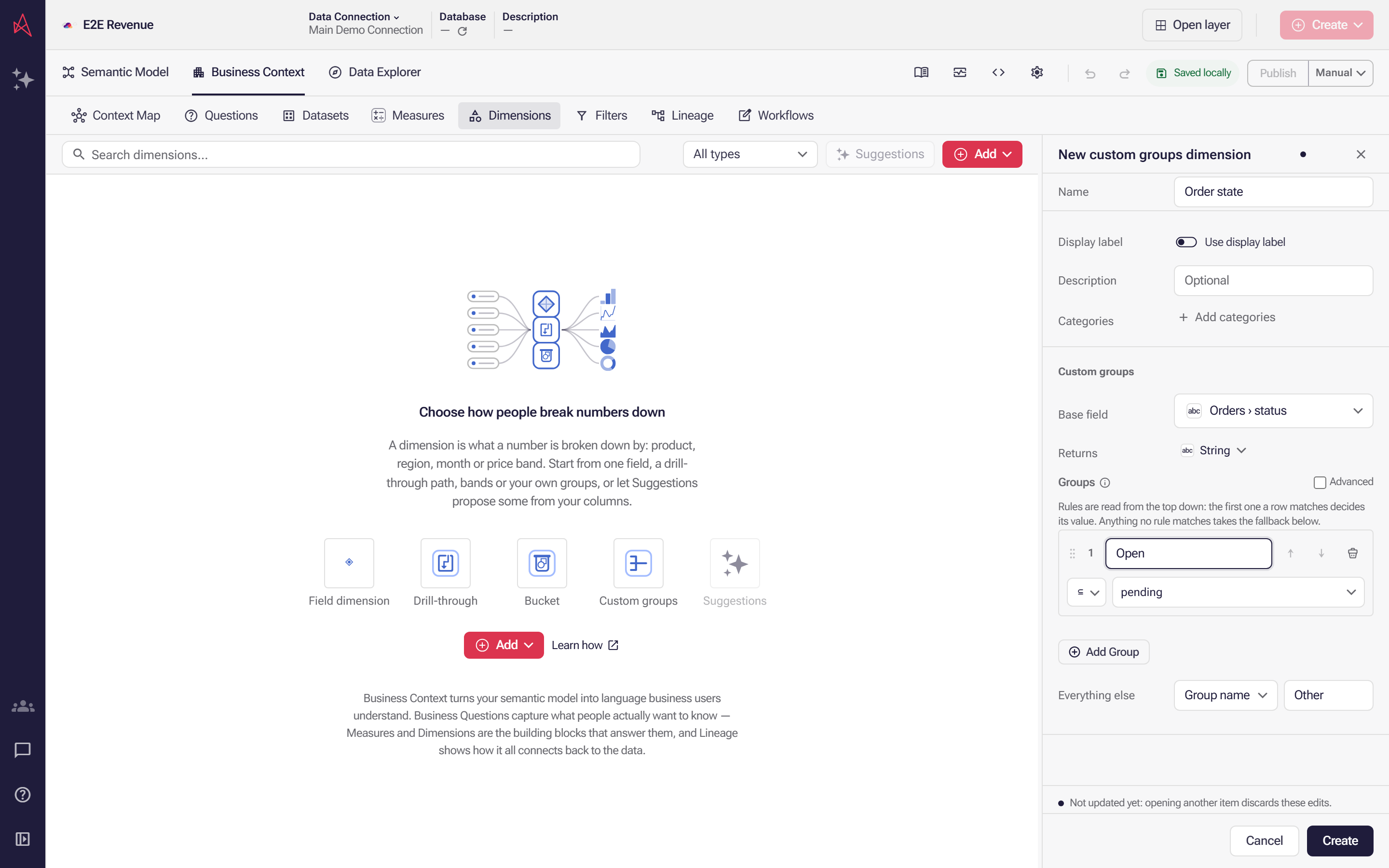
Choosing the base field opens the first group row. Name the group Open and set its condition beneath: Contains pending, read against status. For a condition those boxes cannot express, turn on Advanced. Add Group starts the next rule.
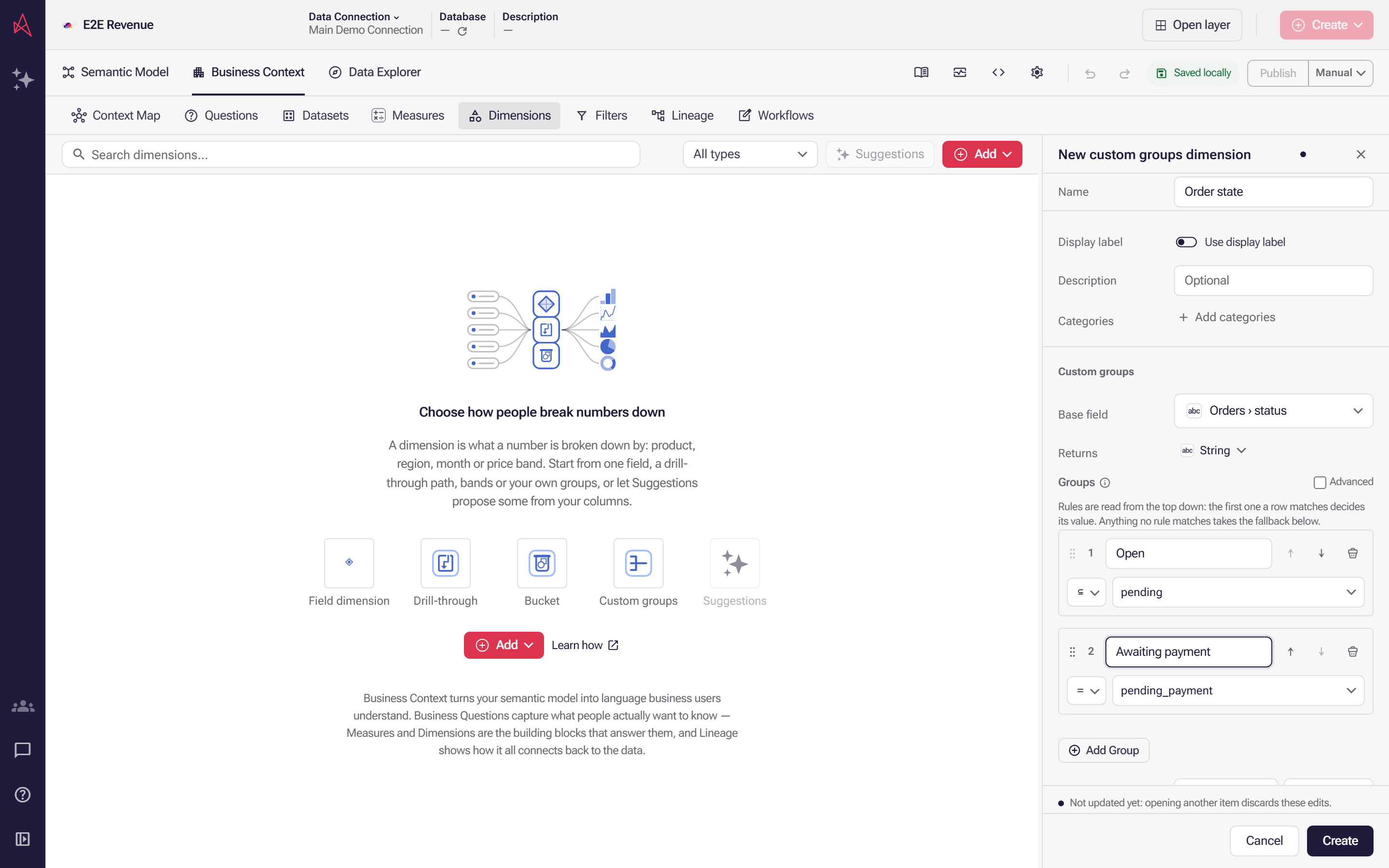
Rules are read from the top down and the first match wins, so a row reading pending_payment would be counted as Open. Move the narrower rule above it with the up arrow, or drag it by its handle.
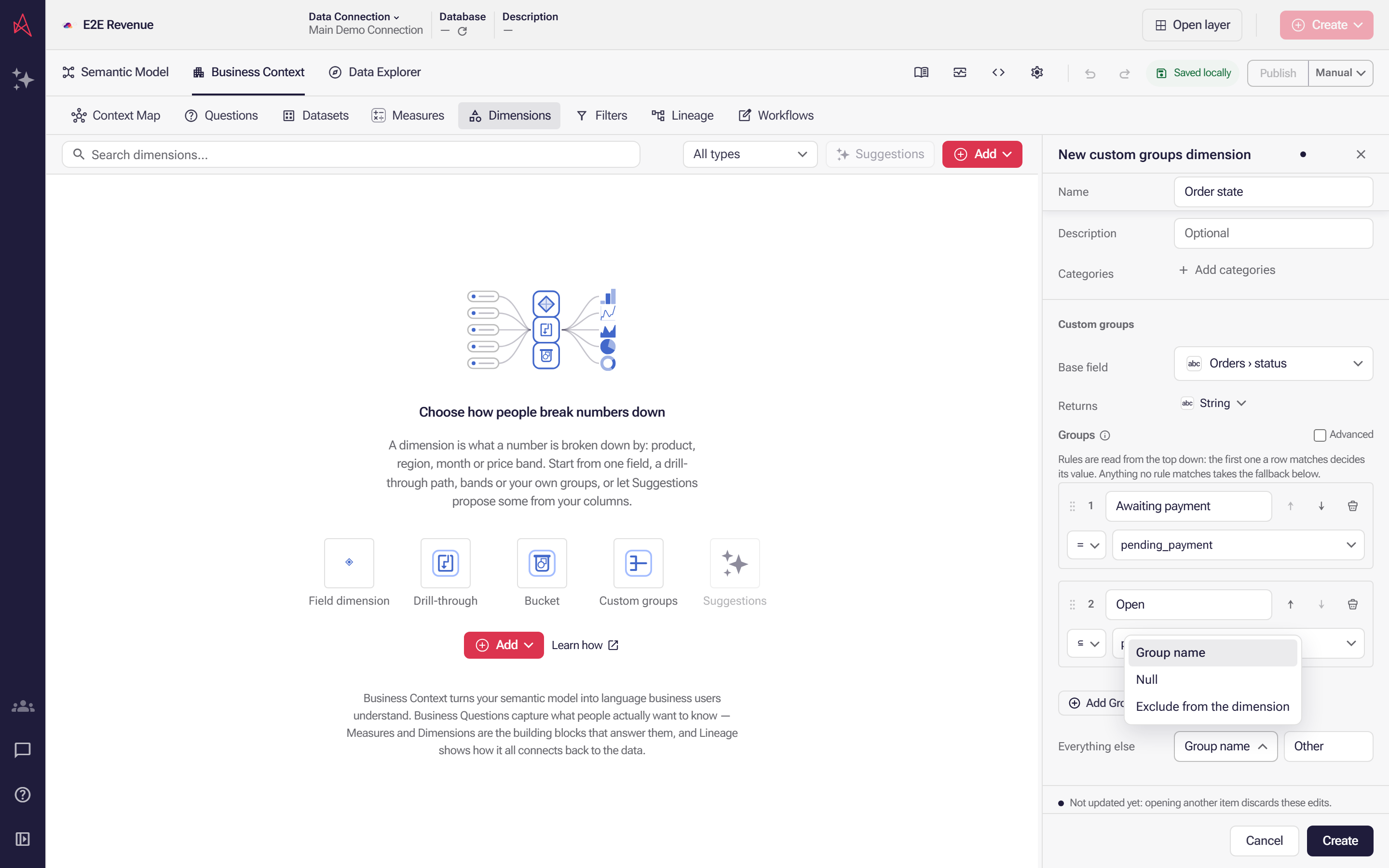
Set Everything else for rows no rule matched. It arrives as the group name Other, which you can rename; the list beside it can return null instead, or leave those rows out of the dimension.
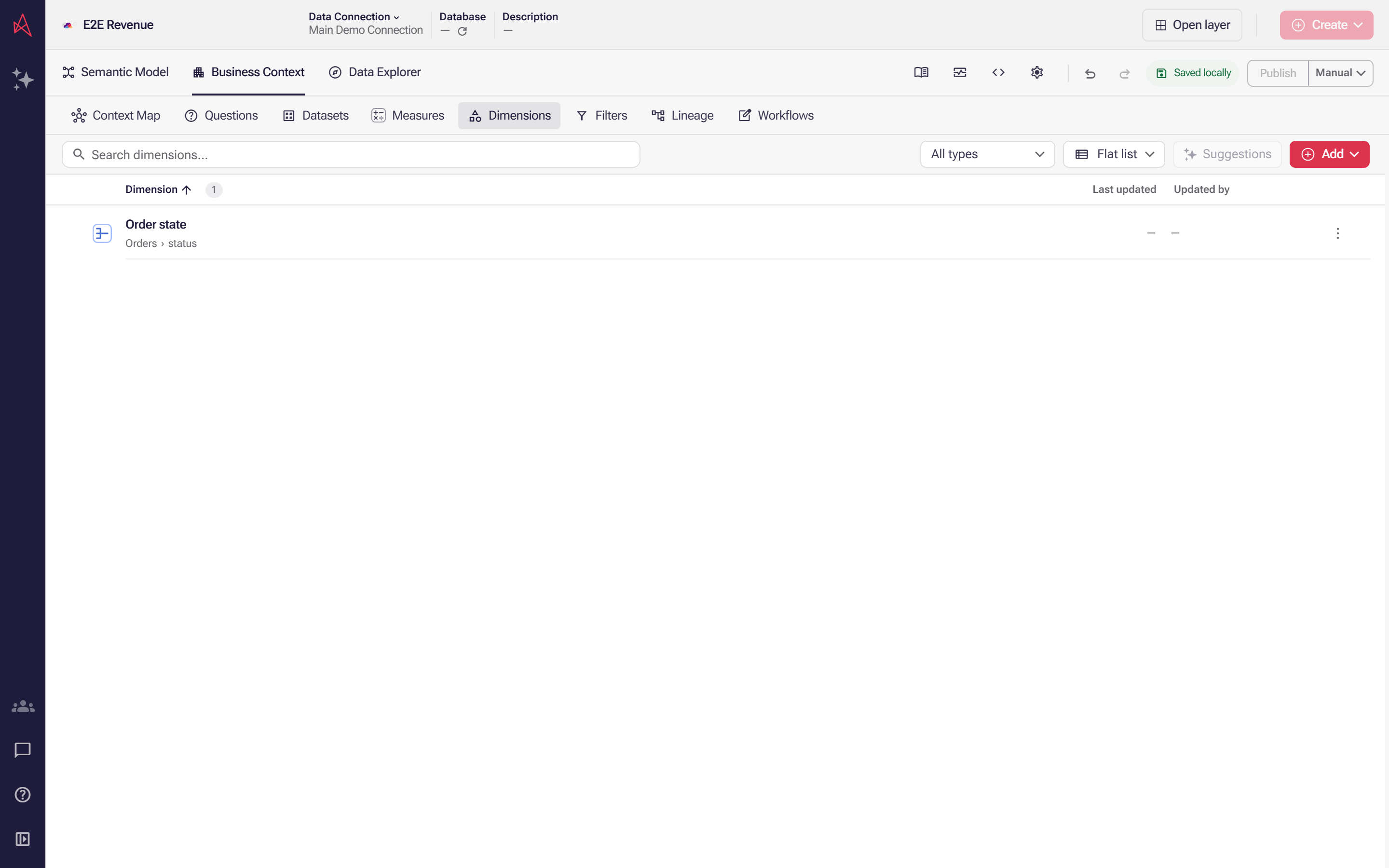
After you select Create, Order state sits in the Dimensions list, saved into the local draft, with the column its rules read named under it.
Choose the base field
Section titled “Choose the base field”Only a plain, existing column qualifies as the Base field. Calculated columns are not offered, and neither are dimensions carrying a date level or date part, because the group stores the column underneath and that transformation would be silently dropped. Buckets, drill-throughs and other custom groups cannot be a base field either. By default the picker lists table fields; Settings → Custom groups can make it offer dimensions as well.
Once the base field is chosen, set Returns — the data type every group value and the fallback must be. A group whose value is not that type blocks publishing, so choose it before naming many groups.
Write the rules
Section titled “Write the rules”Rules that already say more than the simple condition boxes can show open in Advanced with the
control locked on. Rules read only the base field’s own table. The generated column belongs to
that table, so the pickers offer its fields and nothing else. In a rule, Like and Not like
use the SQL wildcards % and _, not the * and ? of other filters; see
Custom group rules use SQL wildcards.
Order decides the answer. The rules are evaluated top to bottom and the first match wins, so a row that satisfies two rules is counted only under the higher one. Put your most specific rules above your general ones. Reorder with the up and down arrows on each row, or drag a row by its handle. A row that matches no rule takes Everything else, or no value where there is none.
Check your groups
Section titled “Check your groups”Use Show distribution to count the rows in each group without publishing anything. It shows each rule only the rows no rule above it took, so it is also how you catch a rule that a broader one above has swallowed. The button needs a complete, named group and a live data connection.
Change the base field
Section titled “Change the base field”Changing the base field later keeps your work: a simple rule follows the new field and its values
are retyped for it, so "100" on a text field becomes 100 on a numeric one. A rule built in the
advanced editor keeps exactly what it says, and is marked unreachable where it reads a field the
new base field’s table does not have.
Publish
Section titled “Publish”Publishing is blocked until the dimension has a base field, at least one group, and group values matching Returns. Semantic layer issues lists what is outstanding.
Choose the options for custom groups
Section titled “Choose the options for custom groups”In Settings → Custom groups, choose what the Base field picker offers:
- Leave Show dimensions as options off to choose from table fields.
- Turn it on to list eligible dimensions before the table fields.
- Also turn on Show only dimensions to hide the table fields. This option is available only while Show dimensions as options is on.

Both options are off by default and are saved for the semantic layer. Turning the first option off also clears the second.
Only dimensions backed by a single existing, non-calculated field without a date transformation are offered. Buckets, drill-throughs and other custom groups cannot be used as the base field.
Choosing a dimension stores its underlying table field. The closed picker shows that table and field, so two dimensions backed by the same field produce the same selection. Renaming or deleting the dimension you chose does not change the group’s field binding. These settings control the picker options; they do not restrict document editing or agent authoring.
Custom-group rules preserve physical column names, including case, spaces and punctuation. References use your data source’s identifier escaping.
Related
Section titled “Related”- Create a dimension in Business Context covers the other kinds of dimension.
- Custom groups in the glossary.
- The
mappingkind in the semantic layer entity model is how a custom groups dimension is stored.