Nash
Nash is Astrato’s AI agent. It answers questions from your semantic layer: Nash queries data, draws charts and writes new definitions with the measures, dimensions and joins your organisation has defined there. Nash acts with your own Astrato permissions, so it cannot make a change you could not make yourself.
Where you can use Nash
Section titled “Where you can use Nash”| Where | What you do there | Covered in |
|---|---|---|
| Home, and the Nash panel on workspace pages | Ask about your data, find workbooks and continue a conversation | Nash conversations and Nash beside any page |
| The Semantic Layer Editor | Understand a layer and change its draft | Nash in the Semantic Layer Editor below |
| App Builder, where it is enabled | Describe a Data App and check it in a live preview | Build a Data App in App Builder |
| A schedule, a limited preview | Have Nash revisit a question and send a text summary to Slack | Recurring Nash tasks |
| The Ask Nash card on System Settings, where it is enabled | Ask why sign-in, single sign-on or a workspace setting is not working | Ask Nash in Administration |
| The classic Workbook Editor | Build and change the sheet you have open | Nash in the classic Workbook Editor below |
Conversations stored in Astrato are shared between Home and the Semantic Layer Editor, so you can continue one in either place. Each Data App has its own Nash history; see Nash in App Builder.
To work with Astrato from your own AI assistant or coding agent instead, connect it over MCP; see MCP overview and Connect an AI assistant.
What Nash can do
Section titled “What Nash can do”- Answer a question with text, a chart or a table. You can reshape the answer or keep it; see Charts in an answer and Save a chart or table as a business question.
- Find workbooks and collections and show them as cards; see Workbooks and collections in an answer.
- Read a file you attach, such as a CSV file or a screenshot; see Attach a file to a message.
- Change things in your workspace, such as workbooks, collections, semantic layers and data connections; see What Nash can change in your workspace.
- Build a Data App; see Build a Data App in App Builder.
- Run a question on a schedule; see Recurring Nash tasks.
Nash in the Semantic Layer Editor
Section titled “Nash in the Semantic Layer Editor”Nash in the Semantic Layer Editor is offered to creators and above when Nash and Nash in Semantic Layer are on. It starts with the layer you are editing as its context.
- Open a semantic layer stored in Astrato. The button is unavailable on other layers, and while a problem with the layer’s data connection is showing.
- Select Nash AI at the top of the editor’s left rail. The Nash panel opens beside the map.
- Select a starting point, Summarize this semantic layer, Validate the current model or Find measures without descriptions, or ask in your own words.
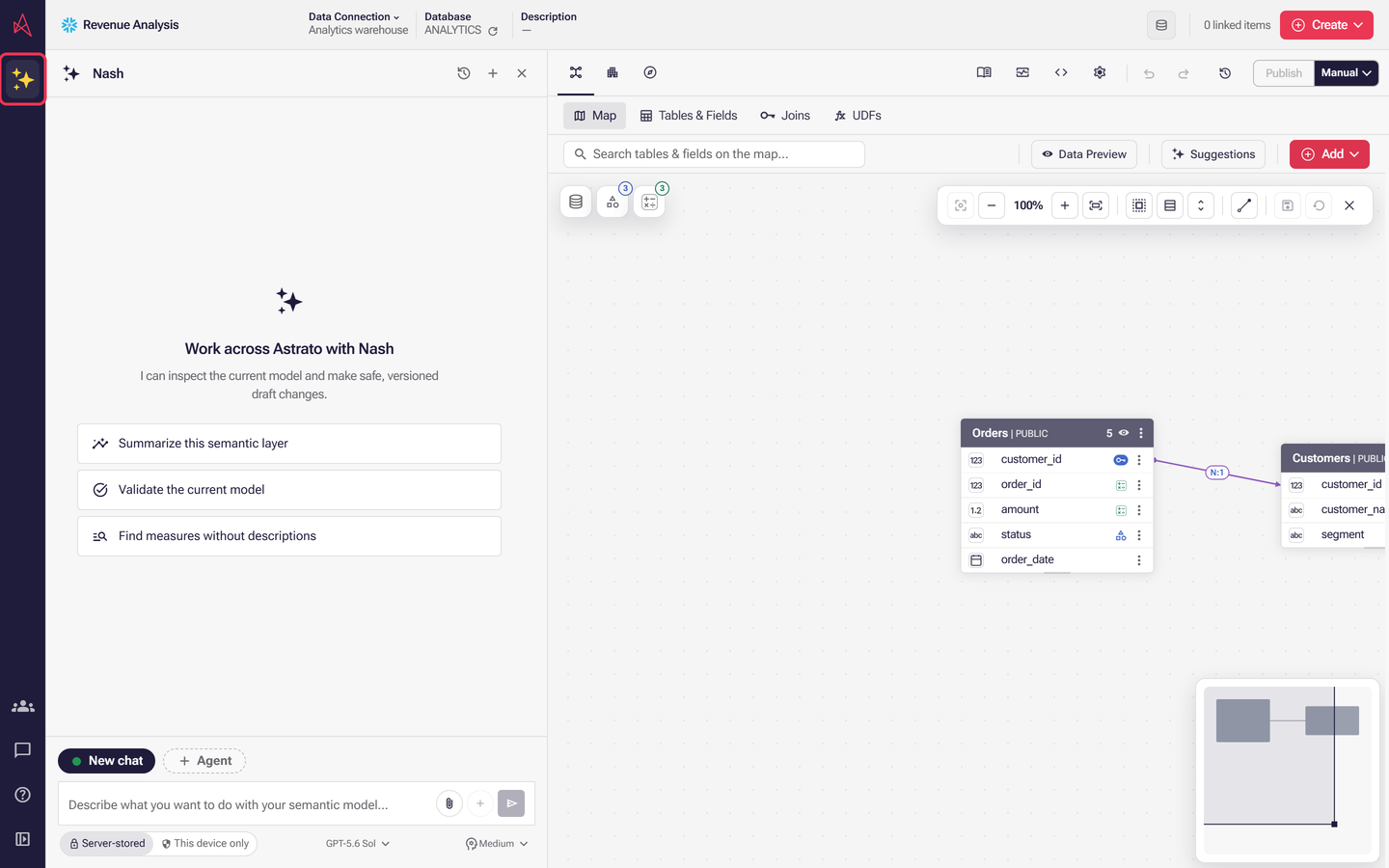
Ask about one measure or all of them, how tables are joined, or what the layer can answer. A follow-up does not need to describe the layer again. For the problems that stop a layer publishing, see Semantic layer issues.
Create and change definitions
Section titled “Create and change definitions”Nash makes the changes the editor makes to a draft: it creates, changes and deletes measures, dimensions, joins, fields and views. Describe what you want in plain language, for example “Create year-to-date, month-to-date and year-over-year versions of Revenue”. It can also propose dimensions and joins for the tables in your layer. To define them by hand, see Dimensions and Define a measure.
Suggestions under Business Context is a separate feature, not Nash: it proposes measures, dimensions and business questions for you to review one by one. See Get suggestions from your data.
You can paste a measure from another BI tool, such as a Power BI DAX measure, a Qlik expression or a LookML measure, as text and ask for the equivalent. Nash has no dedicated converter for another tool’s formula language, so compare the numbers before you publish.
Nash infers filter values from names and context, and a value it uses may not exist in your data. A measure with such a filter returns the wrong number, so review any filter Nash adds before you publish.
Changes go into the layer’s draft, and a measure or field Nash has just added may not be queryable until you publish. Nash publishes only when you ask, and first tells you what the publish will include. Publishing ships every unpublished change in the draft, including other people’s; see Publish from a Nash chat.
Nash in the classic Workbook Editor
Section titled “Nash in the classic Workbook Editor”The classic Workbook Editor is where you arrange a workbook’s sheets and the objects on them. It is separate from the Semantic Layer Editor and from App Builder, and Nash works differently there. It is offered to designers, creators and above when Nash and Nash in Workbook Editor are on.
Nash works on the sheet you have open, using the dimensions and measures of the semantic layer connected to the workbook. It can:
- create charts, KPI cards, tables and filter controls, or lay out a whole dashboard from a template
- configure each one: its data, formatting, colours, filters and title
- move, resize, group and remove objects, and rename the sheet
- describe the connected semantic layer, and create measures in it
Written insights on a chart or sheet come from Insights, not Nash; see Insights in the classic Workbook Editor.
Set up Nash
Section titled “Set up Nash”An administrator sets up Nash in two places:
- AI providers. Where AI providers apply to Nash in your workspace, Nash runs on an eligible provider your administrator adds under Data & AI → AI Providers, such as Astrato Default, and people choose among the eligible providers in the chat; otherwise Nash runs on Astrato’s own model. See AI providers and Select an AI provider.
- Switches. Under Administration → System Settings → AI, the Nash switch turns Nash on for the workspace. Nash in Lobby (Home and the Nash panel, for all users), Nash in Semantic Layer (creators and above) and Nash in Workbook Editor (designers, creators and above) decide where it is offered. Store Nash chats decides whether Astrato stores new conversations; recurring tasks need it on. See Nash and the surfaces it appears on and Store Nash chats.
While storing is on, you can still keep a conversation in one browser only; see Choose browser-private history.
Long conversations
Section titled “Long conversations”As a conversation grows, Nash condenses earlier tool results and older turns so that it stays within the selected model’s context. If the conversation still does not fit, Nash stops and asks you to try a narrower request or start a new chat.
What next
Section titled “What next”- Nash conversations: answers, charts, files and history in a Nash chat.
- Recurring Nash tasks: have Nash revisit a question on a schedule.
- Ask Nash in Administration: troubleshoot sign-in and settings.
- MCP overview: connect your own AI assistant to Astrato.