Connect to Google Sheets
Google Sheets connections cannot be created in the new lobby yet. Create them in the old lobby; this guide covers how, and what a semantic layer on a spreadsheet cannot do. For every other source, see Data connections.
Before you start
Section titled “Before you start”- A role that can create data connections. See Create a connection.
- The spreadsheet, as a file in your Google Drive or as its URL or ID.
- A Google account that can open the spreadsheet. Sign in to it when Google asks, and approve the access it requests for Astrato.
Why the new lobby cannot create it
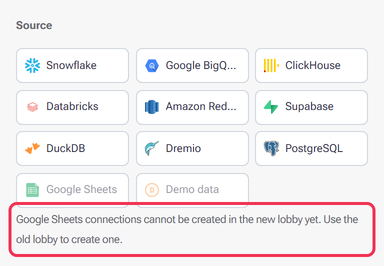
Section titled “Why the new lobby cannot create it”In Data & AI → Data Connections, under New connection, the Google Sheets tile is dimmed. Selecting it shows the reason below the tiles: “Google Sheets connections cannot be created in the new lobby yet. Use the old lobby to create one.”
To open the old lobby, open the account menu (your profile picture at the top right) and select Switch to old lobby. The option is hidden when your workspace requires the new lobby; see Switch between the old and new lobby. If it is missing, you cannot create a Google Sheets connection yourself; ask a workspace administrator.
Create the connection in the old lobby
Section titled “Create the connection in the old lobby”- Select Data + AI in the sidebar, open the Data Connection tab and select New connection.
- Under Create connection, select Google Sheets.
- On Connect to a Google spreadsheet, select Choose or replace document and pick the spreadsheet from your Google Drive. Alternatively, enter its URL or ID under Or connect by Google Spreadsheet URL or ID.
- Select Next. Astrato checks that it can open the spreadsheet; if it cannot, see If the spreadsheet will not connect.
- Under Add Members, choose who can use the connection, then select Connect.
Astrato names the connection gsheet-datasource- followed by the date it was created, creates an
empty semantic layer on it and opens that layer. The connection then appears in the new lobby’s
connection list too.
What a Google Sheets connection cannot do
Section titled “What a Google Sheets connection cannot do”A spreadsheet has no SQL engine behind it, so a Google Sheets connection supports less than a database:
- No custom SQL or custom fields. The semantic layer editor’s Add menu leaves out Custom SQL Query and Custom field; see Add a custom field to a table.
- No scheduled metadata exports. An export cannot write to it; see Schedule metadata exports.
- No CSV uploads. The editor still shows Upload a CSV file, but the upload is refused.
- No dynamic connection.
- No business workflows. See Business Workflows and Apps.
- Search patterns match case. A wildcard filter ignores case on other sources but not on Google Sheets; see Search and wildcards in filters.
What each source supports compares it with the other sources.
If the spreadsheet will not connect
Section titled “If the spreadsheet will not connect”When Next fails, the old lobby shows one of these messages:
| Message | Fix |
|---|---|
| Could not connect to Google Sheet. Please check provided information. | Check the spreadsheet’s URL or ID, or pick it again with Choose or replace document. |
| You need additional privileges in order to connect to selected Google Sheet. | Sign in with a Google account that can open the spreadsheet, or ask its owner for access. |
| Error occurred when trying to connect to Google Sheet. Please try again. | Select Next again. |
If it still fails, ask for help through the Support portal.
What next
Section titled “What next”- Create a semantic layer describes adding tables, dimensions and measures to the layer that opened.
- Data connections for the other sources and the connection list.