Install the Add-in
This page describes the Astrato Excel Add-in. The Excel and Microsoft 365 screens shown here belong to Microsoft and can change. For the whole Add-in workflow, see Get started with the Astrato Excel Add-in.
Before Excel can connect to Astrato, you need the Add-in. You can install it yourself, or a Microsoft 365 admin can deploy it for you.
Before you start
Section titled “Before you start”You’ll need:
-
An Astrato account with access to at least one semantic layer. The Add-in reads its data from Astrato.
-
Excel on Windows, Mac, or the web. For the Excel and browser versions that run Office Add-ins, see Microsoft’s Requirements for running Office Add-ins.
Option A: Install it from inside Excel
Section titled “Option A: Install it from inside Excel”If your organization lets people add their own Office Add-ins, you can install it from Excel:
Step 1: Open Excel.
Step 2: On the Home tab, select Add-ins.
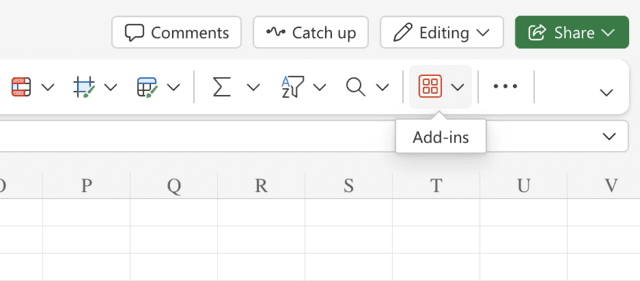
Step 3: Select More Add-ins to open Microsoft Marketplace. Search for Astrato.
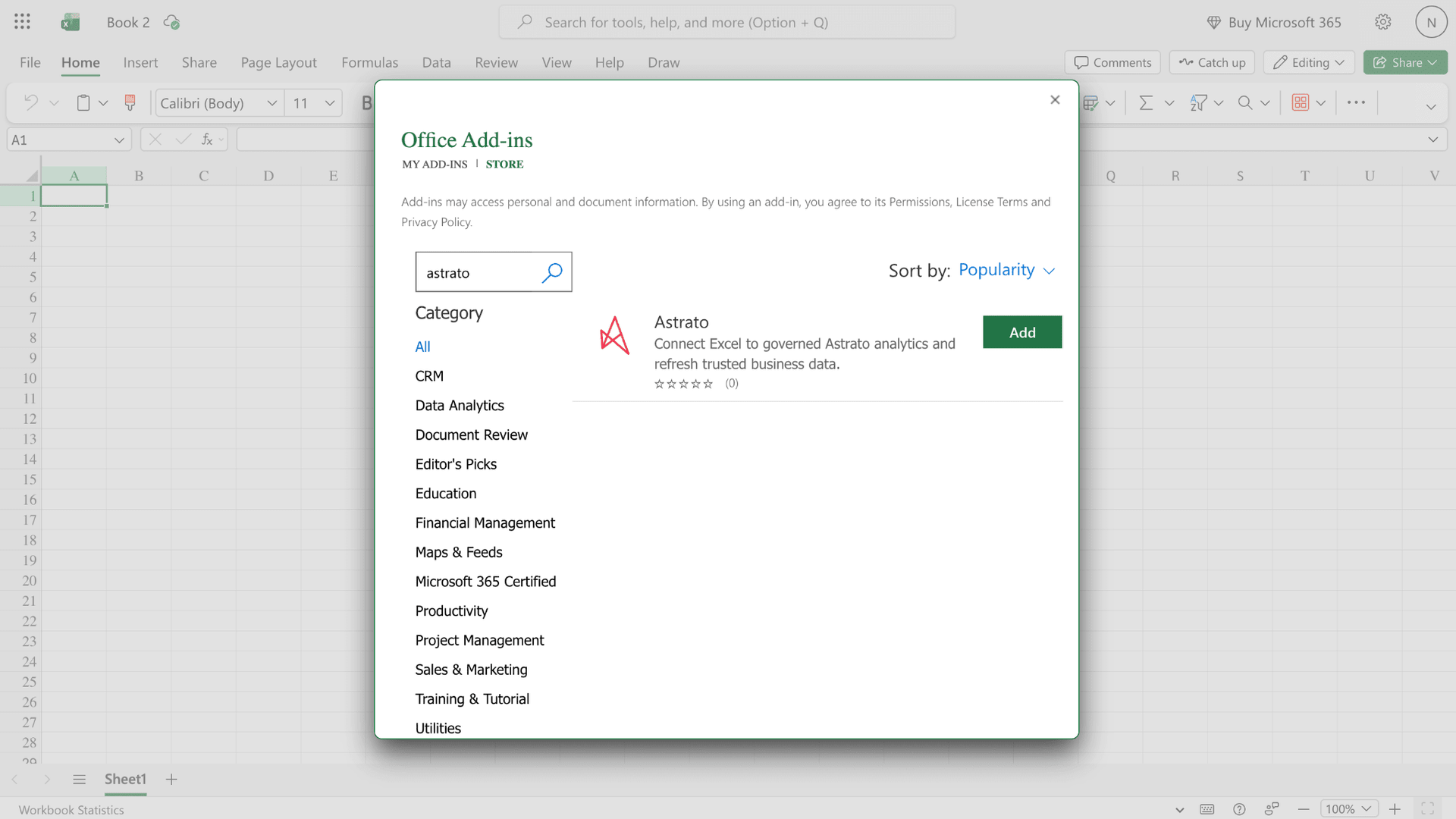
Step 4: Select Add, and accept the prompt to turn it on.
Result: The Add-in is installed for your account and is ready the next time you open Excel.
Next step: Open Connect to Astrato.
Option B: Install it from the Microsoft Marketplace website
Section titled “Option B: Install it from the Microsoft Marketplace website”If you start in a browser instead of Excel, install the Add-in from its Microsoft Marketplace listing.
Step 1: Visit the Microsoft Marketplace Astrato page.
Step 2: Select Get it now.
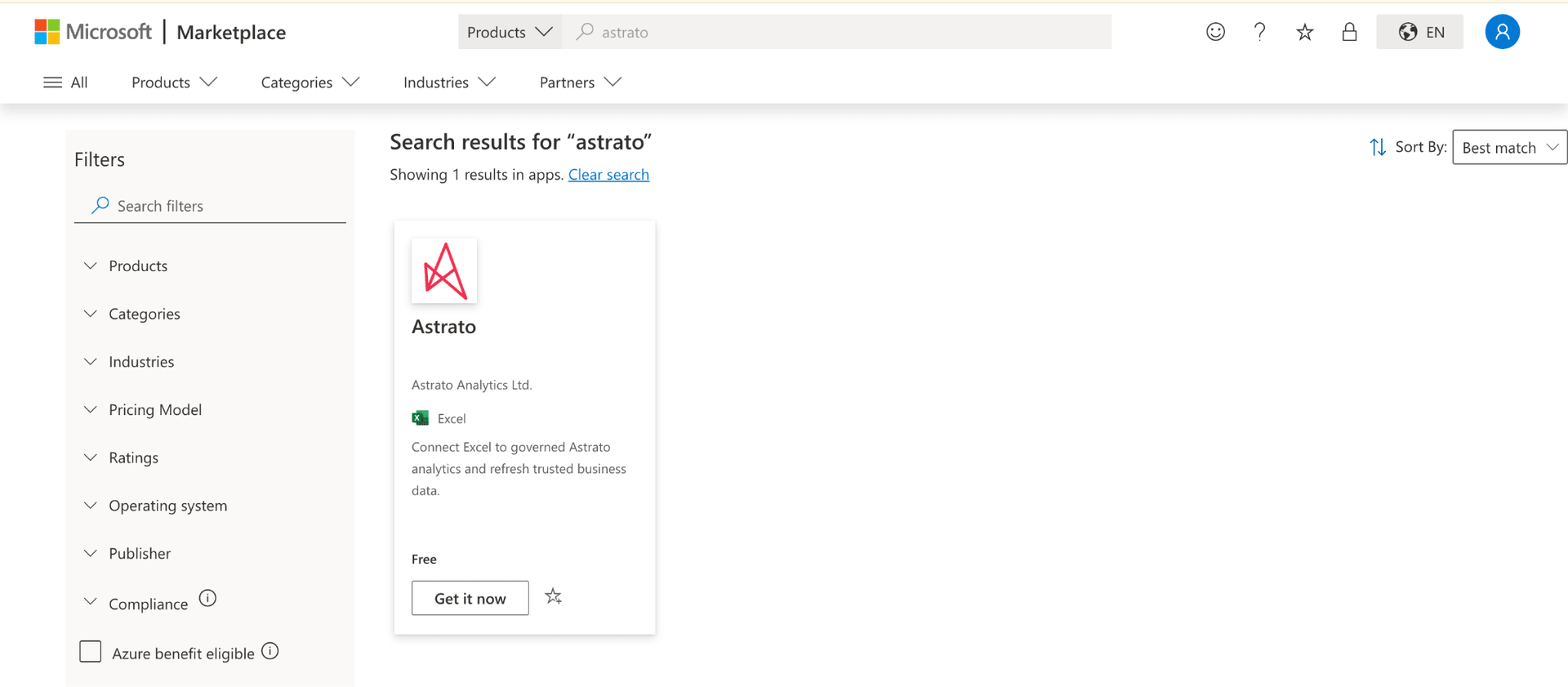
Step 3: Choose Open in Excel.
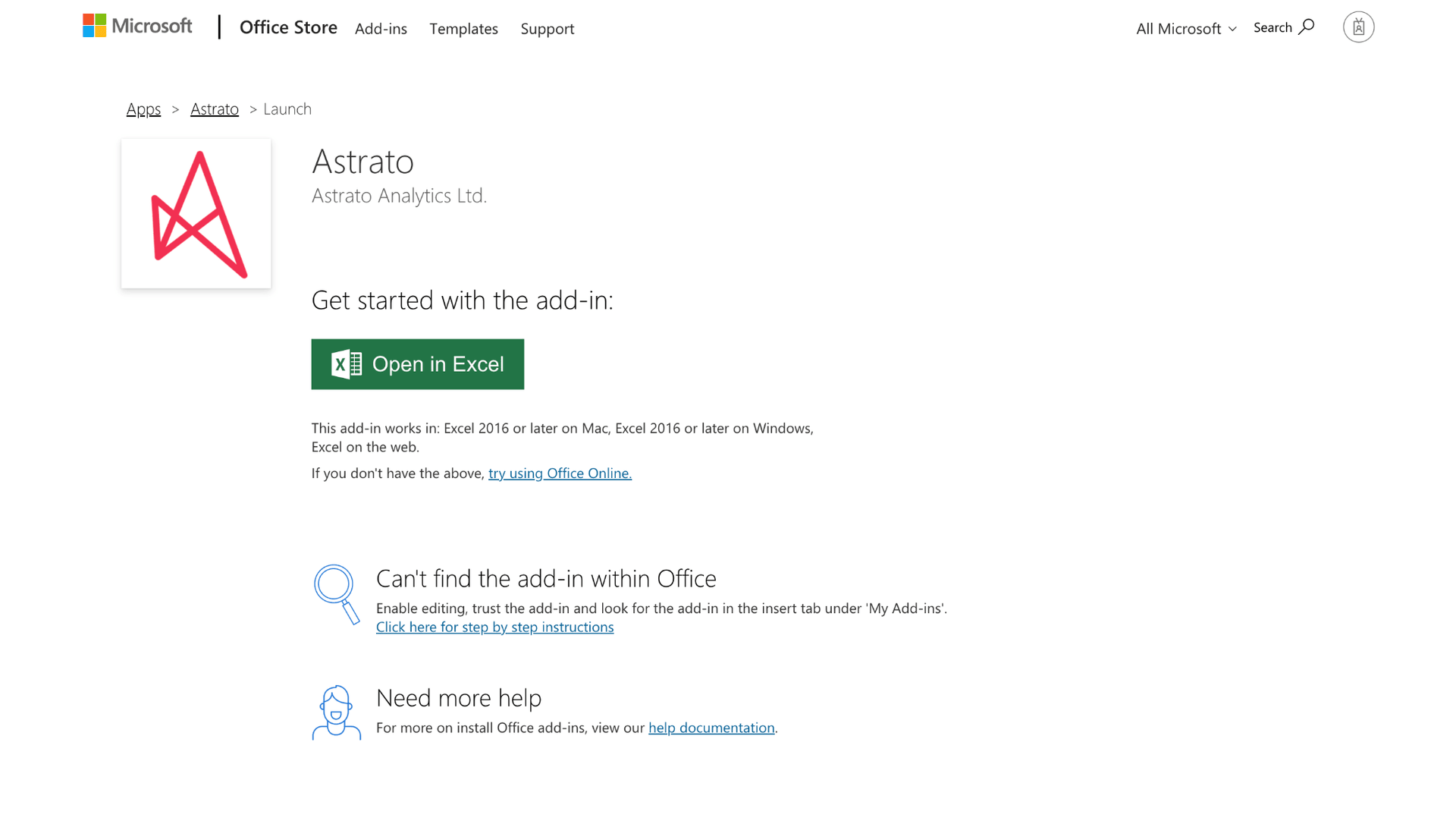
Step 4: Select Allow and Continue to launch the Add-in.
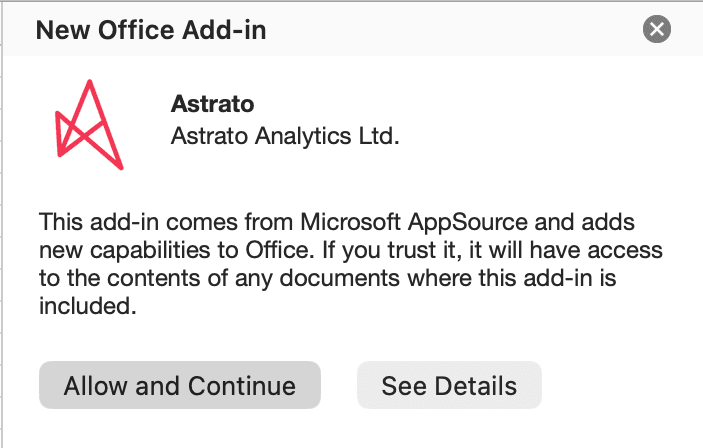
Result: the Add-in opens in Excel and you’re ready to connect.
Next step: Open Connect to Astrato.
Option C: Get it from your IT team
Section titled “Option C: Get it from your IT team”In many organizations, an admin deploys the Add-in for everyone. If your admin has deployed it centrally, the Add-in appears on the Excel Home ribbon without you installing anything.
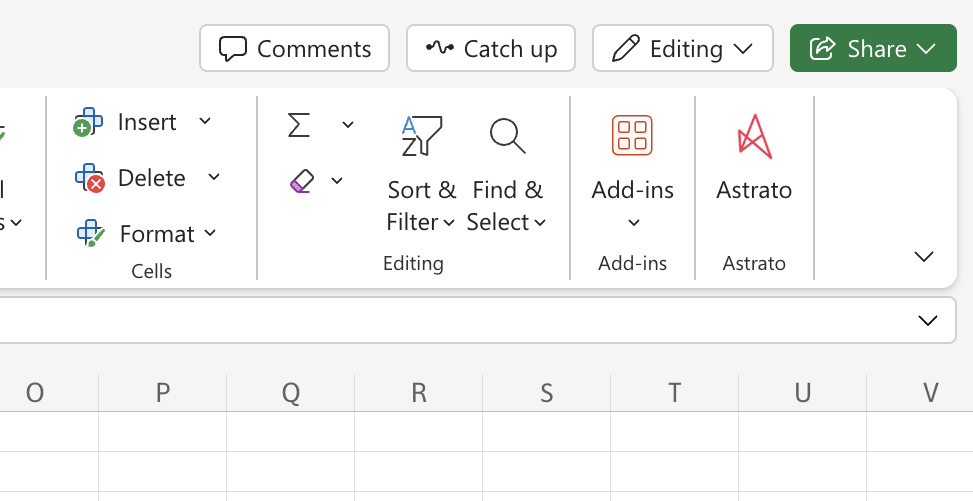
If you are the admin, you deploy it centrally from the Microsoft 365 admin center. At the time of writing, the path is:
-
Sign in to the Microsoft 365 admin center.
-
Open Settings.
-
Select Integrated apps.
-
Select Add-ins.
-
Choose Deploy Add-in.
-
Pick Astrato from Marketplace, and assign it to Everyone, or to selected users or groups.
Result: the assigned users see the Astrato button on their Excel Home ribbon.
Microsoft can change these screens. For the current steps, see Microsoft’s guide to deploying add-ins in the Microsoft 365 admin center.
Open the Add-in
Section titled “Open the Add-in”Once it’s installed, an Astrato button appears on the Excel Home ribbon. Select it to open the Astrato panel on the right, where you work with your datasets.
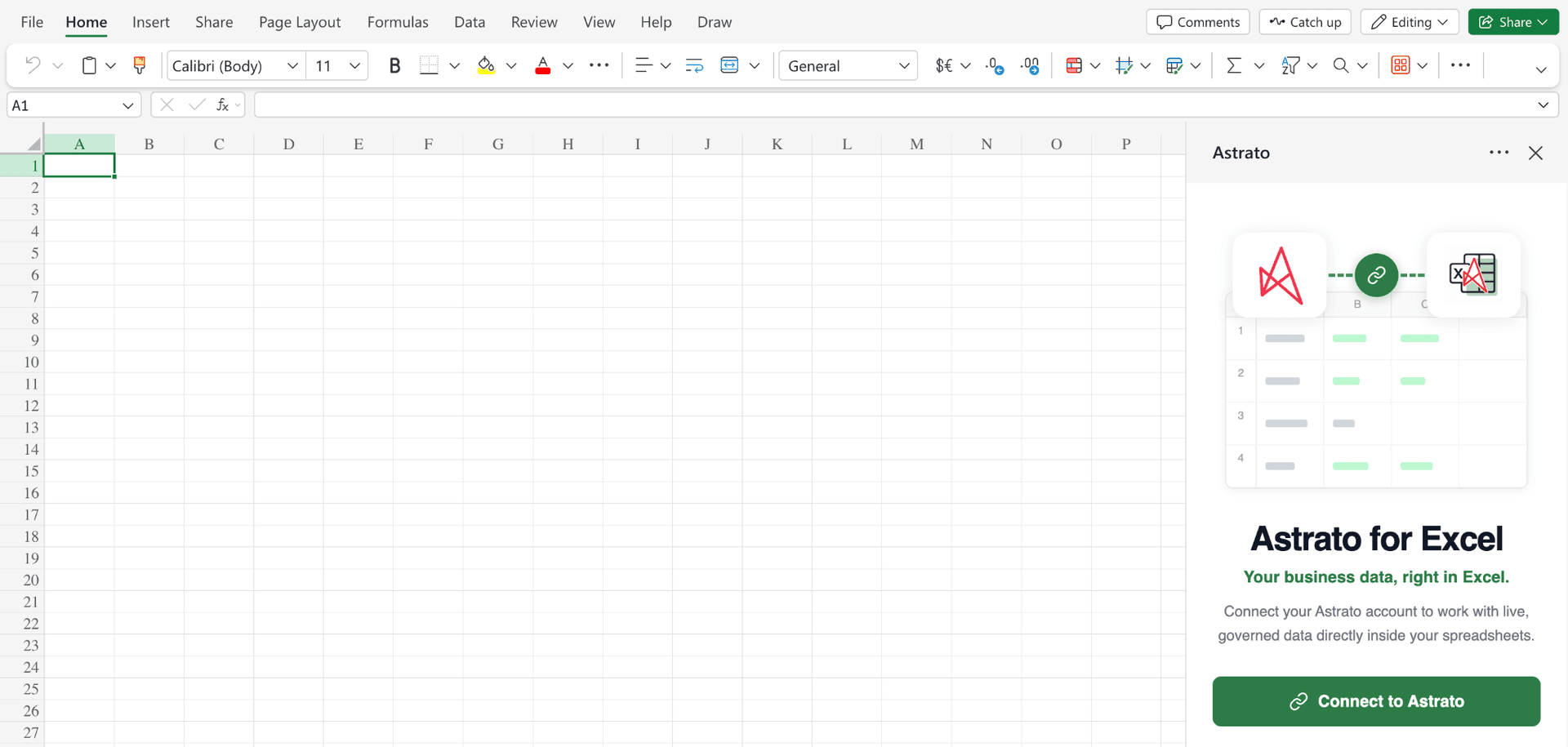
Next step: Follow Connect to Astrato to sign in and build your first dataset.