Troubleshoot the Excel Add-in
Each issue below gives what it means, its likely causes and how to fix it.
“Could not load datasets” or “Could not load variables”
Section titled ““Could not load datasets” or “Could not load variables””What it means: the Add-in could not read stored datasets or variables when the Excel file opened.
Likely causes: Excel did not provide the workbook’s stored data in time. The Add-in tries a few times before it shows this message.
How to fix it: close and reopen the Astrato panel. A new file with no datasets or variables simply shows empty lists, with no message. If it still stays, note the time and your Excel version and send them to your support contact.
#NO_DATA
Section titled “#NO_DATA”What it means: there is no data to show for that formula.
Likely causes:
-
You are offline and nothing is cached.
-
Its refresh mode is Refresh manual and it has not been refreshed since it was last changed.
-
Fetching the data failed.
How to fix it: refresh the dataset from the panel (see Create and manage datasets).
#LOGIN_REQUIRED
Section titled “#LOGIN_REQUIRED”What it means: the dataset needs a connection but cannot find usable connection details.
Likely causes: you have no connection, or the connection the dataset uses is incomplete, for example because it has no valid sign-in. If none of your connections has the name saved on the dataset, the Add-in uses your first connection.
How to fix it:
-
No connection: select Connect to Astrato in the Astrato panel and approve the request (see Connect to Astrato).
-
Wrong connection: the connection dropdown in the dataset editor appears only when you have more than one connection. Choose the one to use there. Switching connection clears the dataset’s semantic layer and its selected dimensions, measures, filters and sorting, so pick them again (see Changing a dataset’s connection). With a single connection there is no dropdown.
-
Incomplete connection: sign in again, as described under “Connection needs attention”.
#VALUE!
Section titled “#VALUE!”What it means: Excel could not evaluate the formula.
Likely causes:
-
An extra argument that is not an
ASTRATO.PARAMETERorASTRATO.VARIABLEvalue. -
An
ASTRATO.PARAMETERorASTRATO.VARIABLEwith an empty name.
How to fix it: correct the argument or name and let the formula recalculate. For the formula syntax, see Excel functions.
“… not found”
Section titled ““… not found””What it means: the formula refers to a name the Add-in cannot find, and shows that name, for example #Sales not found.
Likely causes:
-
No dataset in the workbook has that name.
-
A parameter name that does not exist on the dataset’s measures. The name must match exactly.
-
A variable name that does not exist in the workbook.
How to fix it: correct the name and let the formula recalculate. For the formula syntax, see Excel functions.
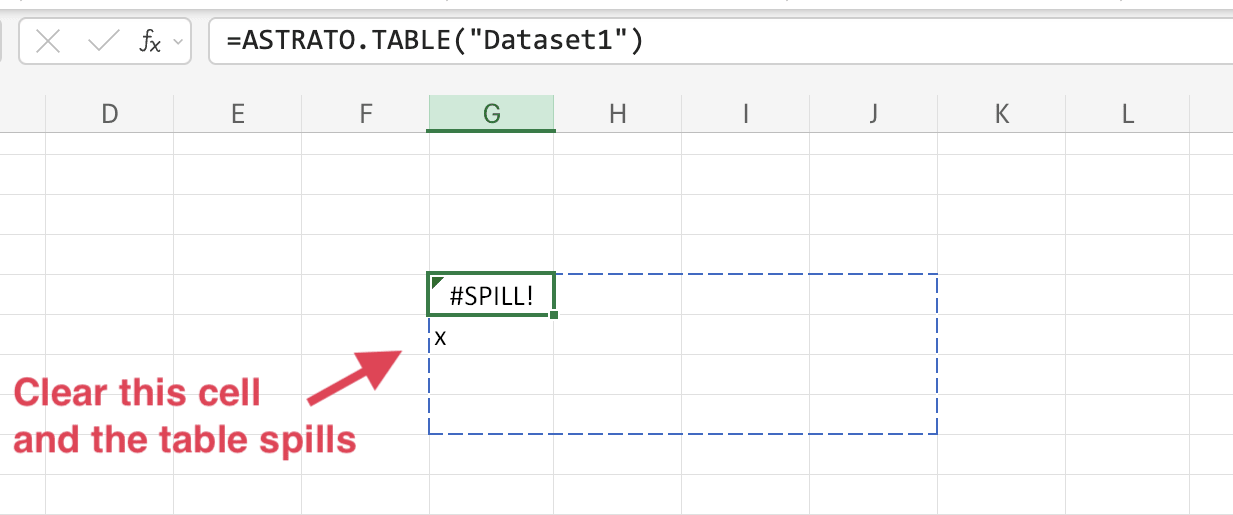
The table won’t spill (#SPILL!)
Section titled “The table won’t spill (#SPILL!)”What it means: the ASTRATO.TABLE formula needs empty cells to fill and cannot get them.
Likely causes: cells below or to the right of the formula are not empty.
How to fix it: clear the cells below and to the right of the formula and try again. For larger datasets, put the table on its own sheet (see Insert a dataset as a table).
I changed connection and my semantic layer vanished
Section titled “I changed connection and my semantic layer vanished”What it means: switching a dataset’s connection cleared its semantic layer selection.
Likely causes: this is expected: a semantic layer belongs to one Astrato environment and does not carry across connections.
How to fix it: pick the semantic layer again for the new connection.
I don’t see a new dimension or field yet
Section titled “I don’t see a new dimension or field yet”What it means: the Add-in is still showing the fields it already knew for the semantic layer.
Likely causes: the Add-in shows cached fields first, then picks up new ones in the background. Offline, it cannot check for new fields.
How to fix it: open the dataset editor, wait a moment and search again. If you are offline, reconnect first.
“Access needed for the underlying data”
Section titled ““Access needed for the underlying data””What it means: your Astrato connection is valid, but you do not have access to that data.
Likely causes: you have not been granted access to it.
How to fix it: when the message offers Check access in Astrato or Open in Astrato, select it. Confirm in Astrato whether you can open the same data, then request access from the data owner or an admin. You do not need to reconnect.
“Connection needs attention”
Section titled ““Connection needs attention””What it means: your saved sign-in is no longer valid.
Likely causes: an expired session or an out-of-date token.
How to fix it:
-
Sign in with Astrato: with one connection, the Add-in returns you to its sign-in screen. Select Connect to Astrato, approve the request again and retry. In multi connection mode it opens Connections: select the reconnect icon next to the connection, sign in again and retry.
-
Personal access token: the hosted Add-in does not accept a personal access token, so updating the token does not help. Connect with Connect to Astrato instead, as in Approve the Add-in.
If signing in again is refused with a message that your administrator has disabled Astrato for Excel access, see If your administrator limits Excel access.
A shared workbook shows cached data but won’t refresh
Section titled “A shared workbook shows cached data but won’t refresh”What it means: the recipient can read your cached values but cannot fetch fresh data.
Likely causes: connections belong to each person, not to the Excel file.
How to fix it: see Let recipients refresh the data.
Log level
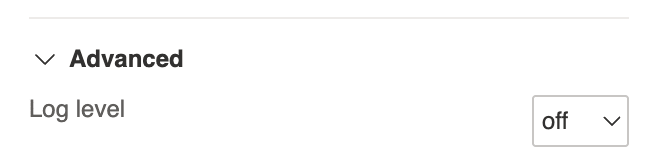
Section titled “Log level”Log level controls how much diagnostic detail the Add-in records. You need it only when Astrato support asks you to capture detail for an issue. The levels are off, error, warn, info and log, from off to most detailed, and each level includes everything recorded by the less detailed ones.
When support asks you to use it:
-
Open Settings > Advanced and set Log level to the level support suggests.
-
Reproduce the problem so it is recorded.
-
The Add-in writes this detail to the browser developer console of its panel. Support will tell you how to open it and copy what was recorded.
-
Set Log level back to off when you are done.
For anything not covered here, start from Get started with the Astrato Excel Add-in.