Variables in the classic Workbook Editor
This page covers variables in the classic Workbook Editor. A Data App has no workbook variables; it sends parameter values with its queries instead, as Querying the engine describes.
A workbook variable holds one value for the whole workbook. Every place that reads the variable picks up a new value when it changes, so you change the value once instead of editing each object. You can use a variable to:
- Read or set a value in an action, for example with the Set variable to value block.
- Show or hide an item according to a Boolean variable, from its view mode icon in Layers. See Layers.
- Feed a measure’s parameters. See Measure parameters.
- Receive a value from an embed link. See Pass filters and variables in the address.
Create a variable
Section titled “Create a variable”- In the toolbar on the left of the editor, select Variables.
- Select Add Variable. The new variable appears at the bottom of the list, named
New Variable 1(or the next free number). - Replace the name in the name field. Names must be unique in the workbook. A duplicate or empty name shows an error icon whose tooltip reads Please enter a unique name., and the name goes back to its previous value when you leave the field.
- Optional: select Exclude from bookmarks, so that bookmarks neither save nor restore this variable’s value.
- Choose the type from the list under Exclude from bookmarks, then set the value as described in Variable types.
A new variable takes the type of the last variable you edited, or String if you have not
edited one. When the list is filtered to Boolean, Number, String or SQL, a new
variable takes that type; the SQL filter gives a String with the SQL query sub-type. Its
starting value is True for a Boolean, 0 for a Number and empty for a String.
Variable types
Section titled “Variable types”| Type | Value |
|---|---|
| Boolean | True or False. Use it in conditions, or to show and hide items. |
| Number | Choose Number and enter a number in Value, or choose Date and pick a date. |
| String | Text, entered in Value. Its sub-type is Plain text or SQL query. |
To enter a longer String, or to change its sub-type, select More. In Define your variable, choose Plain text or SQL query, enter the value and select Done.
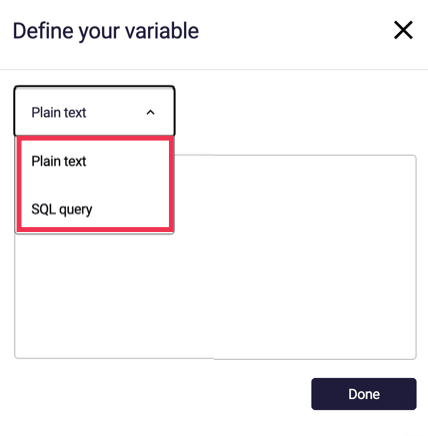
A String variable with the SQL query sub-type holds a SQL statement. The Execute SQL blocks in the Writeback & SQL category of actions list only these variables, and run the statement stored in the one you choose.
The type list also offers Data Set, which this page does not cover. A Data Set variable is always excluded from bookmarks.
Find, copy and delete variables
Section titled “Find, copy and delete variables”Above the list, Search matches variable names, and the type list filters by Boolean, Number, Date, String, SQL or Data Set (All items shows every variable). Sort variables by name orders the list by name.
Each variable’s menu has Copy Variable and Delete. If the variable is used elsewhere in the workbook, Delete first asks you to confirm in Variable is in use, which gives the number of places that use it; those parts of the workbook may stop working once you confirm.
To move variables to another workbook:
- In the source workbook, select Copy all variables. It copies the variables currently listed, so clear the search and filter first to copy them all.
- In the target workbook, clear the search and filter too, then select Paste variables. Your browser may ask for permission to read the clipboard.
- Review Import Variables from CSV. It lists New Variables, and Variables to Override where a pasted name matches an existing variable, whose type, sub-type, value and bookmark setting are then replaced. If it reports Parsing Errors or Invalid Variables, Confirm is unavailable until you fix the copied data.
- Select Confirm.
Example
Section titled “Example”A variable can hold a benchmark that a chart compares its data against. In the recording, a Number variable holds a fuel-efficiency target, and the chart updates as soon as the target changes.