Bookmarks in the classic Workbook Editor
This page covers bookmarks in workbooks built with the classic Workbook Editor. A bookmark saves the current sheet, filters, object state and variable values under a name, so you can return to that view later or share it with other people who use the workbook.
Create a bookmark
Section titled “Create a bookmark”-
Set up the view you want to keep: open the sheet, set filters and adjust objects.
-
Select the Create bookmark icon on the right of the filter bar.
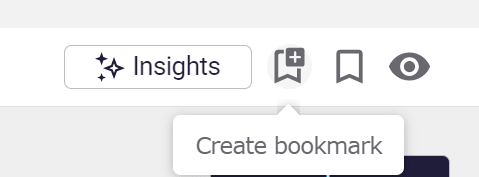
-
Fill in the form and save it.
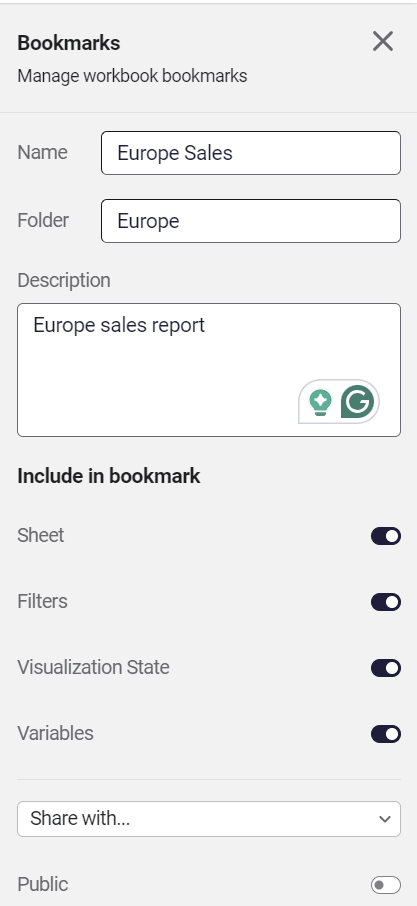
| Field | What it does |
|---|---|
| Name | The name in the bookmark list. |
| Folder | Groups bookmarks in the list. |
| Description | Shown when someone hovers over the bookmark name. |
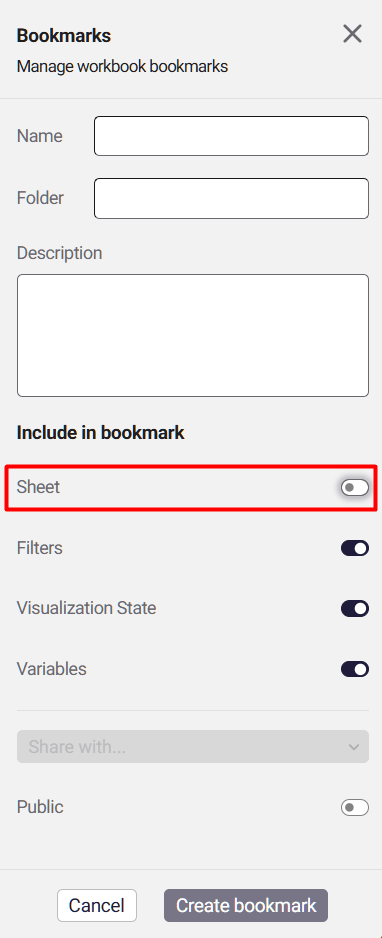
| Include in bookmark | What the bookmark restores when it is applied: Sheet opens the sheet it was created on, Filters applies its filters, Visualization State restores object state such as the fields and chart chosen in a custom report, and Variables sets variables back to their saved values. Which of them start switched on comes from the workbook’s Default bookmark state setting; out of the box, all four are on. |
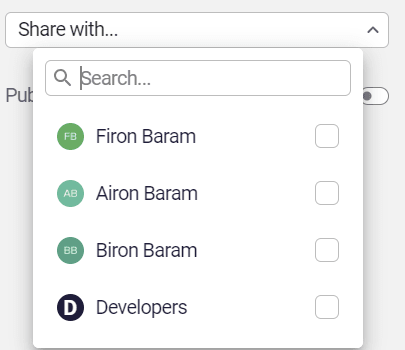
| Share with… | Users and groups who can see the bookmark. The list appears only when the workbook allows sharing, and who it offers depends on that setting; see Control who can create and share bookmarks. |
| Public | Shows the bookmark to every user of the workbook. Only roles chosen under Who can create public bookmarks can turn this on. |
To keep a variable out of every bookmark, open it in the editor’s variables panel and tick Exclude from bookmarks. See Variables in the classic Workbook Editor.
Apply, edit and delete bookmarks
Section titled “Apply, edit and delete bookmarks”To apply a bookmark, select the bookmark icon in the filter bar, then select the bookmark. The list has a private section and a public section; the public section includes bookmarks other users created and shared.
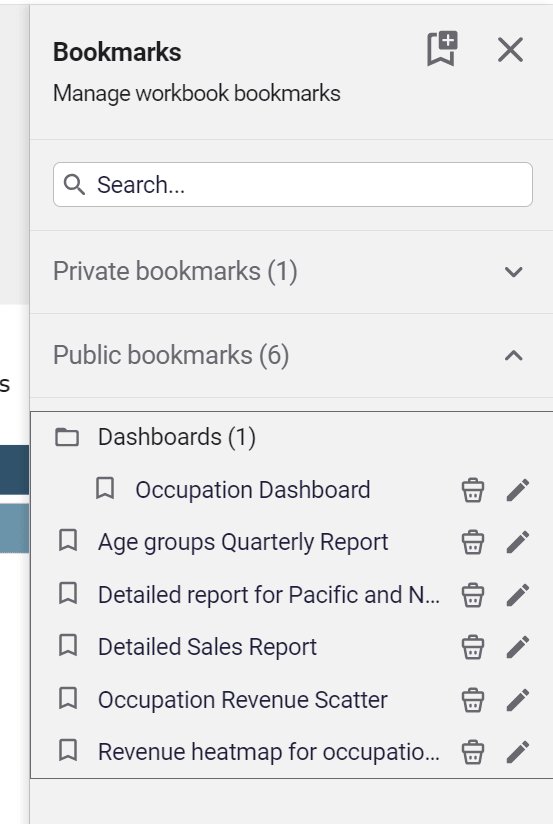
Select a bookmark’s pen icon to change it, or its trash icon to delete it. You can change only bookmarks you created. A bookmark created in the published workbook cannot be changed from the workbook’s draft. What a bookmark includes, and whether it is public, is set when you create it and cannot be changed afterwards.
Actions can create and apply bookmarks too, with the bookmark blocks in the action editor. For an example that saves and applies a default view per user, see Personalized default view.
Control who can create and share bookmarks
Section titled “Control who can create and share bookmarks”Bookmark settings apply to the whole workbook. In the editor, open the Workbook tab of the properties panel and find the bookmarks section.
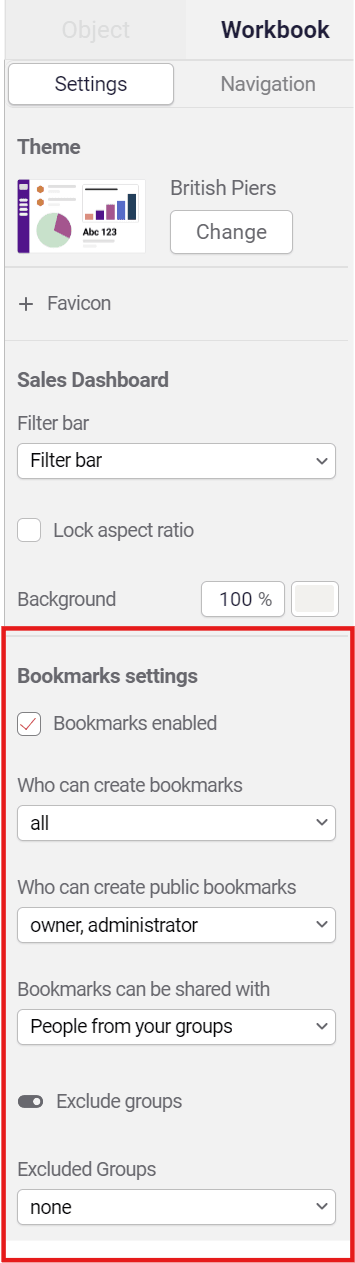
| Setting | What it does | Default |
|---|---|---|
| Bookmarks enabled | Turns bookmarks on or off for the workbook. | On |
| Who can create bookmarks | Roles that can create bookmarks. | Every role (the picker shows all) |
| Who can create public bookmarks | Roles that can make a bookmark public. Only roles that can create bookmarks can be chosen. | The owner and administrator roles |
| Bookmarks can be shared with | Who users can share bookmarks with. | With everybody |
| Exclude groups | Appears only with People from your groups. When it is on, the groups you pick under Excluded Groups are left out of sharing. When it is off, the picker becomes Included groups and only the groups you pick can be shared with. | On |
| Default bookmark state | Which of Sheet, Filters, Visualization State and Variables start switched on in a new bookmark. | All on |
The role pickers list roles by their names in lower case: owner, administrator, creator, designer and viewer.
Bookmarks can be shared with has three options:
- With nobody: bookmarks cannot be shared, and the share list does not appear in the bookmark form. Workbooks created before this setting existed behave this way until you change it.
- People from your groups: users can share with the groups they belong to and with members of those groups.
- With everybody: users can share with everyone who has access to the workbook, including the administrators and the owner.
In the workbook’s draft, the people a bookmark is already shared with are not shown.
Keep bookmarks within a team or customer
Section titled “Keep bookmarks within a team or customer”-
Put each team’s or customer’s users in their own Astrato group. A user can belong to several groups.
-
Set Bookmarks can be shared with to People from your groups.
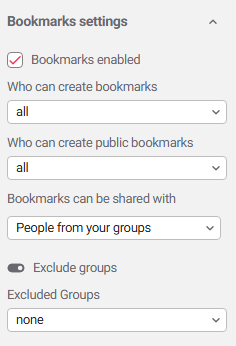
Users can then share bookmarks only within their own groups: a sales team shares with sales, a marketing team with marketing. To narrow it further, use Exclude groups to leave groups out, or turn it off to name the only groups that can be shared with.
-
Limit Who can create public bookmarks to the roles you trust with workbook-wide bookmarks.
The group setting does not apply to public bookmarks: every user of the workbook sees a public bookmark, whatever groups its creator belongs to.
Add a bookmark list to a sheet
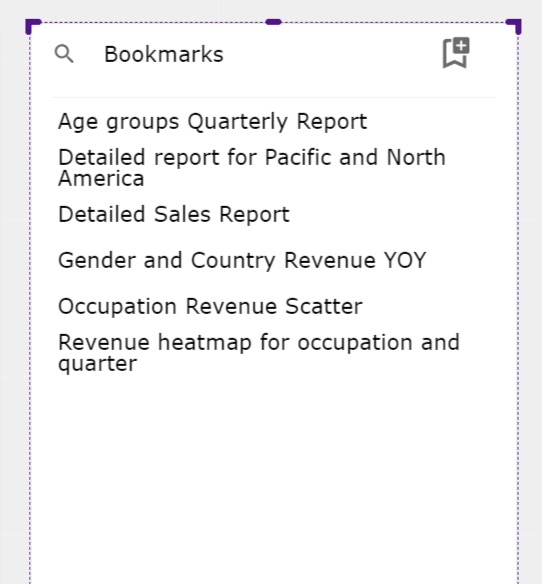
Section titled “Add a bookmark list to a sheet”The bookmark object puts the bookmark list on a sheet, so people can find and apply bookmarks without opening the filter bar.
-
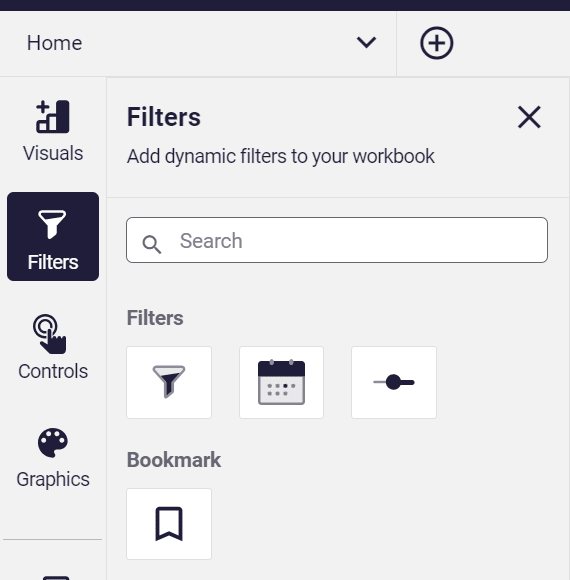
In the editor’s left panel, open the Filters section.
-
Drag the bookmark object onto the sheet.
-
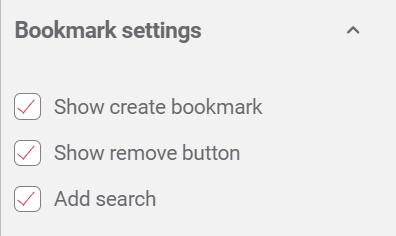
On the object’s Settings tab, use Bookmark settings to choose which controls it shows: Show create bookmark, Show remove button and Add search.
-
On the Style tab, under Bookmark type, set Type to List (the default) or Dropdown. Set the font under Bookmark font, the background under Bookmark style, and the border under Border.
Bookmarks in embedded workbooks
Section titled “Bookmarks in embedded workbooks”- Bookmarks are available when you embed a whole workbook, not when you embed a single object.
- In an external embed, people can apply existing bookmarks but cannot create them. If the workbook has no bookmarks, the bookmark controls are hidden.
Filters change after applying a bookmark
Section titled “Filters change after applying a bookmark”Actions that run when a sheet is entered run after the bookmark is applied. If the bookmark includes its sheet, applying it opens that sheet, the sheet’s enter actions run, and any action that sets or clears filters overrides the bookmark’s filters.
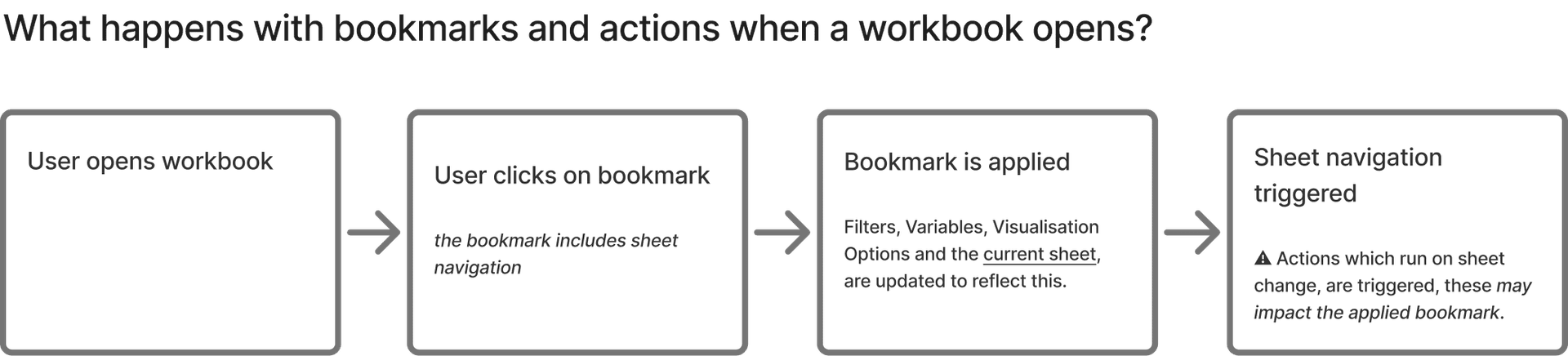
To keep the bookmark’s filters, do one of these:
-
In the sheet’s enter action, check Bookmark-triggered Navigation and skip the filter changes when it is true. The blocks are in Allow bookmarks to ignore actions related to sheet navigation.
-
Turn off Sheet under Include in bookmark, so applying the bookmark does not change sheet.
For the filter bar that holds the bookmark icons, see Filters in the classic Workbook Editor.