PDF reports in the classic Workbook Editor
This page covers PDF reports built in the classic Workbook Editor. Sending a report on a schedule happens in the lobby, as Reporting and workflows describes; this page covers the report itself.
A report is a Report block in the workbook’s actions. The blocks inside it work through the workbook as a person would: set filters, go to a sheet, and add a screenshot of that sheet to the report. Each screenshot becomes a page of the PDF.
Excel and PowerPoint reports have their own definition blocks; see Excel and PowerPoint reports.
Define a report
Section titled “Define a report”- In the toolbar on the left of the editor, select Actions.
- From PDF reporting in the Reporting group, drag the Report: block onto the canvas.
- Replace its name. Each report needs a name that no other report in the workbook uses.
- Optional: choose an Initial sheet. The report starts on that sheet.
- Inside the block, add the steps that build the report. Typical steps are a filter block such as Set filter field to values, a Go to block from Navigation, and Add sheet screenshot to report, which captures the sheet the report is on at that moment.
- Publish the workbook. A report schedule offers only the reports in the published version, under Report on its Attachments tab.
To make a report take values when it runs, select the plus sign on the Report: block to add a parameter, and choose its type: String, Number or Boolean. Inside the report, the input block from PDF reporting returns the value of the parameter you choose in it. A schedule asks for each parameter under Report parameters on its Attachments tab.
Repeat pages for each value of a field
Section titled “Repeat pages for each value of a field”A common report repeats the same pages for each value of a field, such as one page per location. This example builds a report for several neighbourhoods in a pricing dashboard.
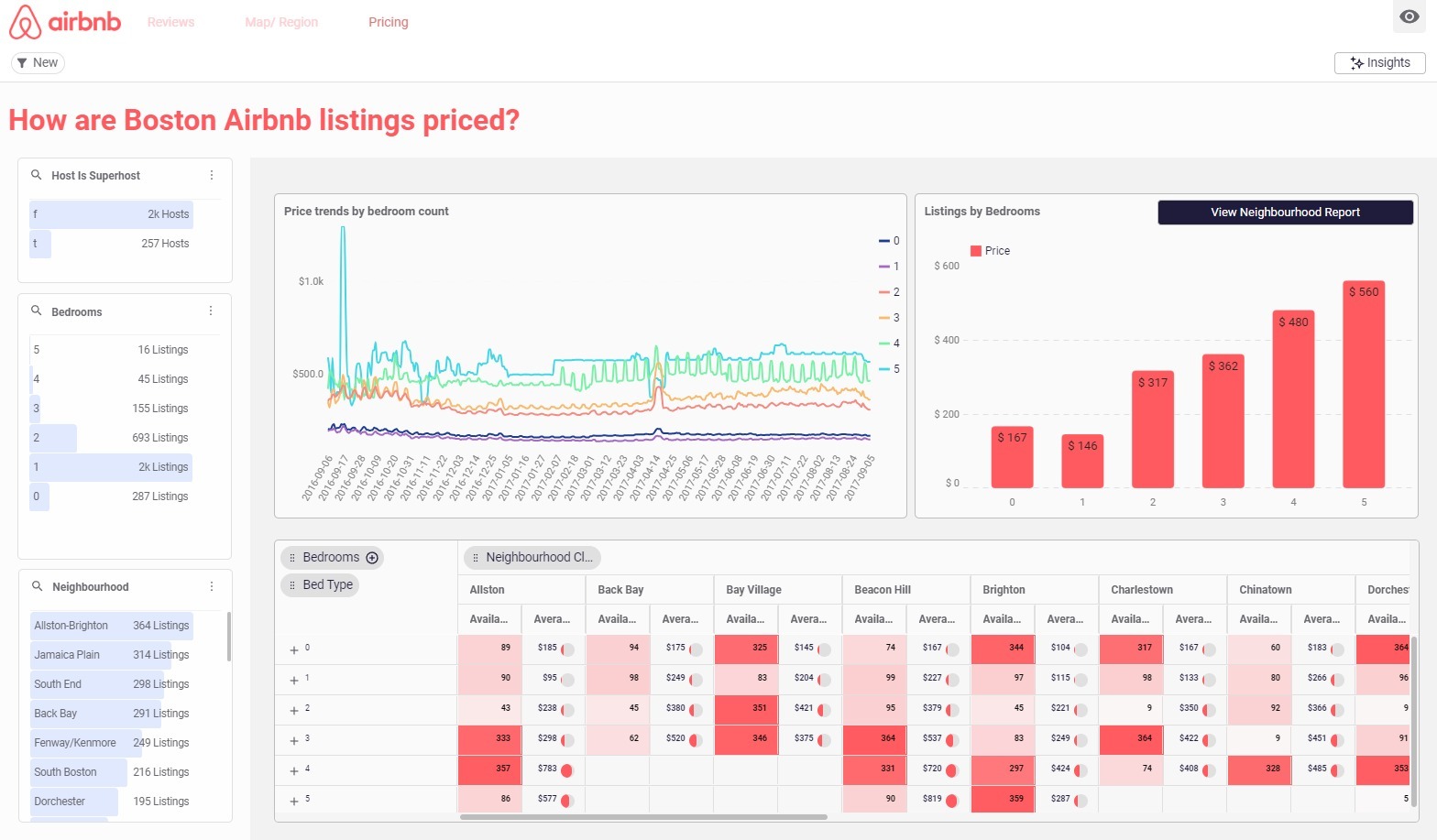
Either loop through the values, or name them one by one.
-
Loop. Add a For each item in list block from Loop inside the report. Give it the list of values, for example from Fetch dimension (as list), which returns All possible, All selected or All non selected values of a field, up to 1,000 unless you set its limit. Inside the loop, add Set filter field to values as state with the current item as the value, then add the sheet screenshot. The loop takes every value in the list, so make sure the list holds only the values you want a page for.
-
Named values. Repeat a Set filter block and a screenshot for each value you name.
Use Set filter, which replaces the filter’s values, rather than Append to filter, so each page shows exactly one value. See the example output of this report, generated in a 1:1 aspect ratio.
Filter a report to a range of dates
Section titled “Filter a report to a range of dates”A report can also add each date in a list to a date filter, so its sheets cover a range of days. Here a SQL variable returns the last seven days.
-
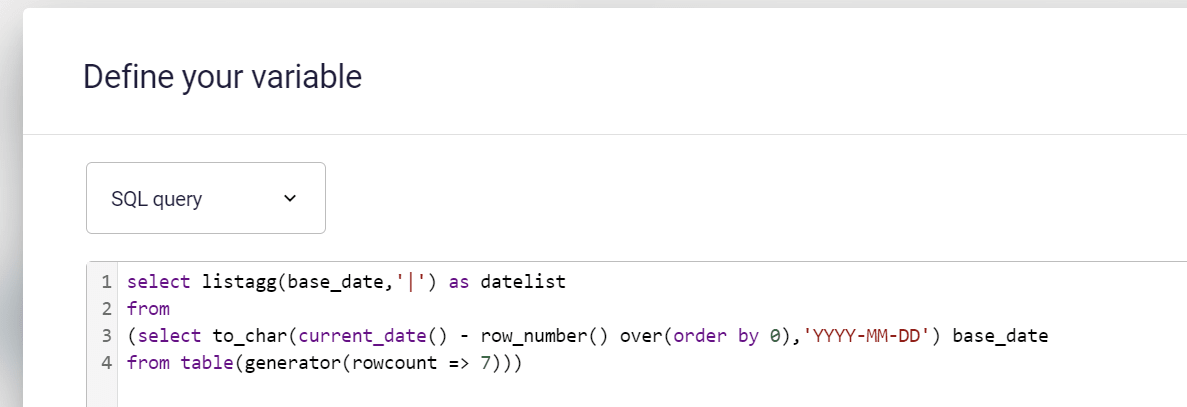
Create a String variable, select More and choose the SQL query sub-type. Enter a query that returns the dates as one text value separated by
|. For Snowflake:select listagg(base_date,'|') as datelist from (select to_char(current_date() - row_number() over(order by 0),'YYYY-MM-DD') base_date from table(generator(rowcount => 7)))For Databricks:
select concat_ws('|',collect_list(date_format(base_date,'yyyy-MM-dd')))from(select explode(sequence(current_date()-7, current_date()-1, INTERVAL 1 DAY)) base_date)Both return the seven days ending yesterday as one text value separated by
|. Change the query for any other list of dates.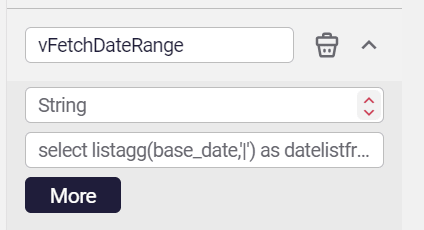
-
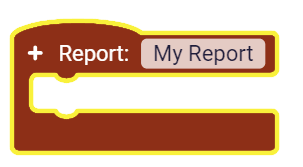
In Actions, add a Report: block and name it.
-
Inside it, add Clear Applied and pending filters for date field, then a For each item in list block. Use applied filters, on by default in the block that runs the report, starts the report from the viewer’s applied filters, so without the clear step any dates the viewer selected stay in the filter alongside the loop’s dates.
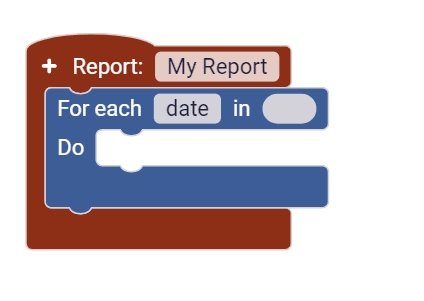
-
For the list, add split text text by separator to list from Text, with
|as the separator. For the text, add an Execute SQL block from Writeback & SQL set to your variable.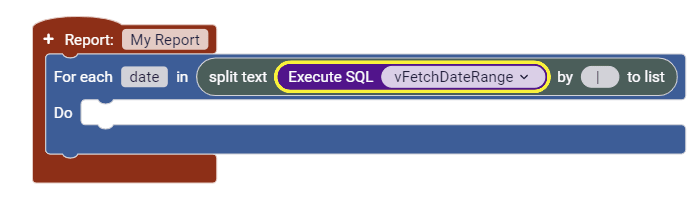
-
Inside the loop, add Append to filter field values value as state on the date field, with the loop’s item as the value. Each pass adds one date to the filter.
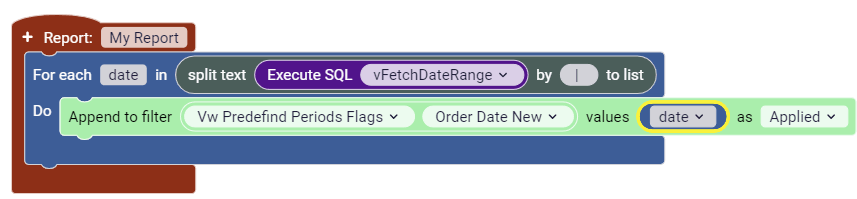
-
After the loop, go to each sheet you want and add Add sheet screenshot to report.
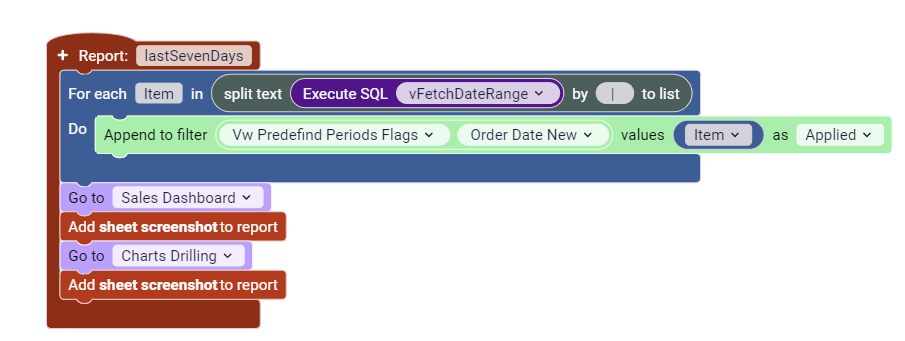
Run a report from a button
Section titled “Run a report from a button”- Add a button to a sheet, and in Actions use its When button emits event do block.
- Inside it, add the download or email block from PDF reporting. Both add a Report Delivery block with a Report Attachment and a Delivery method.
- In the Report Attachment, choose your report under Report. Use applied filters passes the viewer’s applied filters to the report, and is on by default. Max resolution (px) defaults to 1,700 and DPI factor to 1.
- In Delivery method, Download gives the viewer the file; Email sends it to the Recipients you list.
- Preview the workbook and select the button to test it.
The other delivery methods and attachment settings are in Action blocks.
Event blocks do not run in a report
Section titled “Event blocks do not run in a report”When Astrato generates a report, it loads only the workbook’s report definitions and procedures. Every other top-level block is left out, so none of these runs:
- When object emits event do
- Every seconds sec
- Enter: sheet and Exit: sheet
- Variable change: variable
- Before workbook opens
- On any Applied/Pending filter change
- On field filter change within Applied/Pending state
- On drill-through change
Any setup these blocks do in the workbook, such as setting variables or applying filters, does not happen in the report, so a report can show different data from the same sheet in the workbook. This applies to PDF, Excel and PowerPoint reports alike.
To run the same setup in both, move it into a procedure:
- From Procedure in the Procedures group, add the Procedure: block, the one with a name field, and name it.
- Move the setup blocks from the event block, such as Before workbook opens, into it.
- In the event block, add the Procedure block with a dropdown, and choose your procedure.
- Add another Procedure block set to your procedure as the first block inside the report definition. Do not put the Procedure: block itself inside the report.
The report now runs the same setup from the start. Use applied filters, on by default in the block that runs the report, starts the report from the filters and variable values the viewer has applied, but a procedure run inside the report still applies its own values: if it sets a variable to a default that the viewer has since changed, the report uses the default.
What next
Section titled “What next”- Create a report schedule to send the report on a schedule.
- Send each recipient their own data.
- Exports for one object’s data as a file.