Browser events between a classic workbook embed and its host page
This page covers browser events between a workbook built with the classic Workbook Editor and the web page that embeds it with an embed link. A Data App has no Actions workspace; how it responds to its host page is up to the app’s own code. See Embed a dashboard.
Events let your page and the embedded workbook work as one application. Your page can tell the
workbook which sheet to show or which filters to apply, and the workbook can tell your page which
sheet is open, which filters are applied or what a viewer clicked. Both directions use the browser’s standard postMessage
API, so no Astrato library is needed on your page.
Text description
- Your web page embeds the workbook’s embed link in an iframe.
- Your page posts an event, a message with a
typeand apayload, to the embed link page. - The embed link page passes the message on to the workbook and adds the origin of the page that sent it, which Browser event returns as source domain.
- In the workbook, each On browser event block whose name matches the message’s
typeruns the blocks inside it. - In the other direction, Emit browser event sends a message with a
typeand apayloadin the workbook window, and the embed link page passes it on to your web page. - The embed also sends its own error messages to your page, with no action needed in the workbook: messages with
typeAstratoand amessageof401Erroror404Error. Most start in the workbook and the embed link page passes them on, as it does other messages; a404Errorfor an embed link that cannot be found starts in the embed link page itself.
The drawing leaves out the repeats: your page also gets back a copy of each event it sends, an emitted event also runs any On browser event block with the same name in the same workbook, and the same message can arrive more than once.
Each event is a message of this shape:
{ type: 'ASTRATO_NAVIGATE_SHEET', payload: 'Home' }typeis the event name. It must match the name in the workbook’s action exactly, including case and spaces.payloadis the value the event carries: a string, a number or a Boolean.
Before you start
Section titled “Before you start”- The workbook is embedded in your page with an embed link, and your page’s domain is on the workspace’s embed allow list. See Embed a dashboard and Manage the allow list.
- You can edit the workbook’s actions. The blocks on this page are in the Embeds category of the Actions workspace; see Actions and Action blocks.
- Publish the workbook after you change its actions. See Publish a workbook.
The Embeds category holds three blocks:
| Block | What it does |
|---|---|
| On browser event: name | Runs the blocks inside it each time a message with that type arrives. |
| Emit browser event name with type payload value | Sends a message to the page that embeds the workbook. Choose string, number or boolean for the payload. |
| Browser event payload or source domain | Inside On browser event, returns the message’s payload, or the origin of the page that sent it, such as https://portal.example.com. |
Send an event from your page to the workbook
Section titled “Send an event from your page to the workbook”This example switches the workbook to the sheet your page names, for example from your own navigation menu.
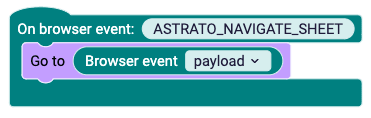
-
In the workbook’s Actions workspace, drag On browser event: from Embeds and type the event name, for example
ASTRATO_NAVIGATE_SHEET. -
Inside it, add a Go to block from Navigation.
-
Drag Browser event into the Go to block’s sheet input and leave it set to payload.
-
Publish the workbook.
-
On your page, add a function that posts a message to the iframe, and call it with the event name and the sheet name:
const iframe = document.querySelector('iframe');// Deliver the message only to the page the iframe has loaded from its embed link.const astratoOrigin = new URL(iframe.src).origin;function sendToAstrato(type, payload) {iframe.contentWindow.postMessage({ type, payload }, astratoOrigin);}sendToAstrato('ASTRATO_NAVIGATE_SHEET', 'Home');
The workbook opens the sheet named Home. If no sheet has that name, nothing changes.
The workbook acts on every message whose type matches, whichever page sent it. To act only on
messages from your own site, compare Browser event source domain with your page’s origin
in a condition before the other blocks run.
Apply any filter with one event
Section titled “Apply any filter with one event”One On browser event action can filter any field, so your page does not need a separate
action per filter. Your page sends the event DYNAMIC FILTERING with a payload of filter
instructions. Each instruction is a field, a |, then one or more comma-separated values, and
ends with ;:
<view name>.<field name>|<value>,<value>;The field is the view name, a dot, then the field name. The action splits the payload on every
;, | and ,, with no way to escape them, so a field name or value that contains one of them
is split in the wrong place. Filter such fields with their own action instead. This payload
filters two fields, the first on two values:
Product Dim.Hierarchy Lvl2 Name|Fresh,Frozen;Region Dim.Country Name|United Kingdom;The action works like this:
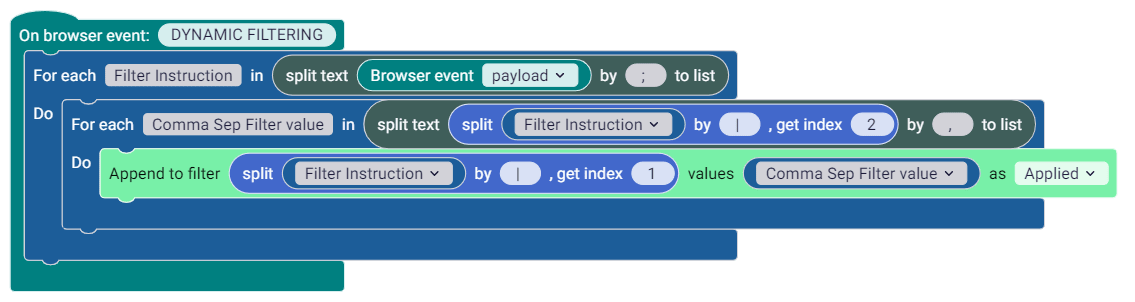
- On browser event:
DYNAMIC FILTERINGreceives the message. - For each Filter Instruction splits the Browser event payload by
;into a list. - For each instruction, split … by
|, get index1gives the field, and index2gives the values, which a second For each splits by,. - For each value, Append to filter adds it to that field’s filter as Applied.
To add the action, copy the text below, select an empty spot in the workbook’s Actions workspace and press Ctrl+V (Cmd+V on a Mac). If the browser asks whether the page can read the clipboard, allow it.
{"serializedActions":{"type":"on_custom_event","id":"}rZ)#TNOtP/kiW`Pu`g%","x":652,"y":562,"inputs":{"message_type":{"shadow":{"type":"custom_text","id":"/3vb%*+5#=77/?EFH2gh","fields":{"TEXT":"DYNAMIC FILTERING"}}},"DO":{"block":{"type":"loop_for_each","id":"/cKxoZ_|p-`$I*Mz-#Ul","fields":{"iterator":"Filter Instruction"},"inputs":{"list":{"block":{"type":"text_split_to_list","id":"m5My=XP]4.H4x^f#x;ED","inputs":{"text1":{"shadow":{"type":"custom_text","id":"n%;@an[wLKtf|9EG{bA`","fields":{"TEXT":""}},"block":{"type":"custom_event_data","id":"EdgDwh_$O#p#w-uTe4oH","fields":{"data_type":"payload"}}},"text2":{"shadow":{"type":"custom_text","id":"IYWcl!MA#Q~f#F5I9Ldy","fields":{"TEXT":";"}}}}}},"do":{"block":{"type":"loop_for_each","id":"D#Z_U./XdRVy?k.-1;n$","fields":{"iterator":"Comma Sep Filter value"},"inputs":{"list":{"block":{"type":"text_split_to_list","id":"[KwB:3$IMv(n.b0%rRG:","inputs":{"text1":{"shadow":{"type":"custom_text","id":"n%;@an[wLKtf|9EG{bA`","fields":{"TEXT":""}},"block":{"type":"text_split","id":"H[xFkj;i`=08t/KrG``o","inputs":{"text1":{"shadow":{"type":"custom_text","id":"^G~]cdAS|_0x[G0FO@W]","fields":{"TEXT":""}},"block":{"type":"iteratorValue","id":"`VU`960@Uu2ZvEQQB~jq","extraState":{"foreachBlockId":"/cKxoZ_|p-`$I*Mz-#Ul"},"fields":{"selected_iterator":"/cKxoZ_|p-`$I*Mz-#Ul"}}},"text2":{"shadow":{"type":"custom_text","id":"(*`_+Yz%_!*Yeg6M0uLG","fields":{"TEXT":"|"}}},"index":{"shadow":{"type":"custom_math_number","id":"i`~Dxn7s$nsamLQ3(rc*","fields":{"NUM":2}}}}}},"text2":{"shadow":{"type":"custom_text","id":"?nI;[sFfb~De:ZHA7($[","fields":{"TEXT":","}}}}}},"do":{"block":{"type":"set_filter_v1","id":"iURdL@(d|EVMql4^4MP:","fields":{"STATE":"APPLIED"},"inputs":{"FIELD":{"block":{"type":"text_split","id":"0Lxx/{b*R7{{_cCH`*]B","inputs":{"text1":{"shadow":{"type":"custom_text","id":"^G~]cdAS|_0x[G0FO@W]","fields":{"TEXT":""}},"block":{"type":"iteratorValue","id":"B3(xto*@ej8XHm}fgaf$","extraState":{"foreachBlockId":"/cKxoZ_|p-`$I*Mz-#Ul"},"fields":{"selected_iterator":"/cKxoZ_|p-`$I*Mz-#Ul"}}},"text2":{"shadow":{"type":"custom_text","id":"`#(O9[jxc839o1=Bo~Uy","fields":{"TEXT":"|"}}},"index":{"shadow":{"type":"custom_math_number","id":"/#Nl((NthhMJ(ong#^CG","fields":{"NUM":1}}}}}},"apply-filter-field":{"shadow":{"type":"multiselect_dropdown","id":"%U=4x?`$qF$m2i?%+1bu","fields":{"TEXT":[]}},"block":{"type":"iteratorValue","id":"E3K/rdfWZfHe*JF=tmWN","extraState":{"foreachBlockId":"/cKxoZ_|p-`$I*Mz-#Ul"},"fields":{"selected_iterator":"D#Z_U./XdRVy?k.-1;n$"}}}}}}}}}}}}}},"workspaceId":"-D0n@*aj9~7(}8znJ~Bh"}Publish the workbook, then send the event from your page with the sendToAstrato function from
the previous section:
sendToAstrato('DYNAMIC FILTERING', 'Product Dim.Hierarchy Lvl2 Name|Fresh,Grocery;');To try it without a host page, open the embed link in its own browser tab and run this in the browser console. The embed link passes the message on to the workbook:
postMessage({ type: 'DYNAMIC FILTERING', payload: 'Product Dim.Hierarchy Lvl2 Name|Fresh,Grocery;' }, location.origin);To filter rows per signed-in user when the session starts, rather than after the workbook opens, see Sign users in with web tickets.
Send an event from the workbook to your page
Section titled “Send an event from the workbook to your page”Emit browser event sends a message to the page that embeds the workbook. This example tells your page which sheet is open, so your page can highlight the matching menu item.
The browser event blocks work in every embed link type, but sheet triggers such as Enter: run only in a Workbook embed link. In an Object, Group or Sheet link, this example never fires; see Embed a dashboard.
-
In the Actions workspace, add an Enter: block and set it to Any sheet.
-
Inside it, add Emit browser event from Embeds. Type the event name, for example
ASTRATO_SHEET_ENTER, and leave the payload type as string. -
In the payload input, add a Get block set to Active Sheet and Name.

-
Publish the workbook.
-
On your page, listen for messages and check their
type:window.addEventListener('message', (event) => {if (event.origin !== 'https://YOUR-ASTRATO-ADDRESS') return;if (event.data?.type !== 'ASTRATO_SHEET_ENTER') return;const activeSheetName = event.data.payload;document.querySelectorAll('nav button').forEach((button) => {button.classList.toggle('active', button.dataset.sheet === activeSheetName);});});
Replace YOUR-ASTRATO-ADDRESS with the host of your embed link. The workbook sends its events to
any page that frames it, so checking event.origin keeps your page from acting on messages from
other frames.
Emit browser event reaches your page only when the workbook is open through an embed link inside an iframe. In the editor, or with the embed link open in its own tab, the event stays in the workbook’s window.
An emitted event also runs any On browser event block with the same name in the same workbook.
Your page can receive the same message more than once, and it also gets back a copy of each event it sends to the workbook. Write your handlers so that a repeat does no harm, for example by ignoring an event your page sent itself.
You can emit an event from any action trigger, for example a button click, so your page can save or react to what a viewer chose.
Tell your page which filters are applied
Section titled “Tell your page which filters are applied”To keep your page in step with the workbook’s filters, use On any Applied filter change as the trigger, add Emit browser event inside it, and put a get Applied filters as text block in the payload input. Your page receives the applied filters as text each time they change. See Action blocks for these blocks.
Send a chart’s settings to your page
Section titled “Send a chart’s settings to your page”To let viewers pin or bookmark a chart in your own application, send the settings your page needs
to rebuild it. In this example, a When … emits … do trigger set to a container’s
click runs Emit browser event ChartSettings with a string payload that joins the clicked
object’s id, the values of the workbook’s variables and the id of the object’s parent. Your page
stores the payload, and can send the values back later with its own On browser event action.
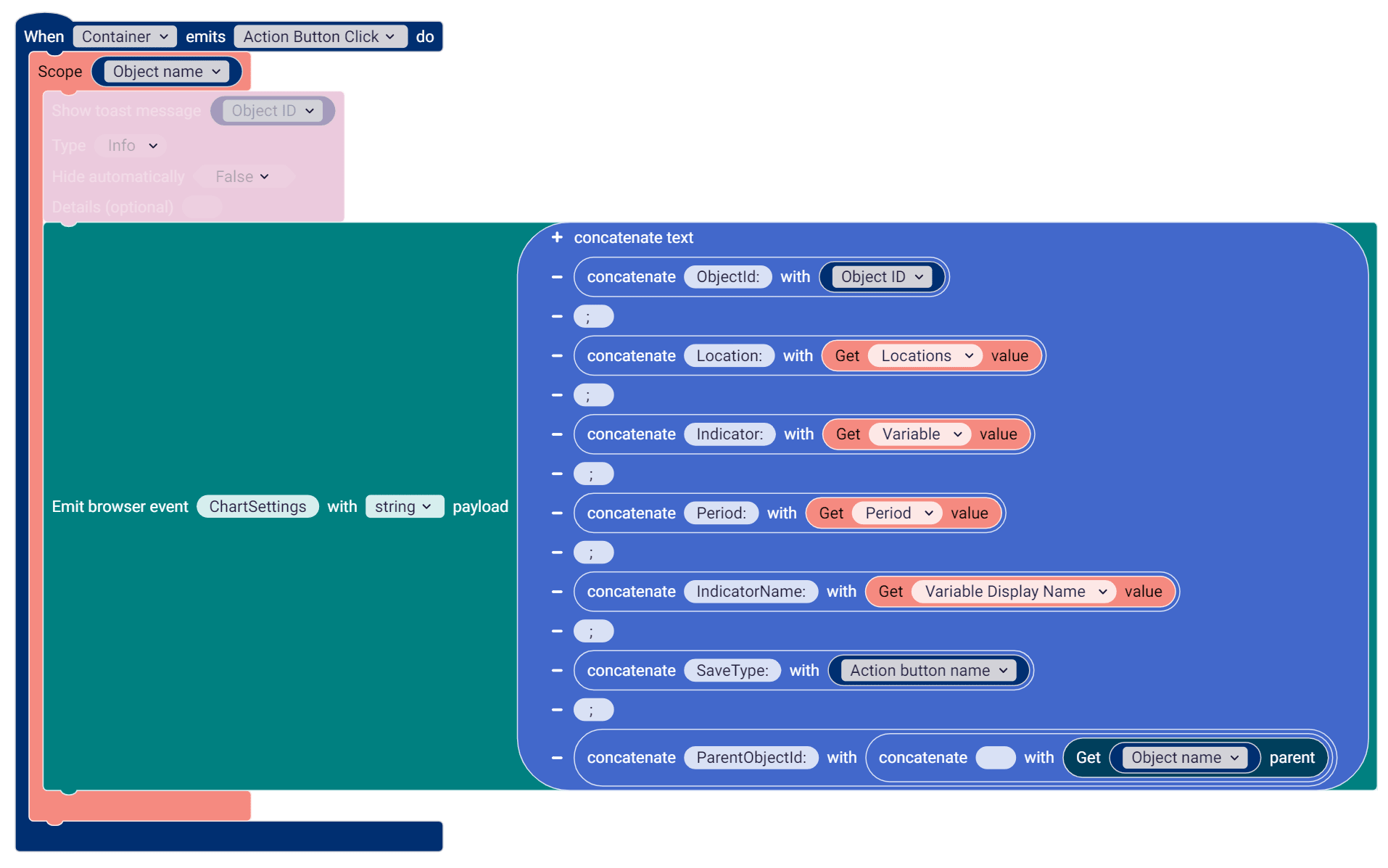
Use your own workbook’s variables in the payload; the ones in the picture belong to one example workbook.
Detect sign-in and missing-item errors
Section titled “Detect sign-in and missing-item errors”An embedded workbook also sends two messages of its own, without any action. Each has type
Astrato and a message:
message |
Sent when |
|---|---|
401Error |
A request from the embed is refused because the viewer is not signed in or the session expired. |
404Error |
The embedded item cannot be found, for example because it was deleted or the link is invalid. |
Your page can listen for them to sign the viewer in again or replace the frame with its own
message. The same error can arrive twice, so ignore a 401Error while a sign-in is already in
progress:
let signingIn = false;
window.addEventListener('message', (event) => {  if (event.origin !== 'https://YOUR-ASTRATO-ADDRESS') return;  if (event.data?.type !== 'Astrato') return;
  if (event.data.message === '401Error') {    if (signingIn) return;    signingIn = true;    // Start your sign-in flow, reload the iframe, then set signingIn back to false.  } else if (event.data.message === '404Error') {    // Hide the iframe or show your own message.  }});
For signing embedded viewers in from your backend, see Sign users in with web tickets.