Action blocks in the classic Workbook Editor
This page is a reference for the action blocks of the classic Workbook Editor. A Data App has no Actions editor: it handles interactions in its own code and runs Business Workflows authored in the semantic layer.
Each section covers one category of the block catalog. To find a block quickly, type part of its name in Search at the top of the catalog. For how blocks fit together into an action, and how to debug one, see Actions in the classic Workbook Editor.
In the block names below, the words in bold are printed on the block and the words in italics are inputs you set. An input that shows a dropdown, such as Select object, also accepts any block that returns the same value as text, so you can choose the object, sheet or field at run time.
Blocks in embeds
Section titled “Blocks in embeds”When a workbook is shown through an embed link, Astrato removes the blocks that the embed does not allow from each action before it runs. Every block on this page runs in embeds, with these exceptions:
| Block | Runs in |
|---|---|
| Enter: sheet, Exit: sheet, On bookmark bookmark applied, Go to next sheet | Workbook embed links only, not Object, Group or Sheet links. |
| Get export data from data object with date type dates | Restricted embed links run it for everyone except Viewers; for Viewers, Execute SQL Action must be on in the General tab of system settings. External embed links run it only when Execute SQL actions are switched on for external embed links, see Route 1. |
Controls
Section titled “Controls”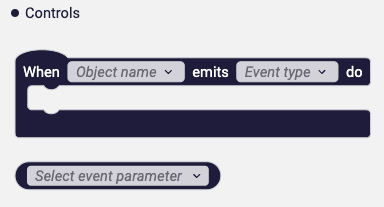
The Controls category, under Triggers, holds the blocks that run an action when a viewer interacts with an object.
| Block | What it does | Output |
|---|---|---|
| When Object name emits Event type do | Runs the blocks inside it when the selected object emits the selected event. Object name lists the objects that emit events. Event type lists that object’s events; when you pick another object, an event of the same name stays selected, otherwise the event is cleared. | None (trigger) |
| Select event parameter | Returns a value from the event that started the action, such as the clicked map point’s dimension value. Place it inside a When Object name block; it lists the parameters of the event selected there. It is in the catalog only when event parameters are enabled for your account. | Text, number, Boolean or list |
| When Object type emits Event type do | Runs the blocks inside it when any object of the selected type emits the selected event, so one stack can handle every button or every map. Event type lists the events of that type. Choose Container to react to the custom buttons on any container. The filter bar is not in the list; use When Object name emits Event type do for its custom buttons. | None (trigger) |
| Select generic event parameter | Returns a value from the event that started a When Object type action. Besides the event’s own parameters, it offers Object ID and Object name, which identify the object that emitted the event. | Text, number, Boolean or list |
Events and parameters by object
Section titled “Events and parameters by object”| Object | Events | Event parameters |
|---|---|---|
| Button | On click, On hover, On hover exit | None |
| Filter bar custom button | On click, On hover, On hover exit | Custom button name |
| Map | On click, On hover, On leave | On click and On hover: Dimension id, Dimension Value, Measure id, Measure Value, Left Position and Top Position (0 to 100, relative to the sheet), Layer name, Latitude, Longitude. On leave has none. |
| Table | On values change, On cell click, On cell hover, On cell leave | On values change: Columns changed, Values changed, Row’s columns, Row’s values, Key columns, Key values. On cell click and On cell hover: the cell’s position and size, Column names, Row’s values, and the column name. |
| Heatmap | On cell click, On cell hover, On cell leave | On cell click and On cell hover: X axis value, Y axis value, Measure color value, Measure size value, the axis and measure names, Top position, Left position. |
| Tree chart | On node click | Node name, Node type, Node value, Measure value |
| Container custom buttons | With When Object type and Container: Action Button Click, Action Button Hover, Action Button Hover Exit | Action button name |
A filter bar’s custom buttons are set up in the filter bar, see Run an action from a custom button. A table emits events only from columns with Emit events selected, see Tables. For worked examples, see Show a visual tooltip on hover for a map and Run an action when a node is selected for a tree chart.
Example: show and hide a panel from a button
Section titled “Example: show and hide a panel from a button”
To let viewers show and hide an explanation panel named Information:
- Add a button and a text object or group named Information to the sheet.
- In Actions, drag When Object name emits Event type do onto the canvas and select the button and On click.
- Inside it, add a Set block for Information with the Visibility property.
- For the value, add the not block from Logical with a Get block that reads the Visibility of Information. Each click turns a visible panel hidden and a hidden panel visible.
Example: an image hover effect
Section titled “Example: an image hover effect”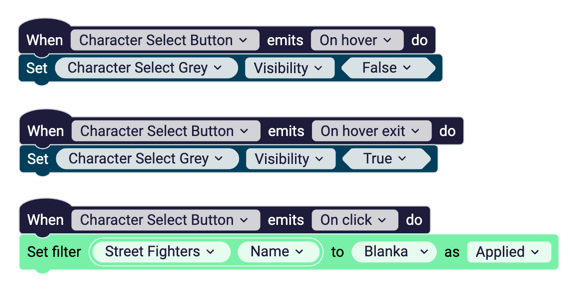
To show a picture in color while the pointer is over it, and greyscale otherwise:
- Add a color image, and on top of it a greyscale copy of the same image with its saturation set to 0%.
- Place a transparent button slightly larger than the images on top of both, centred on them.
- Add three When Object name emits Event type do stacks for the button: On hover sets the greyscale image’s Visibility to false, On hover exit sets it back to true, and On click sets a filter for the item the picture stands for.
Events
Section titled “Events”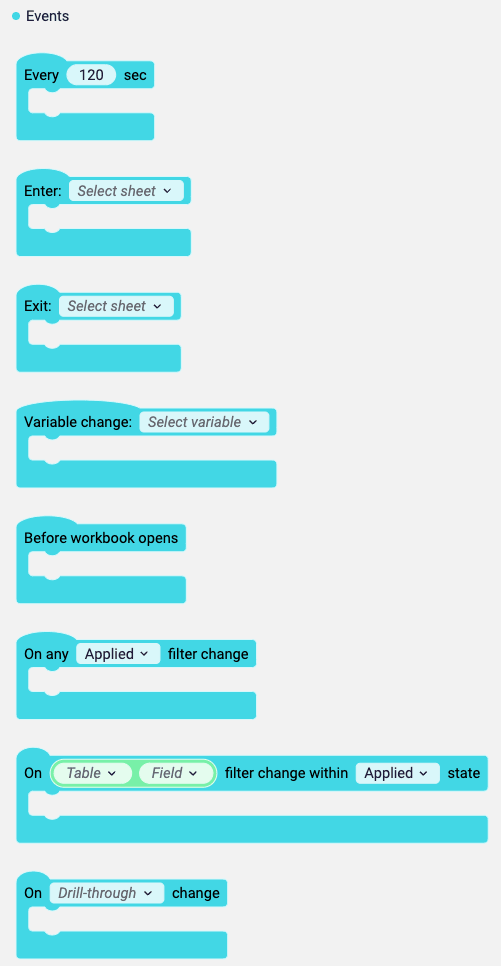
The Events category holds triggers that run without a viewer clicking anything: on a timer, when a sheet opens or closes, or when a variable, filter, bookmark or drill-through changes.
| Block | What it does | Inputs |
|---|---|---|
| Every number sec | Runs the blocks inside it repeatedly, every number seconds. It is added with 120. Decimals are dropped, so 2.9 runs every 2 seconds, and an interval of 1 or less does not run. | number: the interval in seconds |
| Enter: sheet | Runs the blocks inside it when the viewer opens the sheet. | sheet: a sheet, or Any sheet |
| Exit: sheet | Runs the blocks inside it when the viewer leaves the sheet. The blocks finish before the sheet closes. | sheet: a sheet, or Any sheet |
| Bookmark-triggered Navigation | Returns true when a bookmark is navigating, and false otherwise: under Enter:, when a bookmark opened the sheet; under Exit:, when a bookmark is leaving it. It works only under an Enter: or Exit: trigger; elsewhere it returns false. See Keep sheet-entry actions from undoing a bookmark. |
None; outputs a Boolean |
| Variable change: variable | Runs the blocks inside it when the variable’s value changes. Setting a variable to the value it already has does not trigger it. See Variables. | variable: Select variable |
| Before workbook opens | Runs the blocks inside it before the workbook renders, for example to apply filters or set variables. Objects are not loaded yet, so blocks that show, hide or change objects have no effect here. | None |
| On any state filter change | Runs the blocks inside it when any filter changes in the selected state. A change includes adding or removing a value and other changes such as inverting the filter. | state: Applied or Pending (made but not yet applied) |
| On browser event event | Runs the blocks inside it when the browser window is resized or zoomed. | event: Resize or Zoom |
| On bookmark bookmark applied | Runs the blocks inside it when the bookmark is applied. See Bookmarks. | bookmark: Select bookmark, or Any bookmark |
| On table.field filter change within state state | Runs the blocks inside it when the filter on one field changes in the selected state. | table.field: a field block, or any block that returns Table.Field as text; state: Applied or Pending |
| On drill-through change | Runs the blocks inside it when the active field of a drill-through dimension changes. See Drill-through action blocks. | drill-through: Drill-through |
The category also holds Get scope of changed variable, On scope created and Get created scope, which work with variable scopes, and the Embeds category holds the triggers for browser events from a host page; see Browser events between a classic workbook embed and its host page.
To keep a timer from slowing the workbook down, see Reduce the work actions do.
Navigation
Section titled “Navigation”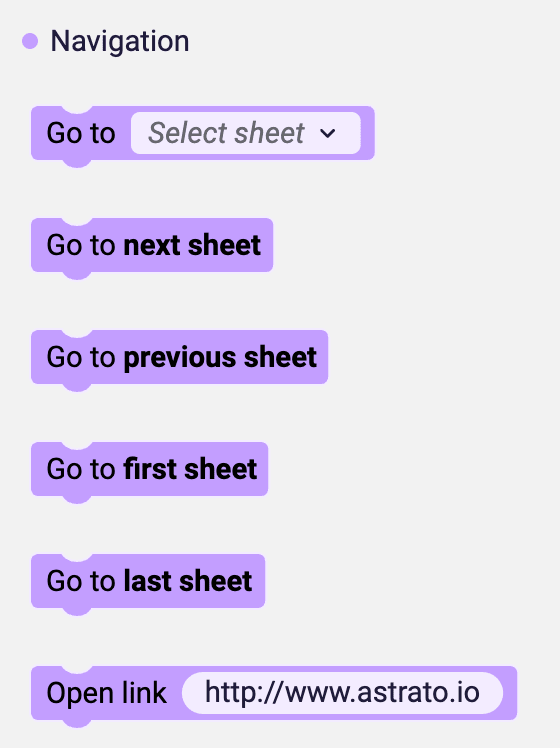
The Navigation blocks, under Workbook, move the viewer to another sheet or open a web page. They run when the action they sit in runs.
| Block | What it does | Inputs |
|---|---|---|
| Go to sheet | Opens the sheet with that name. If two sheets share the name, it opens the first, so give the sheets you navigate to unique names. If no sheet has the name, nothing happens; a deleted sheet shows Sheet ‘…’ is missing on the block. | sheet: Select sheet, or a block that returns a name |
| Go to next sheet | Opens the sheet after the current one. | None |
| Go to previous sheet | Opens the sheet before the current one. | None |
| Go to first sheet | Opens the first sheet of the workbook. | None |
| Go to last sheet | Opens the last sheet of the workbook. | None |
| Open link URL | Opens the address in a new browser tab. An address without a protocol, such as www.astrato.io, opens as https://www.astrato.io. |
URL: text; added with http://www.astrato.io |
Objects
Section titled “Objects”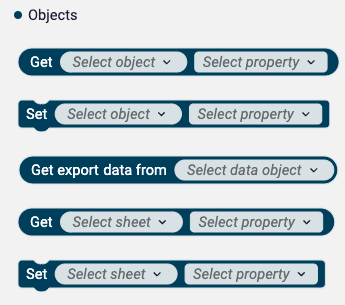
The Objects blocks, under Workbook, read and change objects, tables and sheets, wait for them to render, and read the data or query behind a chart or table.
| Block | What it does | Output |
|---|---|---|
| Get object container property | Returns one property of an object. See Object properties. | Text, number or Boolean |
| Set object container property value | Changes one property of an object. See Object properties. | None |
| Reset object state object | Restores the object’s saved settings, discarding changes the viewer has made to it, and shows Object state reset. If the object does not exist, it shows Failed to reset object state and the action stops. | None |
| Wait for object objects | Pauses the action until the selected objects have rendered. A container or group includes its child objects. See Wait for an object before changing it. | None |
| Wait for sheet sheet | Pauses the action until every object on the sheet has rendered. If an object is not ready in time, the action stops with an error that names it. The default wait is 120 seconds; a Query timeout seconds block around it changes it. | None |
| Get object parent name/id | Returns the name or id of the container or group the object is in, or null if it has none. | Text or null |
| Get export data from data object with date type dates | Returns the rows a chart or table would export, as a list of rows, each a list of values. The object’s own filters, sorting and export limit apply, and so do the workbook’s filters. The object must be on the active sheet; otherwise the block returns an error message instead of rows. In a report, add a Go to block for that sheet before this block. It is in the catalog only when Excel reporting is enabled for your account. | List |
| Get export data sql from data object | Returns the SQL statement the chart or table uses for its export, or null if there is none. Useful for logging what a report will query. | Text or null |
| Get sheet property | Returns the sheet’s Display title (text) or Visibility (Boolean). | Text or Boolean |
| Set sheet property value | Changes the sheet’s Display title or shows or hides it with Visibility. | None |
| Show/Hide/Toggle table table column column | Shows, hides or toggles a table column by its header label. In a straight table a hidden column is still queried, so sorting and calculated columns can still use it; in a pivot table, hiding a column also leaves it out of the query. | None |
| Enable/Disable/Toggle object table column column | Includes or excludes a table column from the query by its header label. A disabled column is hidden, left out of exports and unavailable to sorting and calculated columns. | None |
Date type in Get export data from sets how date and date-time values come back: Excel,
as an Excel serial number such as 45468.64238; Milliseconds (Epoch), such as 1719321878802;
or ISO, such as 2025-02-24. To build a report from these rows, see
Excel and PowerPoint reports. To export a file from an
action instead, see Export with an action block.
Object properties
Section titled “Object properties”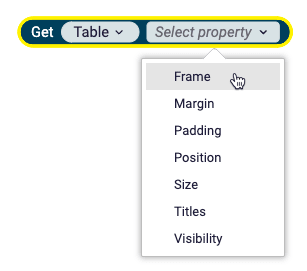
After you choose the object, choose the property in the next dropdown. Some properties then ask for a part, such as Top or Color.
| Property | Parts | Values |
|---|---|---|
| Frame | Background (Color), Opacity (%), Border (Color, Size, Line style), Radius | Colors as a hex code or color name; sizes and radius in pixels. Line style is None, Solid, Dashed, Dotted, Double or Custom, which takes a CSS border style such as groove. |
| Margin | Top, Bottom, Left, Right; Set also offers All | Pixels |
| Padding | Top, Bottom, Left, Right; Set also offers All | Pixels |
| Position | Top, Right, Bottom, Left; Set also offers Top (pixels), Right (pixels), Bottom (pixels) and Left (pixels) | 0 to 100, relative to the sheet, or pixels |
| Size | Width, Height; Set also offers Width (pixels) and Height (pixels) | 0 to 100, relative to the sheet, or pixels |
| Titles | Title, Subtitle or Footer, then Text or Visibility | Text or Boolean |
| Visibility | None | Boolean |
Date operators
Section titled “Date operators”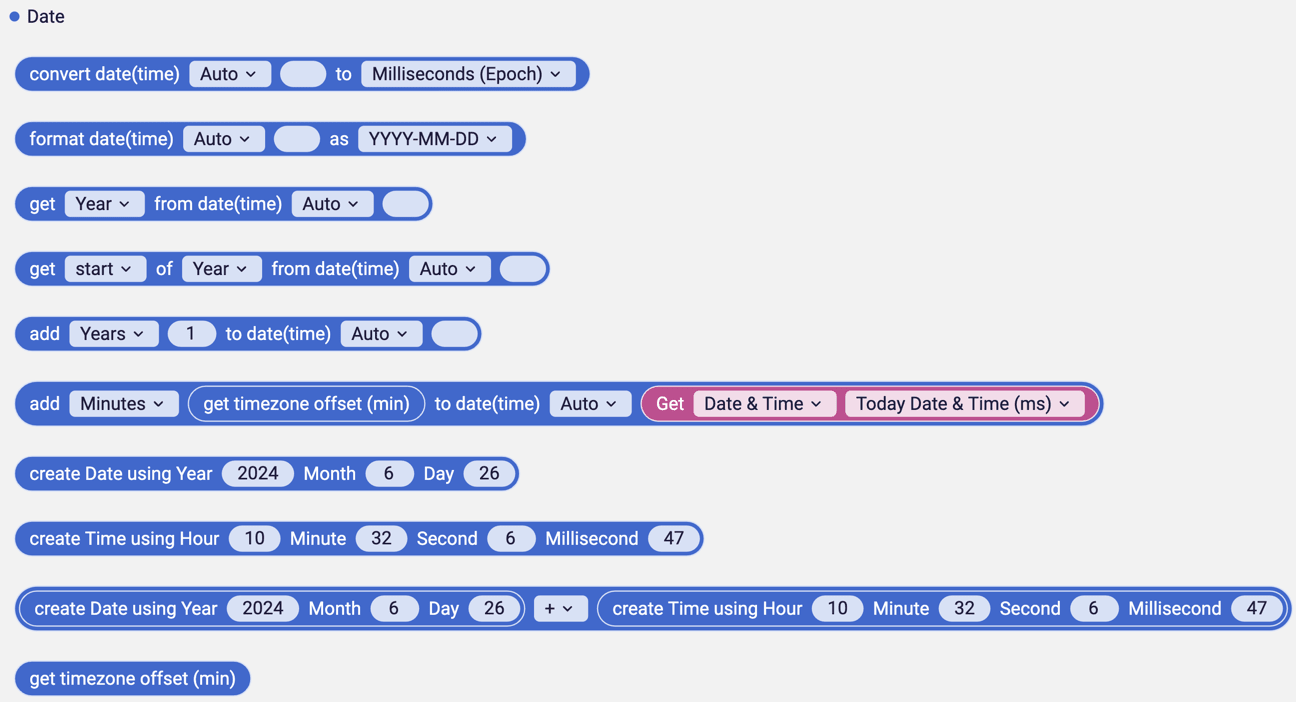
The Date blocks, under Logic → Operators, convert, format, take apart, offset and build dates. They work in UTC, and the blocks that return a date return it as milliseconds since the Unix epoch (1 January 1970, 00:00 UTC).
| Block | What it does | Output |
|---|---|---|
| convert date(time) input type date to output type | Converts a date to Milliseconds (Epoch), for calculations and comparisons, or Excel, for values that go into an Excel report. The catalog has one of each. | Number |
| format date(time) input type date as format | Formats a date as text. format is YYYY-MM-DD, dddd (weekday name), YYYY-MM-DDTHH:mm:ss.SSS, HH:mm:ss.SSS or Custom, which adds an input for your own pattern. See Format patterns. | Text |
| get component from date(time) input type date | Returns Year, Quarter, Month (1 for January), Week (ISO) (weeks start on Monday), Week (weeks start on Sunday; week 1 contains 1 January), Day (of the month), Hour, Minute, Second or Millisecond. | Number |
| get start/end of component from date(time) input type date | Returns the first or last moment of the Year, Month, Quarter, Week (ISO, starting on Monday) or Day that contains the date. | Number (epoch ms) |
| add component number to date(time) input type date | Adds Years, Quarters, Months, Weeks, Days, Hours, Minutes, Seconds or Milliseconds. A negative number subtracts. Decimal Days and Weeks are rounded to whole days. | Number (epoch ms) |
| create Date using Year year Month month Day day | Creates a date at midnight UTC. Month 1 is January. The catalog adds it with today’s date. | Number (epoch ms) |
| create Time using Hour h Minute m Second s Millisecond ms | Creates a time as milliseconds since midnight. Add it to create Date with the + block to get a date-time, as shown below; the catalog also has the two already joined. | Number |
| get timezone offset (min) | Returns the browser’s current offset from UTC in minutes, positive east of UTC: 60 in Central European Time, -300 in US Eastern Standard Time. | Number |

Input type tells a block how to read the date input:
| Option | The date is |
|---|---|
| Auto | Detected from the value: an ISO string, a date string such as Sun Jul 14 2024, epoch milliseconds (a number above 1,000,000,000 and below 9,999,999,999,999) or an Excel serial number (a positive number below 2,958,465). Any other value is refused. |
| ISO | An ISO 8601 string, such as 2024-07-14 or 2024-07-14T12:52:24.443Z. |
| Milliseconds (Epoch) | Milliseconds since the Unix epoch, as a number or text. |
| Excel | An Excel serial number, such as 45468.55878. |
Choose the input type explicitly when a value could be read either way, such as epoch milliseconds from early January 1970.
To show a time in the viewer’s time zone, add get timezone offset (min) to it as Minutes. The offset is the one in effect now, so a date on the other side of a daylight-saving change comes out an hour off.

Format patterns
Section titled “Format patterns”Build a Custom pattern from these tokens. Because the block formats in UTC, Z and ZZ always
show a zero offset.
| Token | Output |
|---|---|
YY, YYYY |
24, 2024 |
M, MM, MMM, MMMM |
1-12, 01-12, Jan-Dec, January-December |
D, DD |
Day of the month: 1-31, 01-31 |
d, dd, ddd, dddd |
Day of the week: 0-6 (Sunday is 0), Su-Sa, Sun-Sat, Sunday-Saturday |
H, HH |
Hour, 24-hour clock: 0-23, 00-23 |
h, hh |
Hour, 12-hour clock: 1-12, 01-12 |
m, mm |
Minute: 0-59, 00-59 |
s, ss |
Second: 0-59, 00-59 |
SSS |
Millisecond: 000-999 |
Z, ZZ |
Offset from UTC: +00:00, +0000 |
A, a |
AM/PM, am/pm |
Example: set a period filter and drill-through level
Section titled “Example: set a period filter and drill-through level”
When the Period variable changes, this action sets a date filter and the level of a drill-through dimension:
- For
MTD, it filters Date from get start of Month of today to get end of Day of today, and sets the Calendar drill-through to Day. - For
YTD, it filters from get start of Year of today to get end of Day of today, and sets the drill-through to Month.
Example: keep date variables in step
Section titled “Example: keep date variables in step”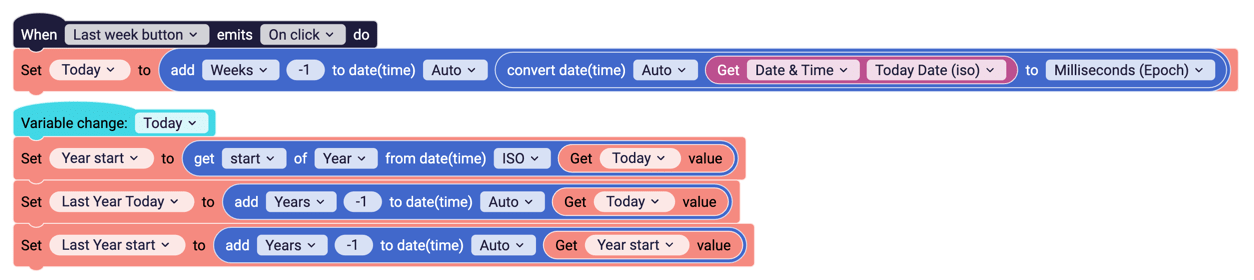
Two stacks keep a set of date variables in step:
- When the Last week button is clicked, the first stack sets the Today variable to today’s
date converted to Milliseconds (Epoch), with Weeks
-1added. - When Today changes, the second stack sets Year start to get start of Year of
Today, Last Year Today to Today with Years
-1added, and Last Year start to Year start with Years-1added.
For more date ranges, see Filter the previous month, quarter or year.
Text operators
Section titled “Text operators”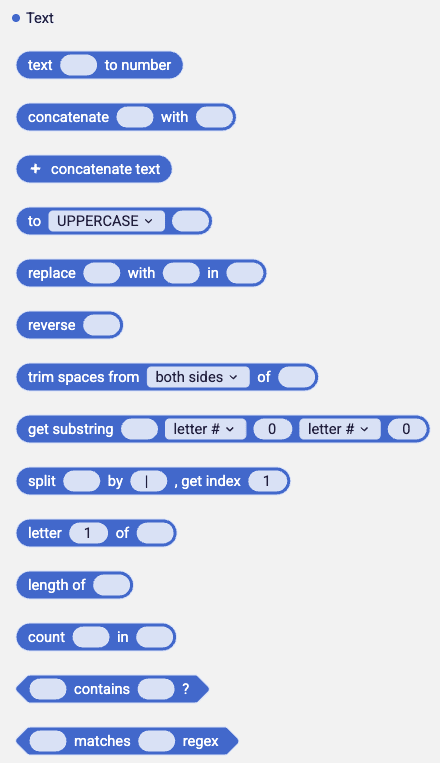
The Text blocks, under Logic → Operators, convert, join, trim, split, search and test text. Comparisons and counts are case sensitive.
| Block | What it does | Output |
|---|---|---|
| text text to number | Converts text to a number with the decimal and thousand separators set in the format settings of the data the workbook uses; without them, a comma separates thousands and a full stop marks decimals. Text with % is divided by 100, so 99% gives 0.99. Text with no digits gives null. |
Number |
| concatenate text with text | Joins two texts with nothing between them. Include any separator in one of the inputs. | Text |
| concatenate text texts | Joins any number of texts in order. Use the plus and minus signs on the block to add or remove inputs. | Text |
| to case text | UPPERCASE, lowercase, or Capitalise (first letter of each word upper case, the rest lower case). Other characters are unchanged. | Text |
| replace substring with new substring in text | Replaces every occurrence, left to right, matched literally rather than as a regular expression. Replacements are not searched again. | Text |
| reverse text | Reverses the characters: DALLAS gives SALLAD. |
Text |
| trim spaces from side of text | Removes whitespace from both sides, the left side or the right side. | Text |
| get substring text start end | Returns part of a text. See Substring positions. | Text |
| split text by delimiter, get index index | Splits the text at each delimiter and returns the part at index, counting from 1, or empty text if there is none. Added with | and 1: Hello|World gives Hello, and my.name@yourdomain.com split by @ at index 2 gives yourdomain.com. |
Text |
| letter index of text | Returns the character at index, counting from 1, or null outside the text. | Text |
| length of text | Returns the number of characters, including spaces and punctuation. | Number |
| count substring in text | Counts the occurrences: A in Astrato Analytics gives 2. |
Number |
| text contains substring ? | Returns true if the text contains the substring. |
Boolean |
| text matches regex regex | Returns true if the text matches the regular expression anywhere, unless you anchor it with ^ and $. An invalid pattern returns false. |
Boolean |
To check the shape of an email address before you write it back, test it with
^[A-Za-z0-9._%+-]+@[A-Za-z0-9.-]+\.[A-Za-z]{2,}$ in the matches regex block. This is a basic
check, not full email validation.
Substring positions
Section titled “Substring positions”| Option | As the start | As the end |
|---|---|---|
| letter # | Starts after the first n letters, so 1 starts at the second letter. |
Ends with letter n, counting from 1. |
| letter from end # | Starts n letters from the end, so 1 starts at the last letter. |
Stops n letters before the end, so 1 leaves out the last letter. |
| first letter | Starts at the beginning; the number is ignored. | Not offered. |
| last letter | Not offered. | Runs to the end; the number is ignored. |
For example, Astrato Analytics from letter # 5 to last letter gives to Analytics, and
from first letter to letter # 7 gives Astrato.
Related pages
Section titled “Related pages”- Actions in the classic Workbook Editor for building and debugging actions.
- Writeback, PDF reports, Excel and PowerPoint reports and Alerts for the blocks in those categories.
- Debug an action for reading the action log.