Data alerts in the classic Workbook Editor
This page covers data alerts in the classic Workbook Editor. For a text summary in Slack that Nash works out from your data, see Recurring Nash tasks.
A data alert is a workflow that checks a value in your data and posts a message to a Slack or Microsoft Teams channel, so people see the result without opening the workbook. You build the workflow from action blocks in the workbook, then run it on a schedule from Workflows in the lobby or from a button in the workbook.
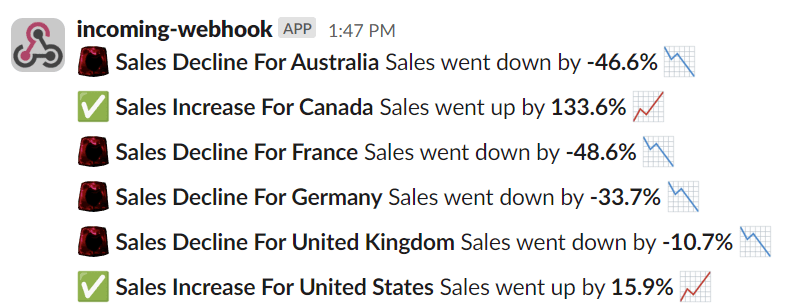
The messages go to Slack or Microsoft Teams. They do not appear in the lobby’s notification inbox.
Before you start
Section titled “Before you start”- An administrator must add a Slack or Microsoft Teams integration for the channel you want to post to, under Administration → 3rd Party Integrations. See Manage delivery integrations.
- The Notifications, Workflows and Alerts block categories appear in the actions editor only when notification integrations are enabled for your workspace.
- To schedule an alert, reporting must be enabled for your workspace and you need the creator, administrator or owner role. See Workflows.
Build an alert
Section titled “Build an alert”The Alerts category holds a ready-made alert: a Workflow block that compares an aggregated field with a threshold and, when the value is above it, sends a Markdown message.
- Open the workbook in edit mode and select Actions in the left menu to open the actions editor. See Actions.
- In the Workflows group of the block catalog, open Alerts and drag the Workflow block onto the canvas.
- Rename the workflow from My Workflow to a name people will recognise. Schedules and buttons pick the workflow by this name.
- In the If block, set the Aggregate field by aggregation block to the field and
aggregation to check, and replace the threshold of
0with your own. - Edit the message in the concatenate text block. Write it in Markdown, such as
**bold**, and use the Aggregate block inside it to include the current value. For Slack, Astrato converts the Markdown to Slack’s own formatting. - In the Send notification block, set:
- to: Slack or Microsoft Teams.
- integration: the integration that receives the message. A webhook integration posts to the one channel it was created for.
- channel: shown only for a Slack application integration. Pick a channel, or Send DM to message people directly. recipients then defaults to the email address of the user the workflow runs as.
- Publish the workbook. Schedules run the published version, so publish again after every change to the workflow. See Publish and versions.
To send a message without the alert template, drag Send notification from the Notifications category into your own Workflow block from the Workflows category.
Send one message per row
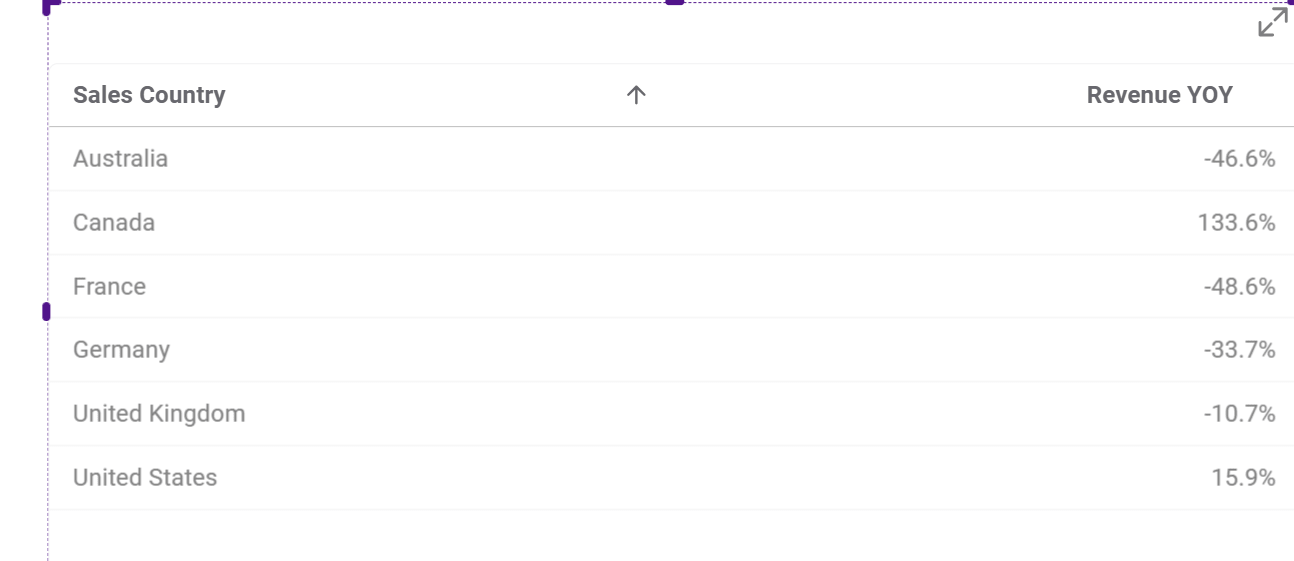
Section titled “Send one message per row”To post a message for each row of a table, such as one per country, put a For each loop inside the Workflow block.
- Give the table a name you can find easily, such as
Alert_Table, and keep it stable. The block that reads the table picks it by name and reports it as missing if it is renamed or removed. - Read the table with Get export data from object with format dates. Choose ISO to show readable dates in a message; the default, Excel, gives dates as serial numbers.
- The table must be on the sheet that is open when the workflow runs. If it might not be, start the workflow with a Go to block for that sheet.
- Loop over the result with For each item in list. Each item is one row, given as a list of its column values. Use a list block to pick a value by its position, or store it with Set variables.
- Inside the loop, build each message from those values and send it with Send notification. Use an If block in the loop to send a different message depending on the value.
Pass values into the workflow
Section titled “Pass values into the workflow”Select the plus on the Workflow block to declare inputs of type String, Number or Boolean. Read them inside the workflow with the input block from the Workflows category, which shows Select input and also offers Execution time and Last execution time: the time of the current run and of the previous one. A schedule asks for each input’s value under Workflow parameters; a button passes them from Evaluate workflow.
Run an alert on a schedule
Section titled “Run an alert on a schedule”Schedule the alert from Workflows in the lobby with New Workflow, which opens New Scheduled Workflow.
- In Schedule name, name the schedule.
- In Workbook, pick the workbook. Only published workbooks are listed.
- In Workflow, pick the workflow by name. If the list says No workflows found in the published version of this workbook, publish the workbook first.
- Fill in Workflow parameters if the workflow declares inputs.
- Optionally select Custom timeout and enter Schedule timeout (in seconds); leave it empty to use the default. Select Next.
- On Frequencies, choose when the alert runs, then select Save.
To pause, run or retry a schedule, or read its run history, see Reporting and workflows and Run a schedule manually.
Run an alert from a button
Section titled “Run an alert from a button”- In the actions editor, add a When block for the button and its On click event.
- Inside it, add Evaluate workflow from the Workflows category and select the workflow.
- Set the block’s inputs as needed:
- Use applied filters: true by default, which passes the viewer’s current filters to the workflow.
- Max resolution (px) and DPI factor: the size and scale of any screenshot the workflow takes. They default to 1700 and 1.
- Notification parameters: a value for each input the workflow declares.
- Close the actions editor, preview the workbook and select the button to test it.
Limitations
Section titled “Limitations”- An alert sends text only, with no attachments. To send pages as PDF, Excel or PowerPoint, use a report schedule; see Reports in the classic Workbook Editor and Reporting.
- Choosing a channel in the block works for Slack application integrations only. Slack and Teams webhooks always post to their own channel, so add one integration per channel.